Without CutVault
- Open projects one by one
- Rebuild settings from memory
- Mix up settings from different machines
- Lose the finished photo and production notes
CutVault for LightBurn
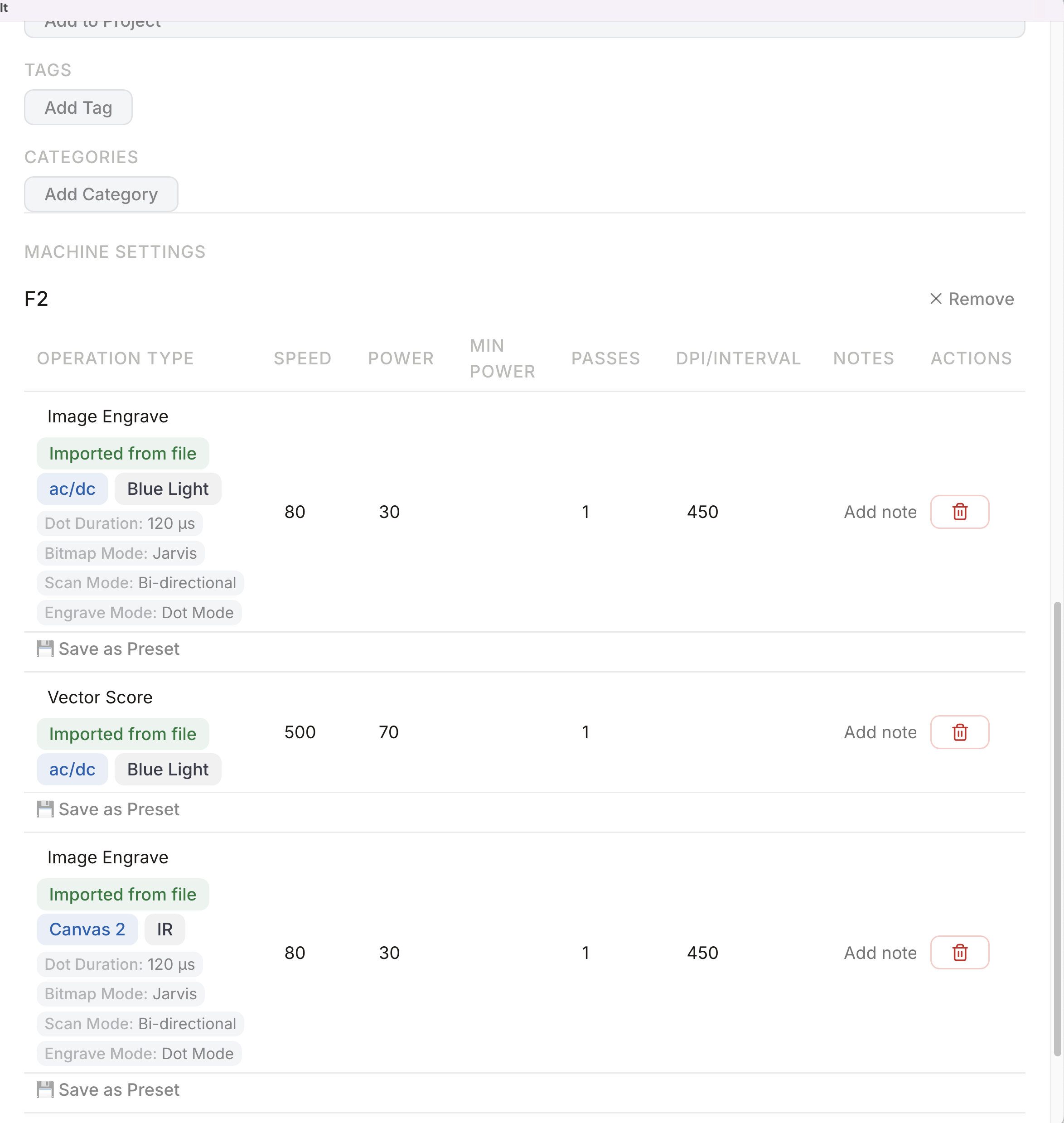
See the design, speed, power, passes, DPI, layers, machine, notes, and finished result together—then open the original in LightBurn when you are ready to make it again.
The problem CutVault removes
A LightBurn project becomes far more useful when you can recognize it, see its job details, and connect it to the machine and finished result.
Built for everyday workshop use
CutVault keeps the details you need for the next run close to the project that proved them.
Recognize supported LightBurn designs without relying on filenames alone.
Review cuts, fills, image engraves, layer names, minimum power, interval, and DPI clearly.
Keep one design connected to the settings that belong with each machine you use.
Save settings that worked and reuse them for the next project instead of typing them again.
Open a new LightBurn project with your chosen numbers already loaded and ready for design work.
Choose proven presets and create a LightBurn material library ready to load into LightBurn.
A clearer way back to your work
Use the folders and drives where your projects already live.
Search visually, review saved layer details, and confirm the machine and job details.
Return to the original in LightBurn or save the proven settings as a preset.
Frequently asked questions
Yes. Current .lbrn2 and legacy .lbrn projects can live together in your CutVault library.
Supported projects can show speed, maximum and minimum power, passes, interval, DPI, operation type, layer name, and machine information.
Yes. Start a new LightBurn project with your selected preset already loaded.
Yes. Choose the presets you want and create a LightBurn material-library file. CutVault does not import existing LightBurn libraries.
Back to making.
Find the design, see the settings, and start the next run with proven answers.
Start Your Free 7-Day TrialStart here
Full access to CutVault Pro for seven days. No credit card required, and your original files stay exactly where they are.