Your xTool projects today
- Vague filenames hide the design
- Projects are spread across folders and drives
- Settings and material details are easy to forget
- Finished photos live somewhere else
CutVault for xTool makers
See your XCS and XS designs, settings, machine, material, notes, and finished photos together—then find the right project and get back to making without reorganizing your folders.
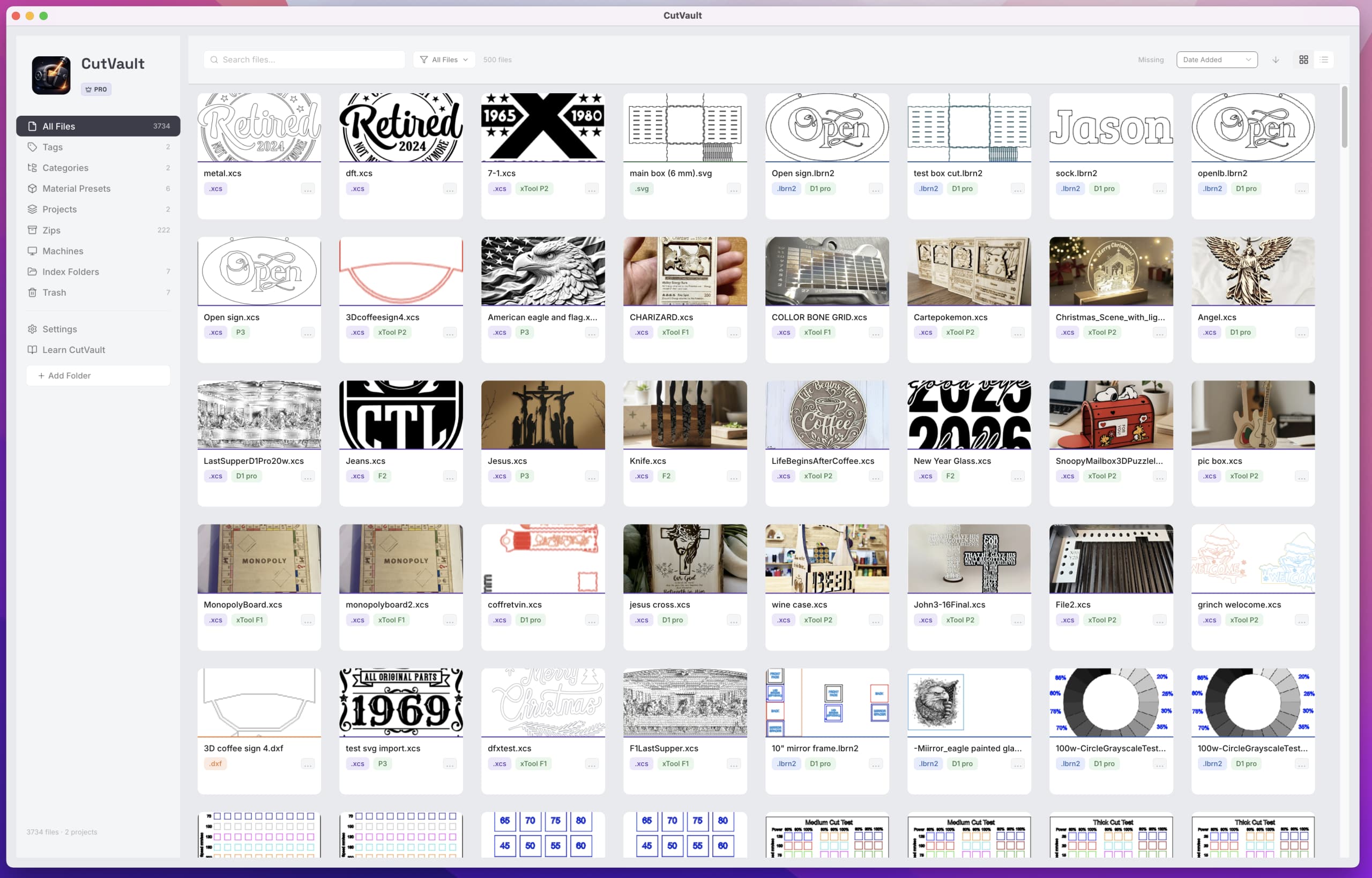
Stop hunting through project files
A finished xTool project can leave its design in one folder, its photo in another, and the settings that worked somewhere in your memory.
CutVault turns the xTool projects already on your computer, external drives, NAS, and synchronized folders into one visual library you can search.
Recognize the design, see the settings and machine it belongs with, review your notes and finished result, then open the original project when you are ready to make it again.
From scattered to searchable
CutVault gives the files you already own a clear visual history without forcing you to rebuild your folder system.
Built for everyday xTool work
CutVault keeps the useful details around your work close, so a finished project can become your next starting point.
Automatic previews make XCS and XS projects recognizable before you open them.
See speed, power, passes, DPI, operation details, and layer details without typing them in again.
See which xTool machine, laser head, and material belong with the project.
Search project names, notes, machines, and layer names together across one library.
Add notes, reminders, reference artwork, and finished photos to the project you will use again.
Organize projects across the xTool machines you use, including multi-laser machines and the O1 Omni UV printer.
A simpler way back to your work
Start with the folders you already use and turn years of xTool work into a library you can rely on.
Add the folders and drives you already use. There is no need to move or rename your original files.
XCS and XS projects become visual and searchable, with their useful job details close at hand.
Find the design, review what worked, and open the original in xTool Creative Space or Studio.
The reason you will use it every day
Open an XCS or XS project in CutVault and see the speed, power, passes, DPI, layers, machine, laser head, and material information waiting with the design.
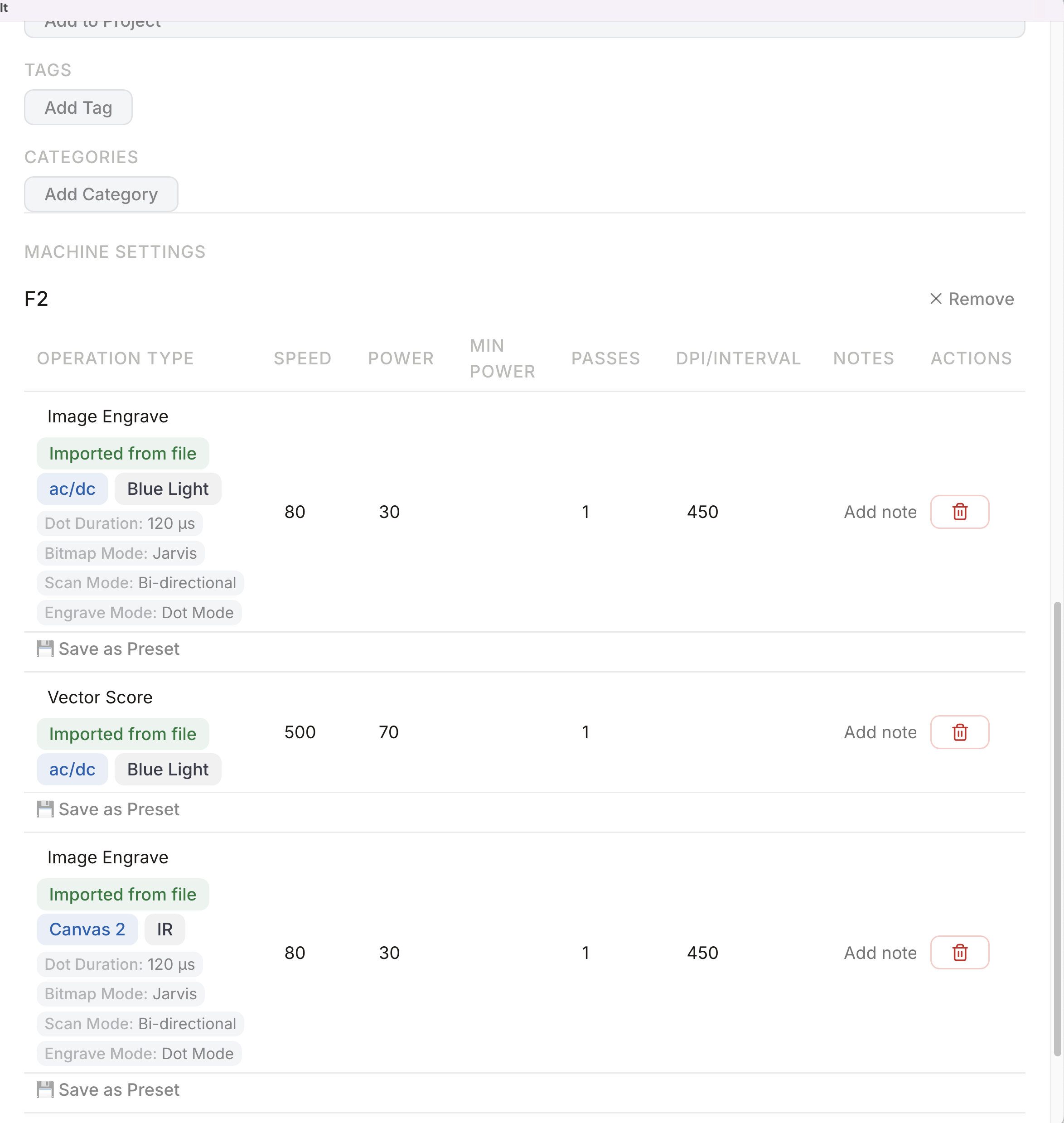
See Vector Cut, Vector Score, Vector Engrave, Fill Engrave, and Image Engrave as separate settings.
Know which xTool machine and which head each layer was made for.
Turn a saved material reference into the material name and product code you recognize.
A cleaner xTool Studio upgrade
If a newer XS project appears beside its older XCS version, CutVault keeps the duplicate clutter out of your everyday library without silently deleting the older file.
Your settings, notes, tags, photos, and project history stay connected to the current design.
The older copy remains available in Legacy Files, where you can review it, restore it, archive it to a backup, or remove it when you choose.
Bring more designs into your xTool workflow
Found the right design, but it isn’t an xTool project yet?
Choose the xTool machine you want to use, create the project, and continue the work in xTool Studio—without rebuilding the design from scratch.
Different parts of the workflow
xTool Creative Space and Studio are where you design and run the job. CutVault is where the work stays organized, recognizable, and ready to reuse.
Frequently asked questions
No. Keep using xTool Creative Space or xTool Studio to design and run projects. CutVault helps you find, understand, and reuse that work later.
Yes. Previews are automatic for supported XCS and XS projects. If a project was saved without a preview, CutVault tells you how to make it appear.
Supported XCS and XS projects can show speed, power, minimum power, passes, DPI or interval, operation type, layers, machine, laser head, and material information.
CutVault shows the current design in your working library, keeps its notes, photos, tags, settings, and project history connected, and places the older partner in Legacy Files for you to review.
No. Older paired files remain available in Legacy Files until you choose to restore, archive, or permanently remove them.
Yes. CutVault supports projects from every xTool machine, including P2, P2S, P3, S1, D1, D1 Pro, F1, F1 Lite, F1 Ultra, F2 Ultra, M1, M2, and the O1 Omni UV printer.
CutVault can prepare supported SVG and DXF artwork as an xTool project, let you choose the target machine, and open the result in xTool Studio.
No. CutVault works with supported files available in local, external, or locally synchronized folders on your computer. It does not connect directly to an xTool cloud account.
No. CutVault does not control xTool hardware or automatically synchronize with a machine. Continue using xTool Creative Space to design and run projects.
No. Your original project files remain in the locations you control.
Yes. CutVault can work with selected folders on local drives, attached external drives, and locally synchronized storage that is available to the computer.
CutVault Pro is $169 as a one-time purchase with no subscription. The full-feature trial lasts 7 days and does not require a credit card. Mac and Windows are included.
Back to making.
See your designs, find the settings that worked, and keep the whole project history close—so the next job starts with answers instead of another search.
Start Your Free 7-Day TrialStart here
Full access to CutVault Pro for seven days. No credit card required, and your original files stay exactly where they are.