In your head, or nowhere
- Speed, power and passes rebuilt from memory
- No record of which machine and material ran it
- A proven setup lost when the project window closed
- Test cuts on scrap to find a number you already had
For laser makers · Mac + Windows
The design, the machine, the material, the photo of what came out, the settings your LightBurn and xTool projects ran. Files you already own. Offline.
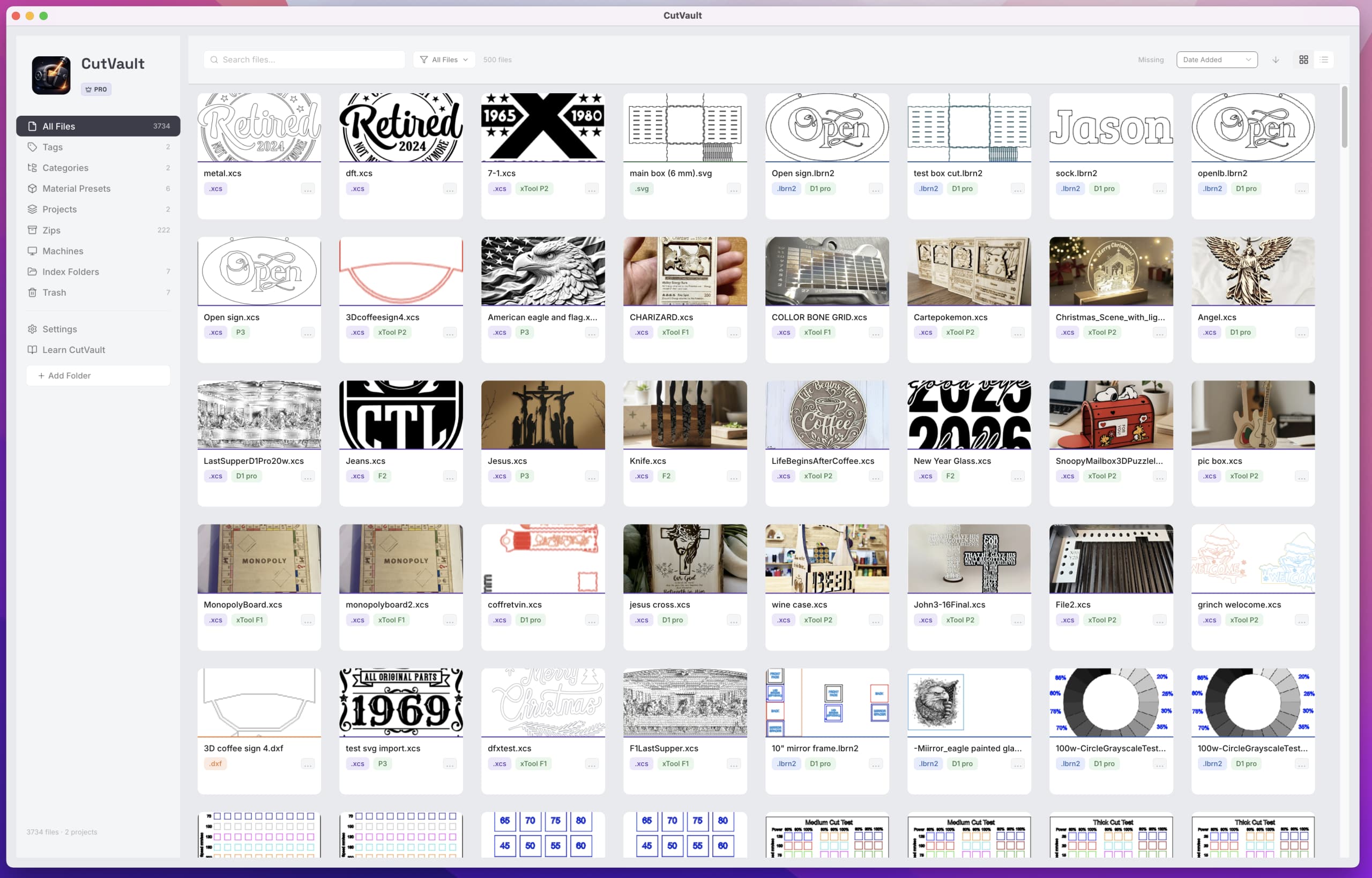
You found the material, the speed, the power, the machine. Then the job shipped, and that answer stayed in your head.
You pick the folders. That is the setup.
You choose which folders CutVault looks at, and setup is done. The designs come from the previews inside your supported files. The speed, power and passes come from your LightBurn and xTool projects.
Nothing moves. Nothing is renamed. Nothing is unpacked — a ZIP is searchable without extracting it. Your originals stay where they are, and you keep opening them as you do now.
Your library, your machines, your materials, and the work that leaves the shop — each holding what it needs already.
Your library
Typing “cutting board” finds design_042.lbrn2, because a layer inside it is named cutting board engrave.
Identical copies grouped together whatever they are named or wherever they sit. Keep one, clear the rest.
Tags are suggested across the library, and the folders you already keep become categories you pick from.
Point CutVault at a folder of finished photos and it proposes matches. You approve or skip each one.
Your machines
Add a machine profile, and the files belonging to it are found with the settings they carry.
One design holds what it ran on each machine, on its own tab, every field editable.
The machines already showing up in your files, listed with a file count, ready to add in one click.
Lens cleans, belt changes and tube replacements logged against real run hours, with a red badge when one is overdue.
Your materials
What works on this material on this machine — separate from what any one design happened to use.
Export the presets that worked as a .clb material library, and load it straight into LightBurn.
Your dither mode, DPI, speed and power are already filled in when the file opens.
On the xTool O1 Omni: print mode, ink mode, DPI, thickness, gloss and curing power, carried with the job.
Your work leaving the shop
SVG, DXF or an image becomes a project that opens ready to run in LightBurn or xTool.
Designs, finished photos and assets for one job together, under a cover photo you choose.
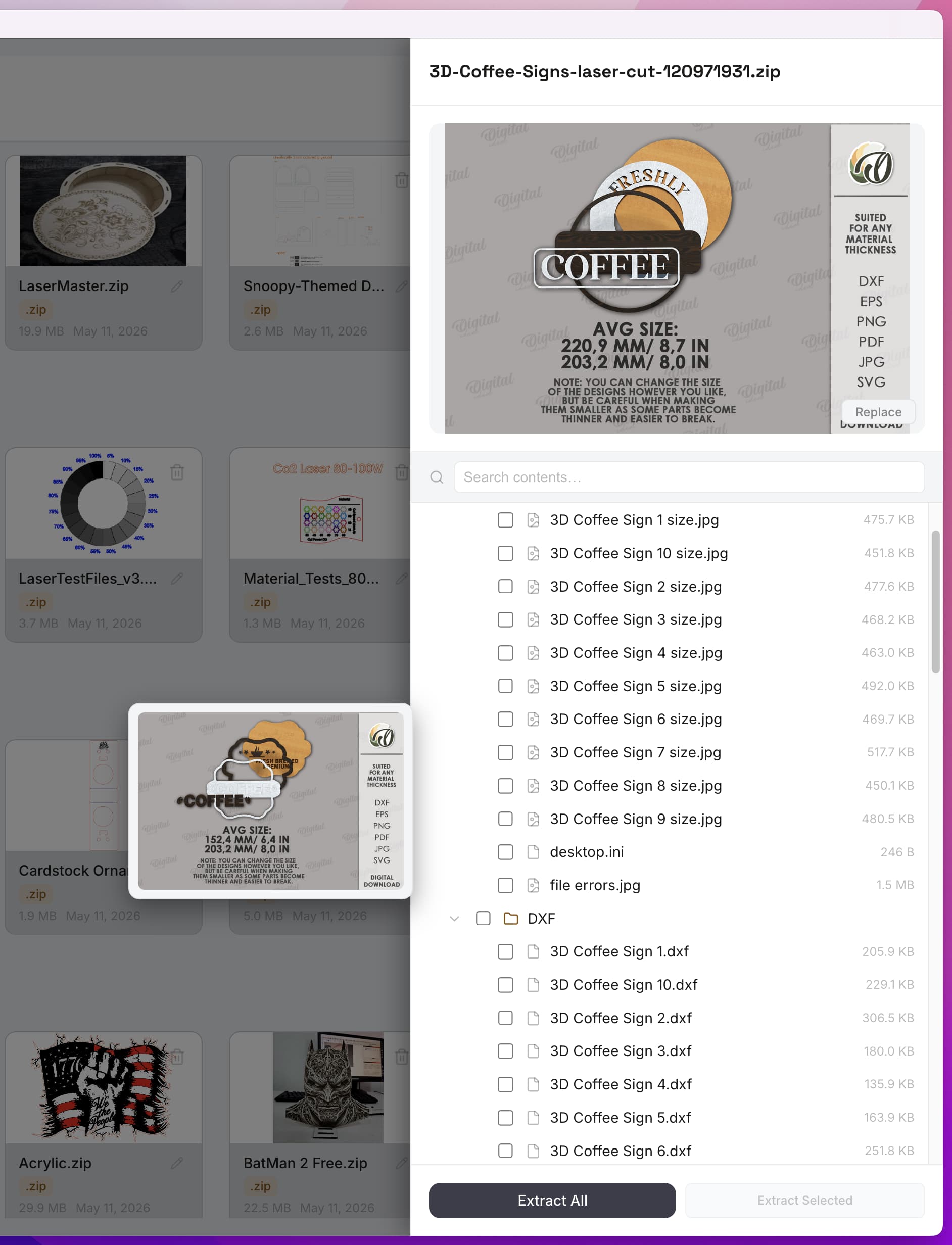
List and search what a ZIP holds, then pull out everything or only the files you want.
Pick the files and listing photos, and CutVault builds one ZIP in a folder you choose.
Read from the project, not remembered
They are the numbers your LightBurn and xTool projects already hold. Offline, no cloud, no account. CutVault has run on 81,000 files.
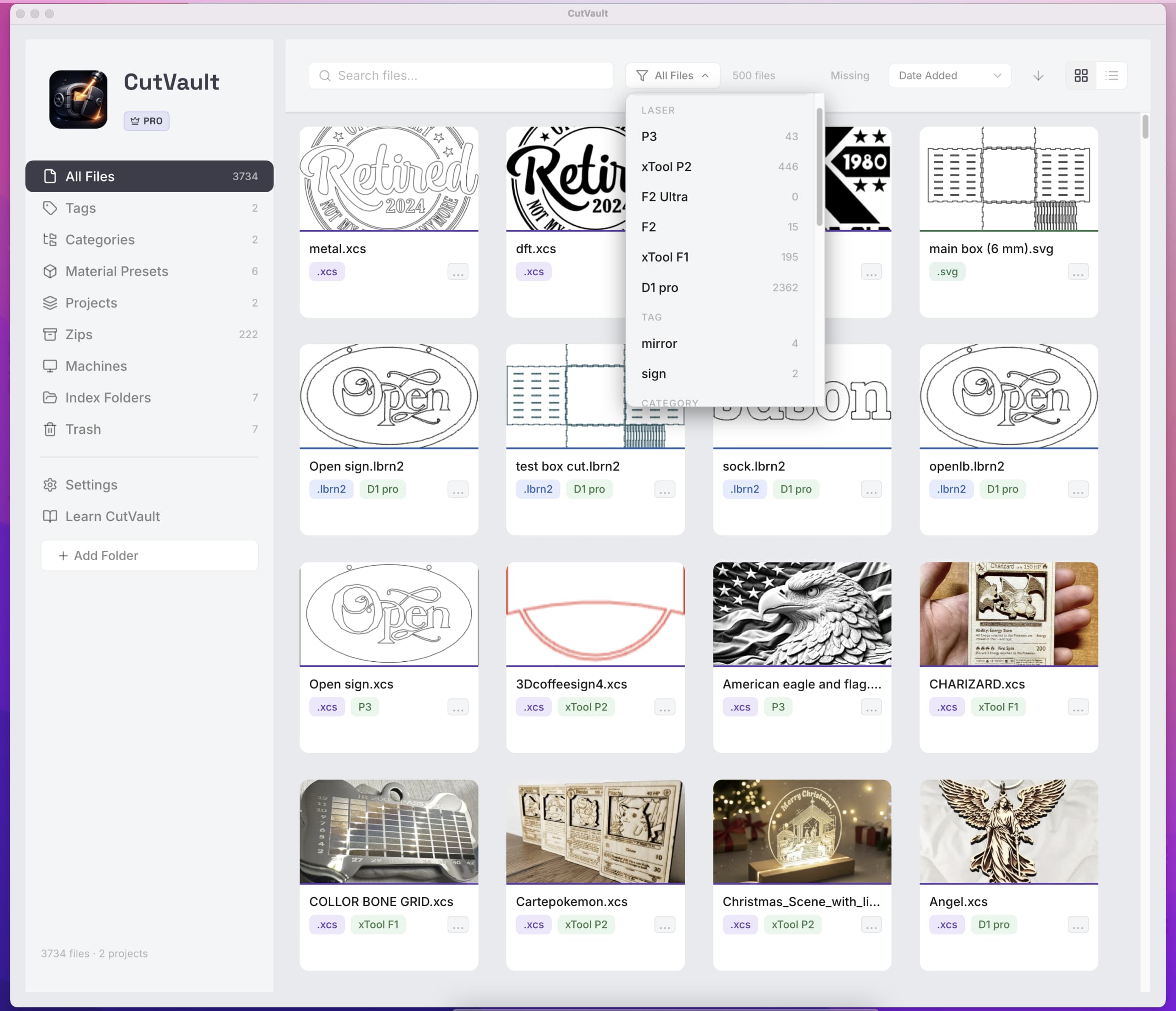
The preview inside the supported file, so you know which project this is without opening it.
The cut settings your LightBurn and xTool projects carry, shown rather than recalled.
The machine it was designed for, the material and preset, and the photo of the finished piece.
CutVault works around the folders, files and machines you already use.
Local drives, external drives, and the Google Drive, Dropbox or OneDrive folders synced on your computer.
Designs instead of filenames, so you recognise a project by the shape of it rather than by a name.
Start the next job from the settings, presets and photos the last one left behind.
You choose which folders CutVault looks at, and that is the setup. Previews come from your supported files and cut settings come from your LightBurn and xTool projects. Tags, categories and notes are yours to add when they are useful.
No. Original files are never moved, modified or deleted. They stay where they are, and you keep opening them the way you do now.
No. CutVault works entirely offline. There is no cloud, no account and no subscription.
Local drives, external drives, and the sync folders Google Drive, Dropbox and OneDrive create on your computer.
LightBurn .lbrn and .lbrn2, xTool Creative Space .xcs, xTool Studio .xs, SVG, DXF, ZIP archives and image assets. Previews and settings vary by format: SVG, DXF and images carry no cut settings.
CutVault has run on libraries of 81,000 files.
The free trial lasts seven days and does not require a credit card. CutVault runs on macOS 10.15 or later and Windows 10 or 11.
Pages on the tools, formats and workflows CutVault is used with.
Find and reuse .lbrn2 and .lbrn projects with the settings they carry.
Explore ↗See .xcs and .xs projects in one library, with project settings beside each design.
Explore ↗See a laser-focused library workflow.
Explore ↗Recognize supported files before opening them.
Explore ↗Bring scattered laser projects together.
Explore ↗Compare storage with production-library management.
Explore ↗Back to making.
The library is already on your drives. Give CutVault the folders and spend seven days finding things the way you remember them.
Start Your Free 7-Day TrialStart here
Full access to CutVault Pro for seven days. No credit card required, and your original files stay exactly where they are.