
Find identical copies across every folder and keep one.
Check the whole library or one folder for exact copies across your library, even when the files have different names or sit in different folders. Each group shows the copies and where they live. One copy is kept; you decide what happens to the rest.
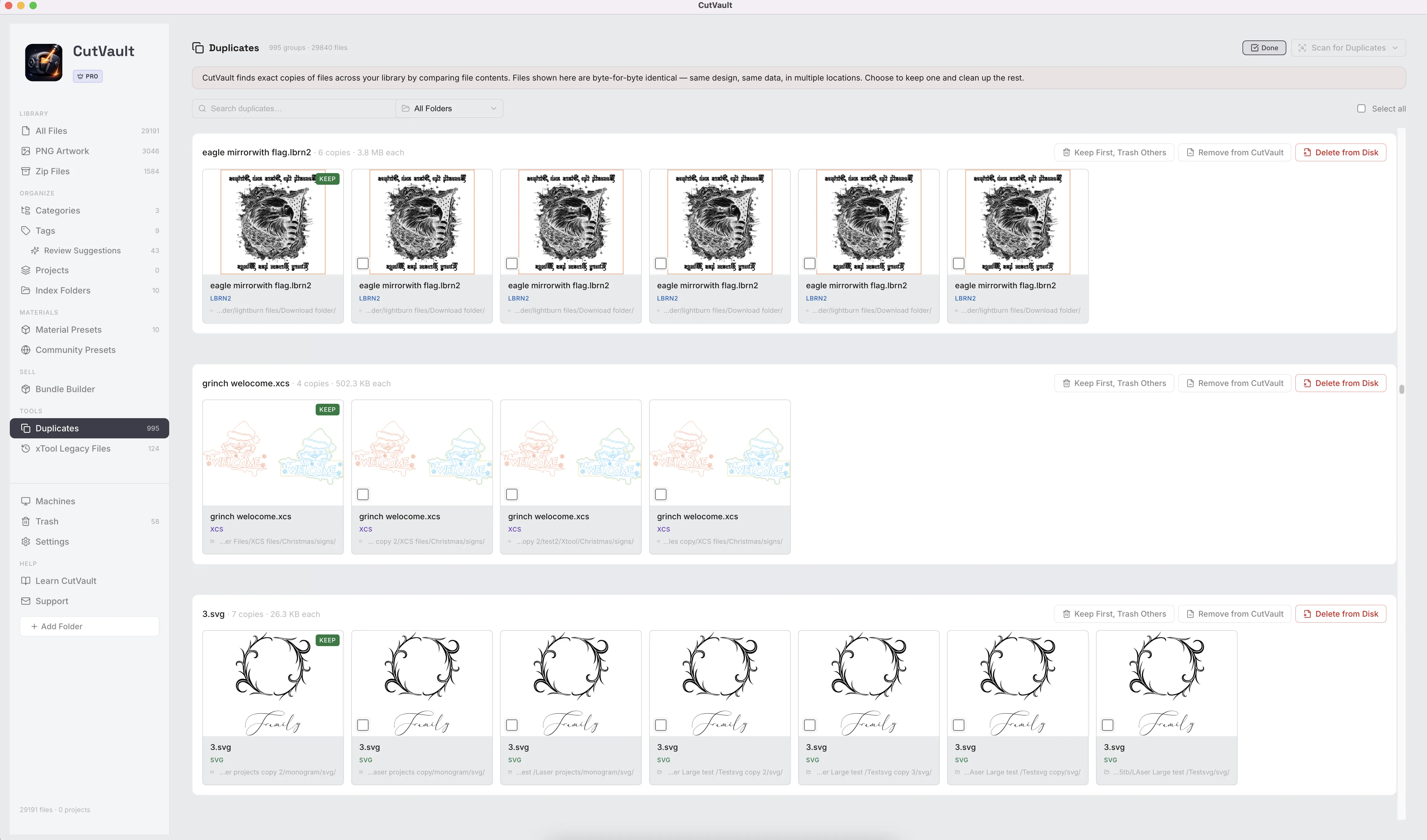
From “is this the spare?” to one copy, kept.
The same design saved in four places looks like four files until you compare them.
Without CutVault
With CutVault Pro
Check the whole library or one folder.
Check every file in your library, or just one folder. CutVault finds identical copies even when they have different names or sit in different folders, and shows each group side by side with where every copy lives.
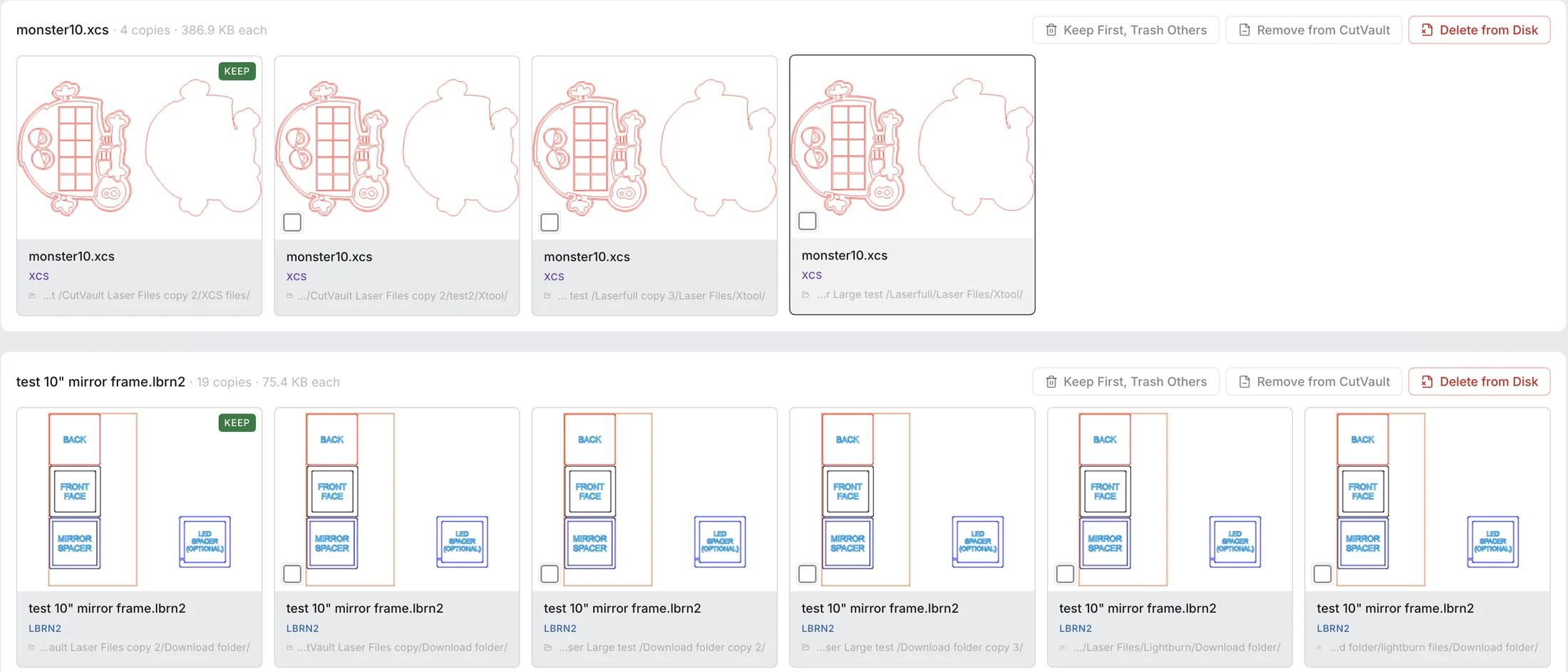
See every copy side by side.
Each group shows the thumbnail, file type and folder of every copy, with the number of copies and the size of each. One copy carries the Keep badge, and any copy opens with a click.
Three choices on every group
KeepOne copy in every group always stays.
The extras go to CutVault’s Trash. Restore any of them later.
ReversibleOut of the library. The files stay on your drive.
Files stay on diskGone from your computer, after you confirm.
PermanentChoose what happens to the extras.
Three choices on every group. Send the extras to CutVault’s Trash, where they can be restored. Remove them from CutVault and leave the files on your drive. Or delete them from your computer for good, after you confirm.
Clear hundreds in one pass.
Search the duplicates, narrow the list to one folder, and select as many copies as you need. Choose what stays, and the extras go to Trash in one pass, ready to restore if you change your mind.
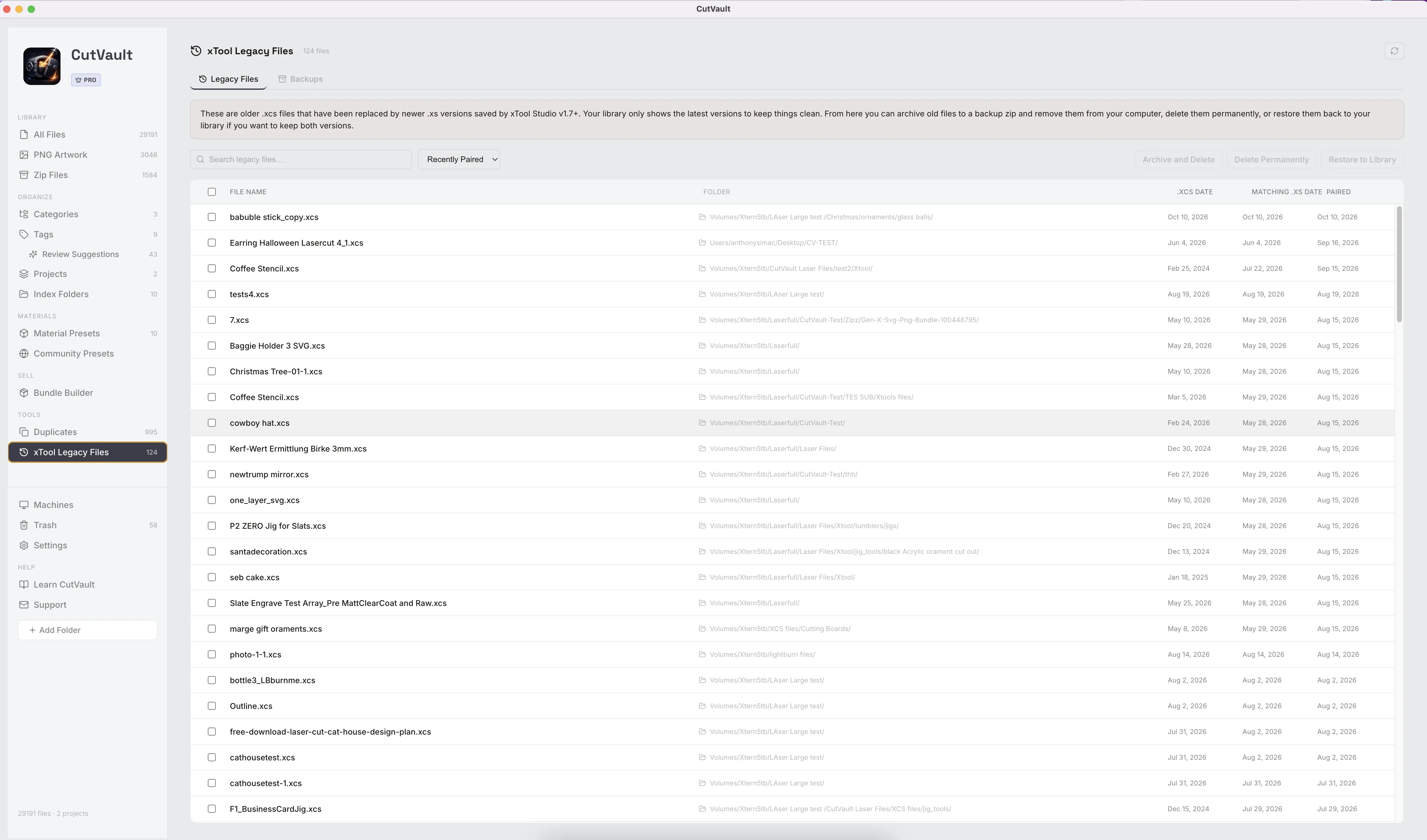
Clean up old xTool versions without touching the new file.
When a newer .xs file replaces an old .xcs file, the library shows only the latest version, with its tags, categories, notes, finished photo, machine and settings. xTool Legacy Files keeps the old files in one place: archive them into a backup ZIP, delete them, or restore one to keep both versions. The .xs file is never touched.
More ways Duplicates helps.
Smaller tools around duplicates and legacy files.
Run it again any time
Check again after a big import. Cancel a check and pick it up later.
ZIPs and PNG artwork included
Identical ZIP bundles and PNG images group up too.
Nothing changes until you choose
Selecting copies changes nothing. Files only move when you pick what happens to them.
Search and sort legacy files
Search and sort the legacy list to find the old file you want.
Archive progress
Progress shows while a backup is made, and you can cancel it.
Backup location
Choose where backups go. Show any backup in Finder or Explorer, or delete it.
Delete from Disk in Trash
Trash uses the same confirmation before anything leaves your drive.
Legacy files stay out of the way
Old xTool versions stay out of your duplicate groups, so the list shows real copies only.
Missing files left out
Files that are not available right now stay out of the groups.
Works with these features.
Go deeper into the CutVault tools that work with a clean library.
Library & Search
Every supported design as a thumbnail, with Index Folders and a Missing filter.
Open Library & Search →Zip Files
See inside every design bundle without unzipping it.
Open Zip Files →xTool Legacy Files
Keep the current xTool design in front and older versions out of the way.
Open xTool Legacy Files →Build from Folders
Turn the folders you already sorted into categories, without moving a file.
Open Build from Folders →Machines
Each machine with its own files, settings and service history.
Open Machines →Back to overview
See how Duplicates fits into the rest of CutVault Pro.
Homepage →Questions about Duplicates.
One time · No subscription
- 7-day free trialNo credit card
- Mac + WindowsUp to 3 computers
- UpdatesFree updates included
01What counts as a duplicate?
An exact copy of the same file, whatever it is called or whichever folder it is in.
02Do renamed copies count?
Yes. If the file is identical, it is grouped, no matter what it is called or where it sits.
03Do edited or re-saved files count?
Usually not. A re-saved or edited version is a different file, so it is not grouped with the original.
04Can I undo?
Trash, yes. Anything moved to CutVault’s Trash can be restored. Delete from Disk cannot be undone, which is why it asks first.
05Do tags move to the kept copy?
No. Tags and categories stay with the copy they were on, so use Trash if you may want them back.
06Is my new .xs file safe during legacy cleanup?
Yes. Only the old .xcs files are archived, deleted or restored. The .xs is never touched.
07Where does the legacy backup go?
To a backup folder you choose. CutVault starts you with one in your Documents folder.
08Does Duplicates come with CutVault Pro?
Yes. Duplicates is part of CutVault Pro and does not require a separate purchase.
Find the copies. Keep one.
Try CutVault Pro free for 7 days on your own library, see every identical copy grouped with its location, and clear the extras with one copy always kept.
One-time purchase
CutVault Pro is $169 once. No subscription. Use it on up to 3 computers.
- 7-day free trial · No credit card