Folders hold the files.CutVault showswhat is in them.
Finder and File Explorer are fine for storing laser files. They are not built for finding the right one. CutVault Pro sits on top of the folders you already have and shows every design as a thumbnail, with the settings it ran, its machine and the finished piece. Nothing is moved, renamed or uploaded.
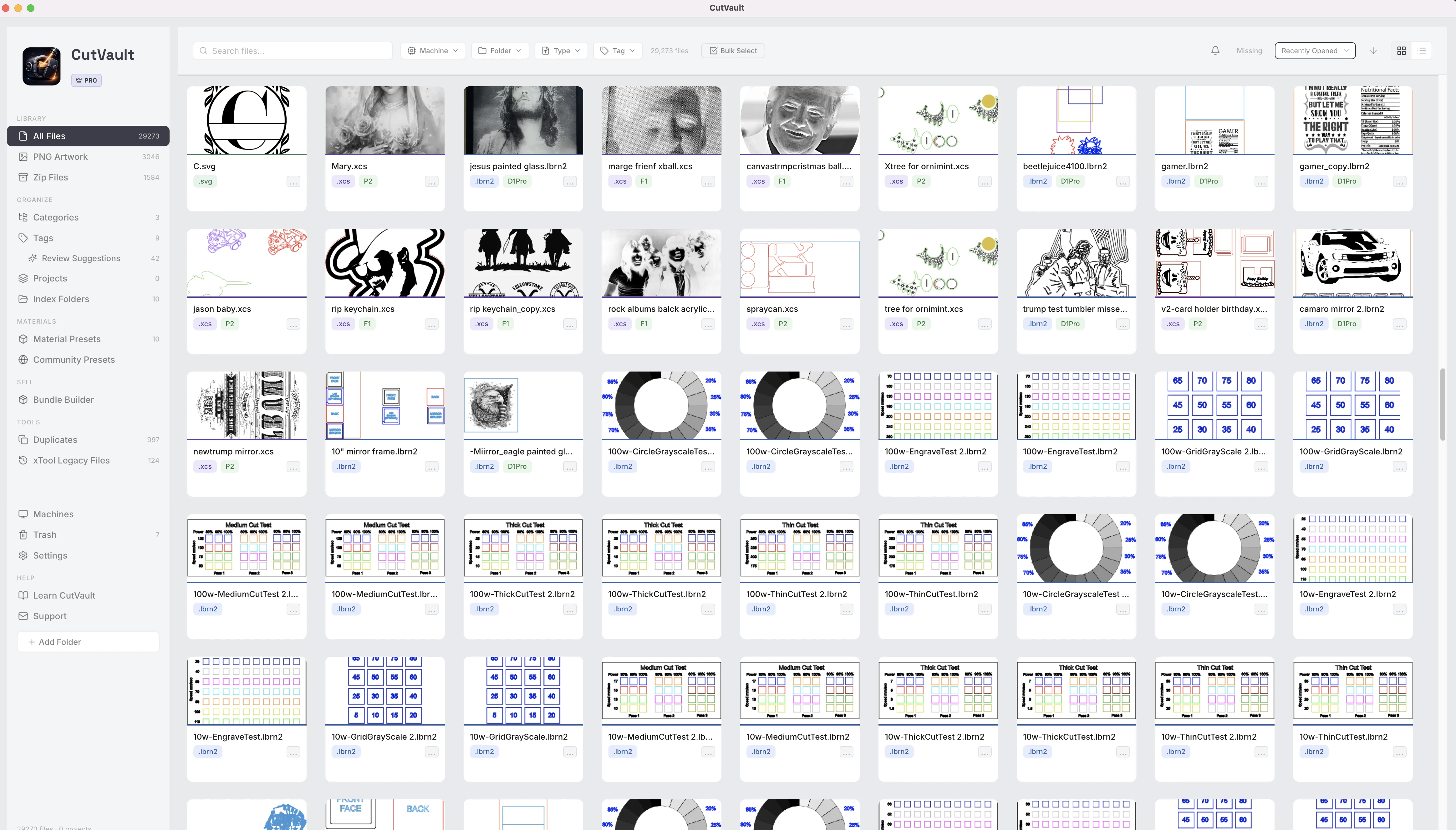
Same files. Different view.
What a folder window shows you, and what the same folder looks like in CutVault.
Finder or File Explorer
With CutVault Pro
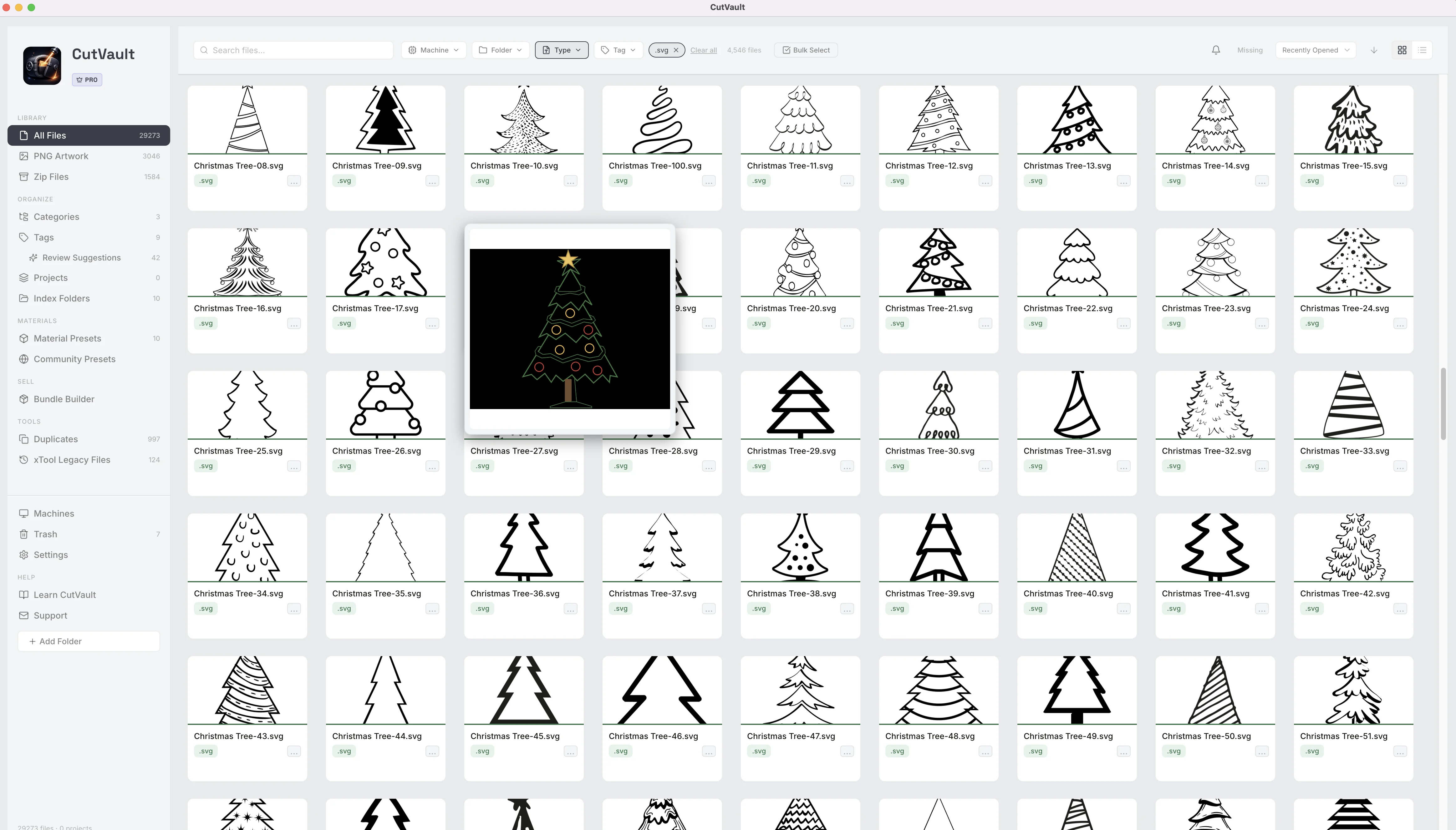
See the design, not an icon.
A folder window shows a generic icon for most laser files. CutVault shows a thumbnail of every supported design: LightBurn, xTool Creative Space and xTool Studio projects, SVG, DXF and PNG, with the file-type badge and the machine on the card.
StandoutYour folders stay your foldersCutVault adds a view on top of them. Files are never moved, renamed or uploaded, and Show in Finder or Explorer jumps straight to the file.
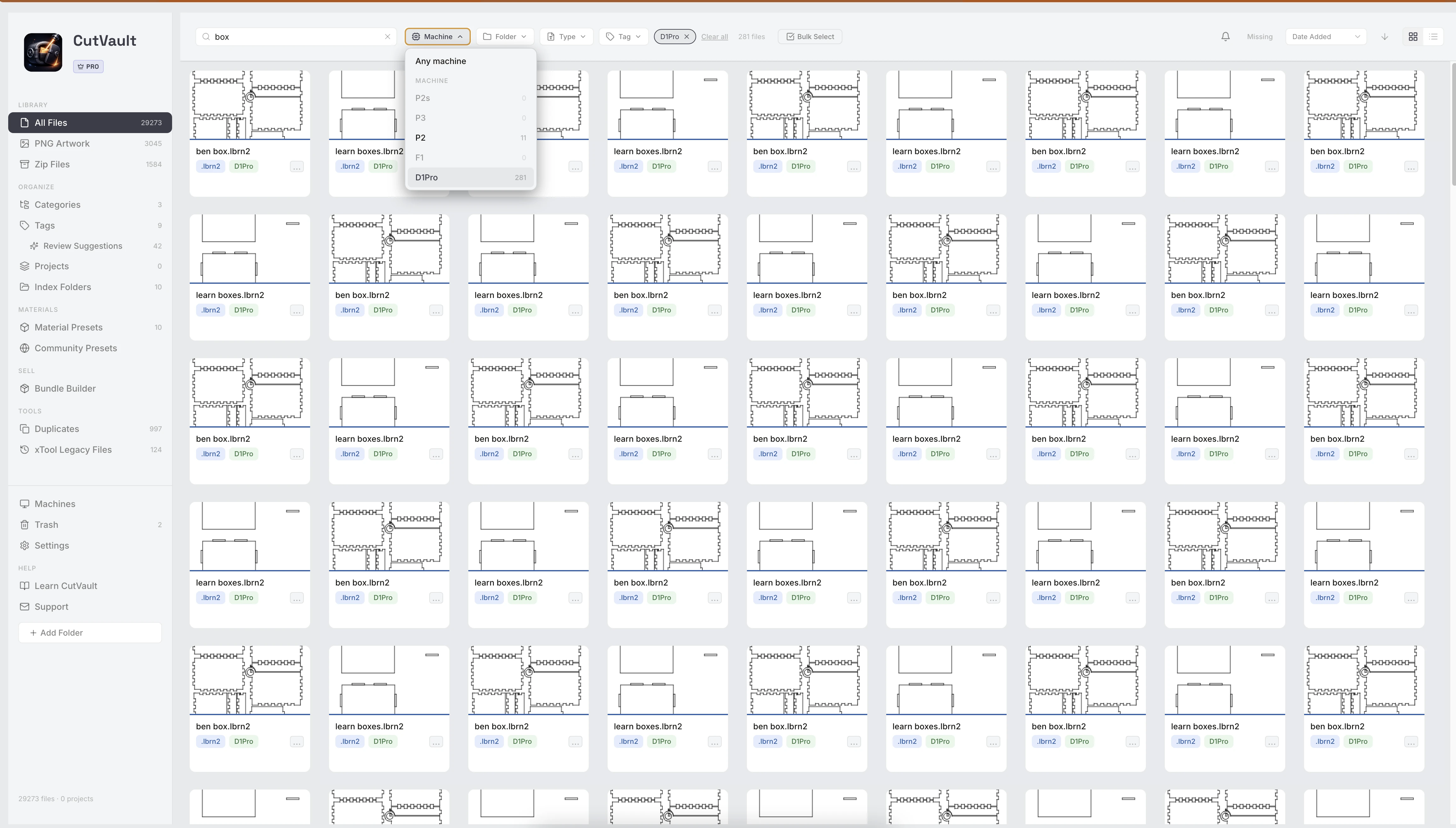
Search by what you remember, not just the name.
A folder search matches file names. CutVault searches every folder and drive at once by file name, layer and canvas names, machine, project, tag, category or note, then narrows the results by machine, folder, type and tag.
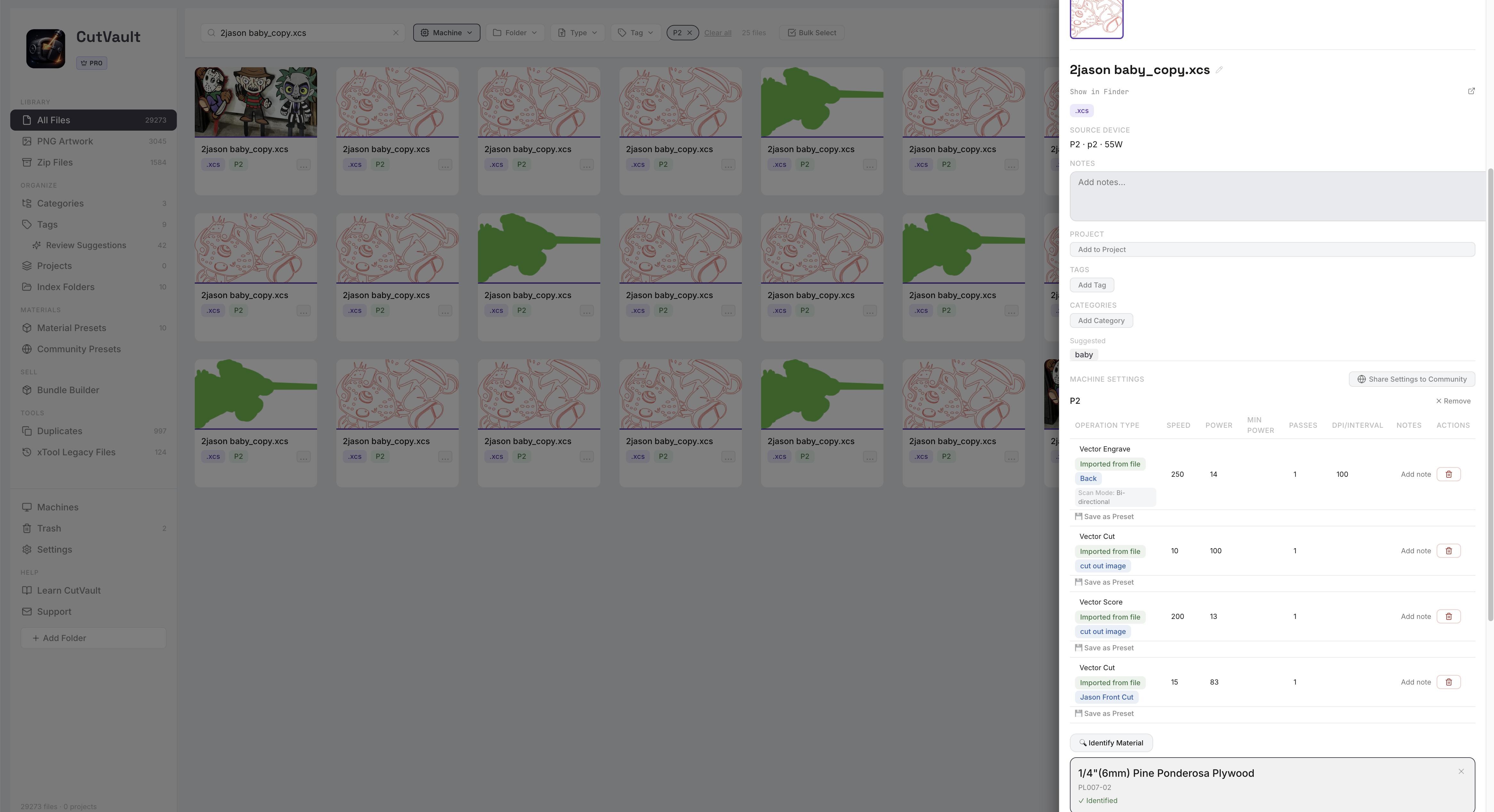
The settings that worked, beside the design.
No folder window shows the speed, power and passes a job ran with. In CutVault, supported LightBurn and xTool projects show them by layer, for each machine, with a Save as Preset button on every row. For SVG and DXF files, type your settings in once and they stay with the file.
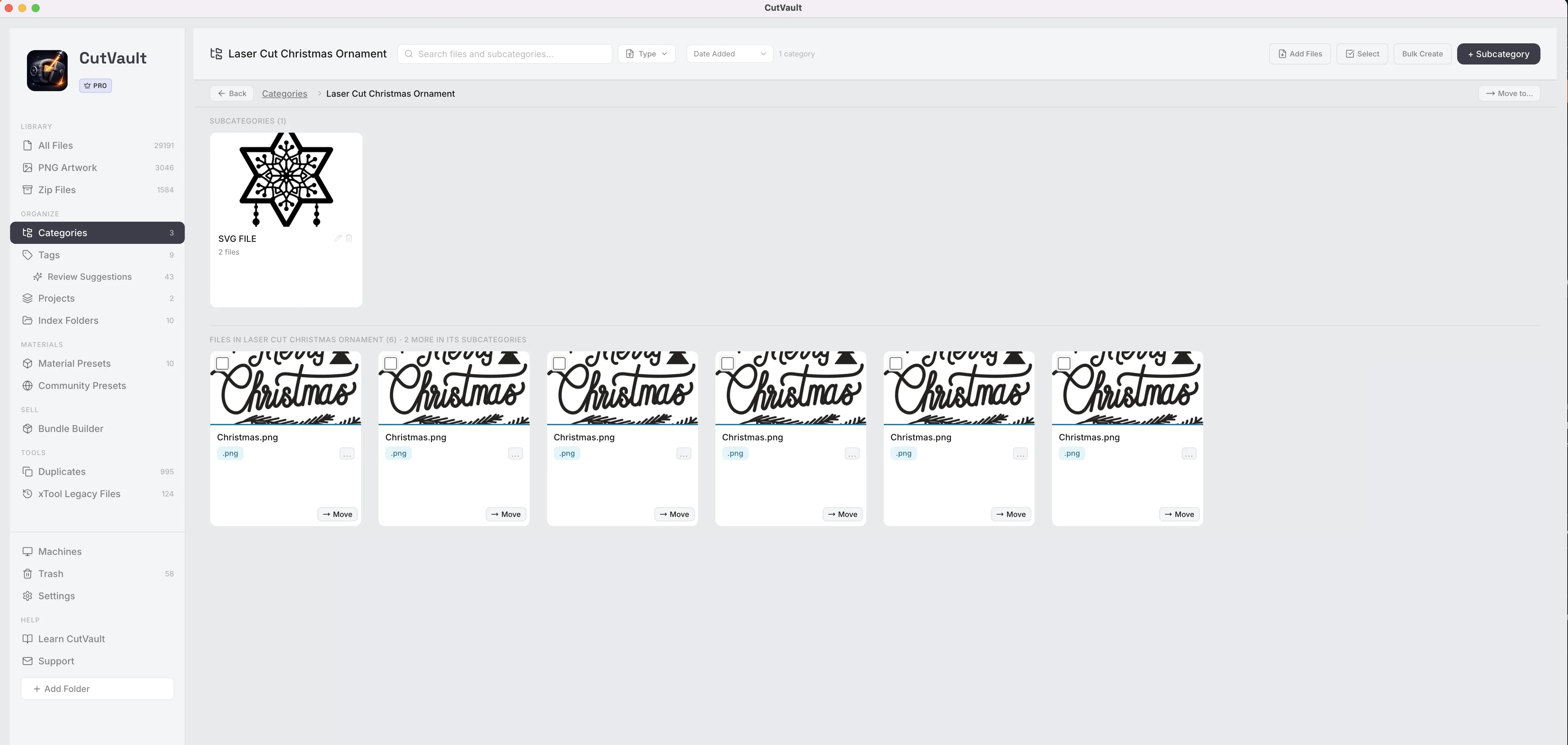
One design, several places, no copies.
In a folder, a design lives in one place. In CutVault it can sit in every category it fits, carry any number of tags and belong to a project, while the file stays exactly where it is. Build from Folders turns the folders you already sorted into categories in one pass.
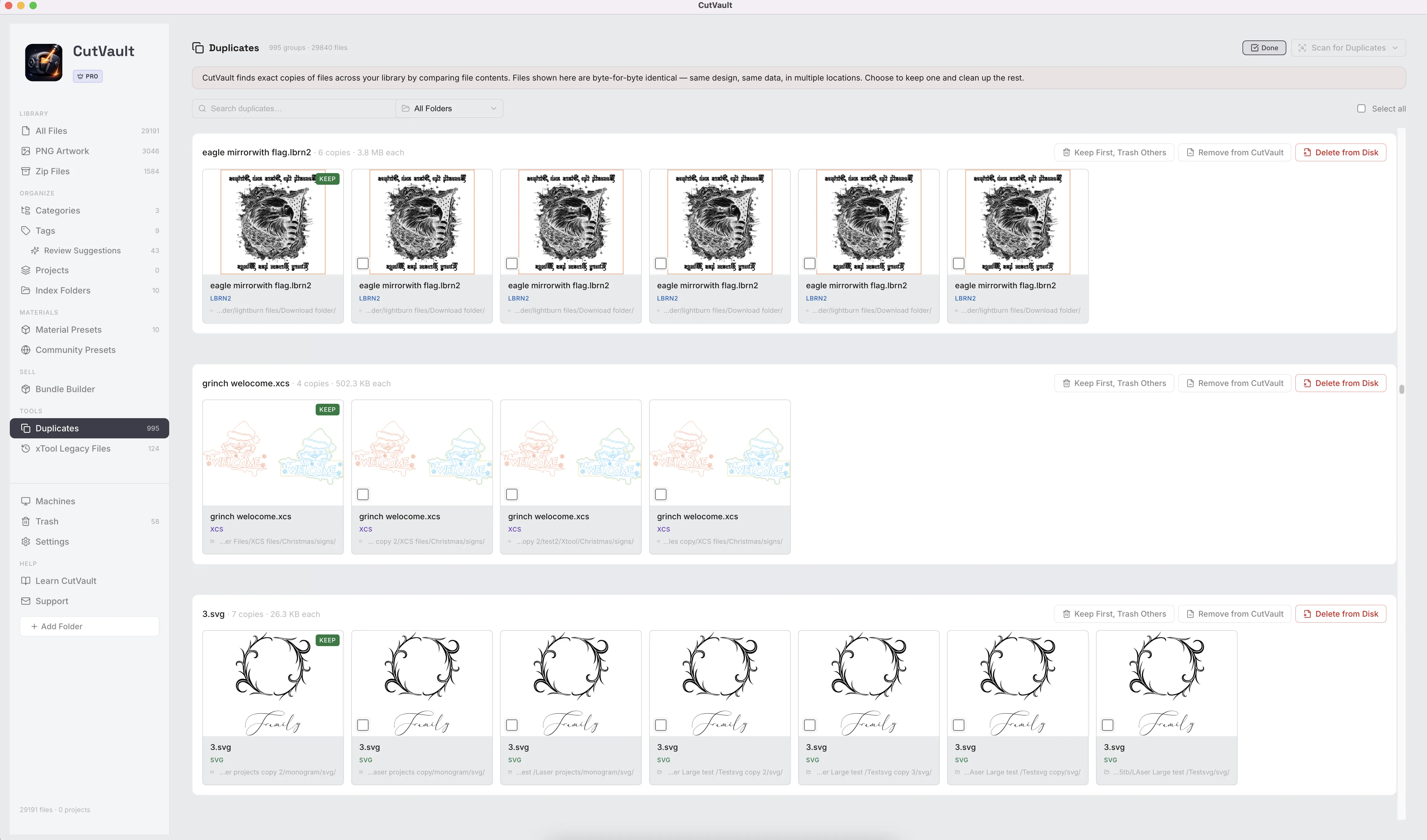
Copies across drives, found and settled.
Years of downloads and backups leave the same design on three drives under three names. Duplicates groups exact copies, shows where each one lives, and lets you keep one and decide what happens to the rest.
Works with these features.
Go deeper into the CutVault tools that work on top of your folders.
Folders & Drives
Your folders and drives, files left in place.
Open Folders & Drives →Library & Search
Every design as a thumbnail, searchable.
Open Library & Search →Build from Folders
Your folders become categories, with undo.
Open Build from Folders →Duplicates
Exact copies grouped, you choose what stays.
Open Duplicates →Zip Files
Look inside a bundle without unzipping.
Open Zip Files →Back to overview
See everything CutVault Pro adds on top of your folders.
Homepage →Questions about CutVault and folders.
One time · No subscription
- 7-day free trialNo credit card
- Mac + WindowsUp to 3 computers
- UpdatesFree updates included
01Does CutVault replace my folders?
No. Your folders stay as they are, on your computer, external drives, USB and SD cards or synced Google Drive, Dropbox and OneDrive folders. CutVault shows what is in them and never moves, renames or uploads a file.
02Do I have to reorganize before I start?
No. Add the top folders you already use and the library builds from them. Build from Folders can turn the structure you already sorted into categories, with undo.
03Can I still get to the file in Finder or File Explorer?
Yes. Show in Finder or Explorer is one right-click away on any file, and you can copy the file’s location.
04What if a drive is unplugged?
CutVault names the folders it cannot reach and says why. Plug the drive back in and those files are back in the library.
05Is CutVault cloud storage?
No. It is a desktop app for Mac and Windows that works with the folders on your computer and drives, including folders synced by Google Drive, Dropbox or OneDrive.
Same folders. Everything findable.
Try CutVault Pro free for 7 days on the folders you already have.
One-time purchase
CutVault Pro is $169 once. No subscription. Use it on up to 3 computers.
- 7-day free trial · No credit card