
Tag designs in your own words. Find them in any folder.
Add your own tags, approve the ones CutVault suggests, and apply them to one design or hundreds at once. Pick a tag and every design with it shows up together, wherever the files are saved.
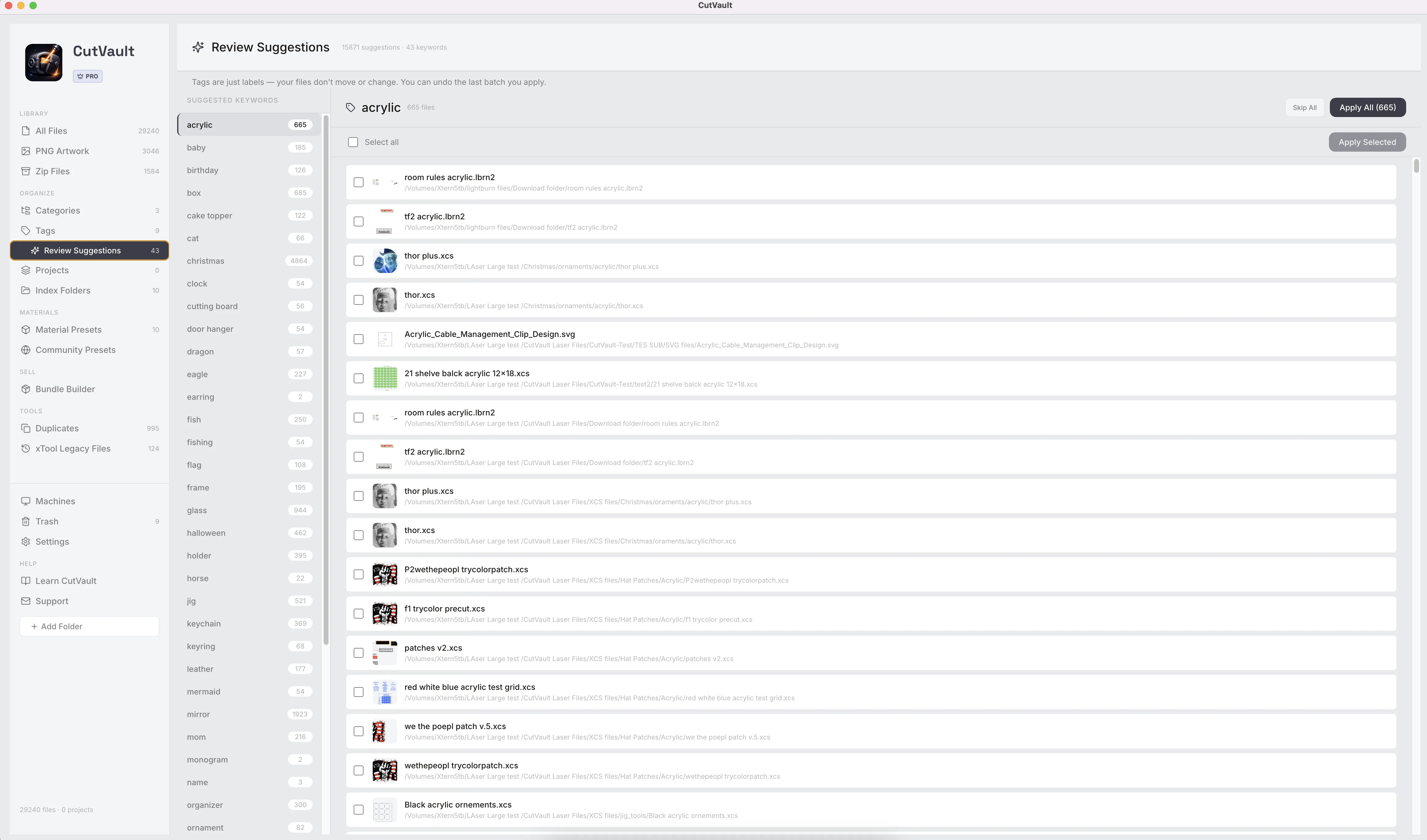
From folder names you have to remember to tags that find the design.
A folder describes a design one way, and the designs you need for one kind of job end up spread across many of them.
Without CutVault
With CutVault Pro
One tag, designs from different folders
- yoga-tumbler.svgCustomer orders / 2025
- skull-wrap.lbrn2Halloween
- floral-wrap.xcsDownloads / bundle-14
- yoga-tumbler.svg
- skull-wrap.lbrn2
- floral-wrap.xcs
3 designs, one tag. The files stay in their folders.
Your own tags, as many as a design needs.
Tag designs with the words you use in the shop: tumbler, keychain, cutting board, customer order. One design can carry several tags, so it shows up under each of them.
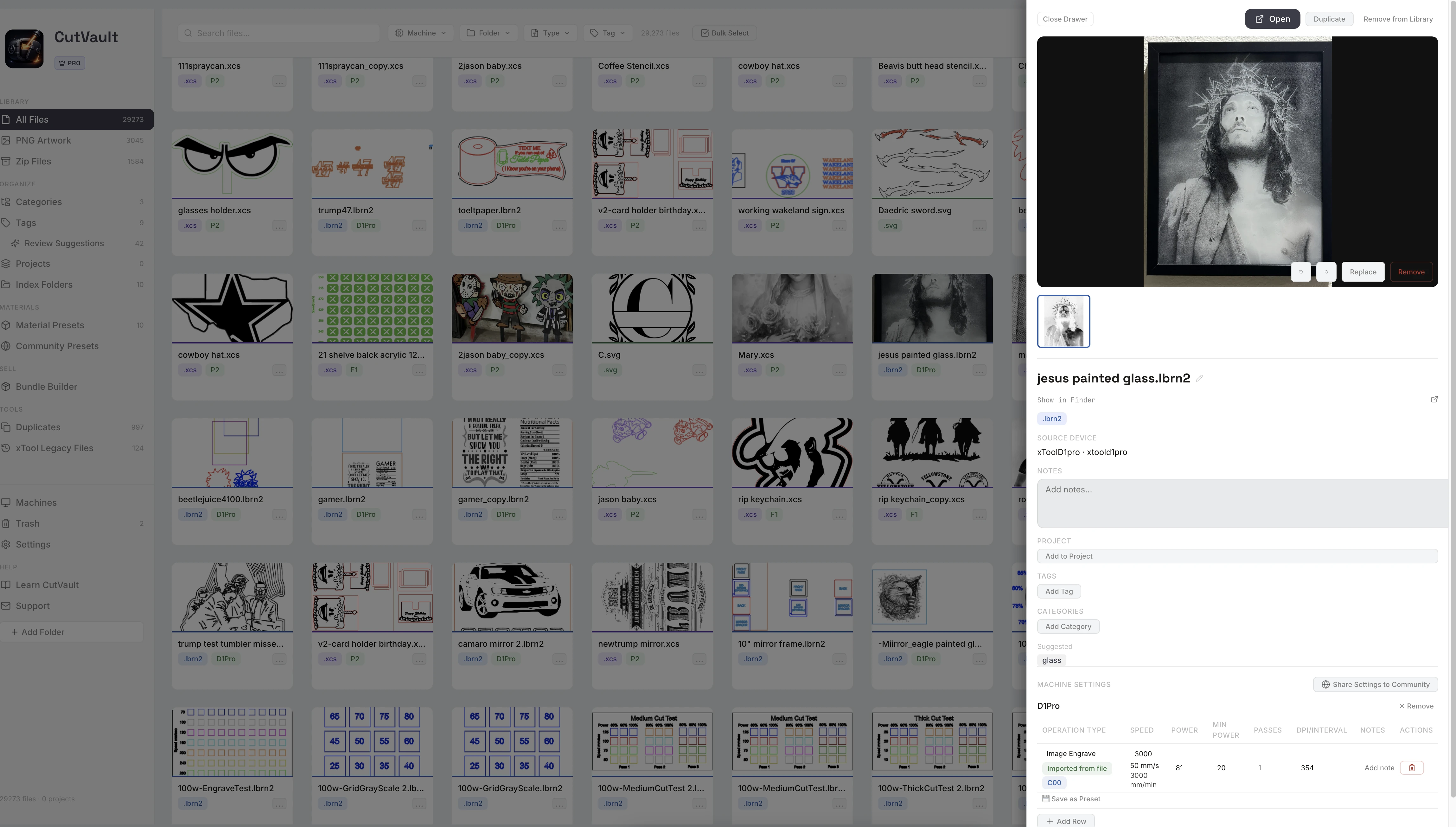
Suggested tags, added only when you say so.
Open a design and CutVault can show suggested tags for it. Add a suggestion with one click, or leave it. Nothing is tagged until you choose it.
Review Suggestions: tag the whole library in one sitting.
Review Suggestions lists suggested tags for your whole library, with a file count beside each. Pick one, see every design it would go on, and apply it to all of them or only the ones you tick.
StandoutApprove in batchesSkip a suggestion, apply it to every design listed, or tick only the ones that fit. Undo the latest batch if you change your mind.
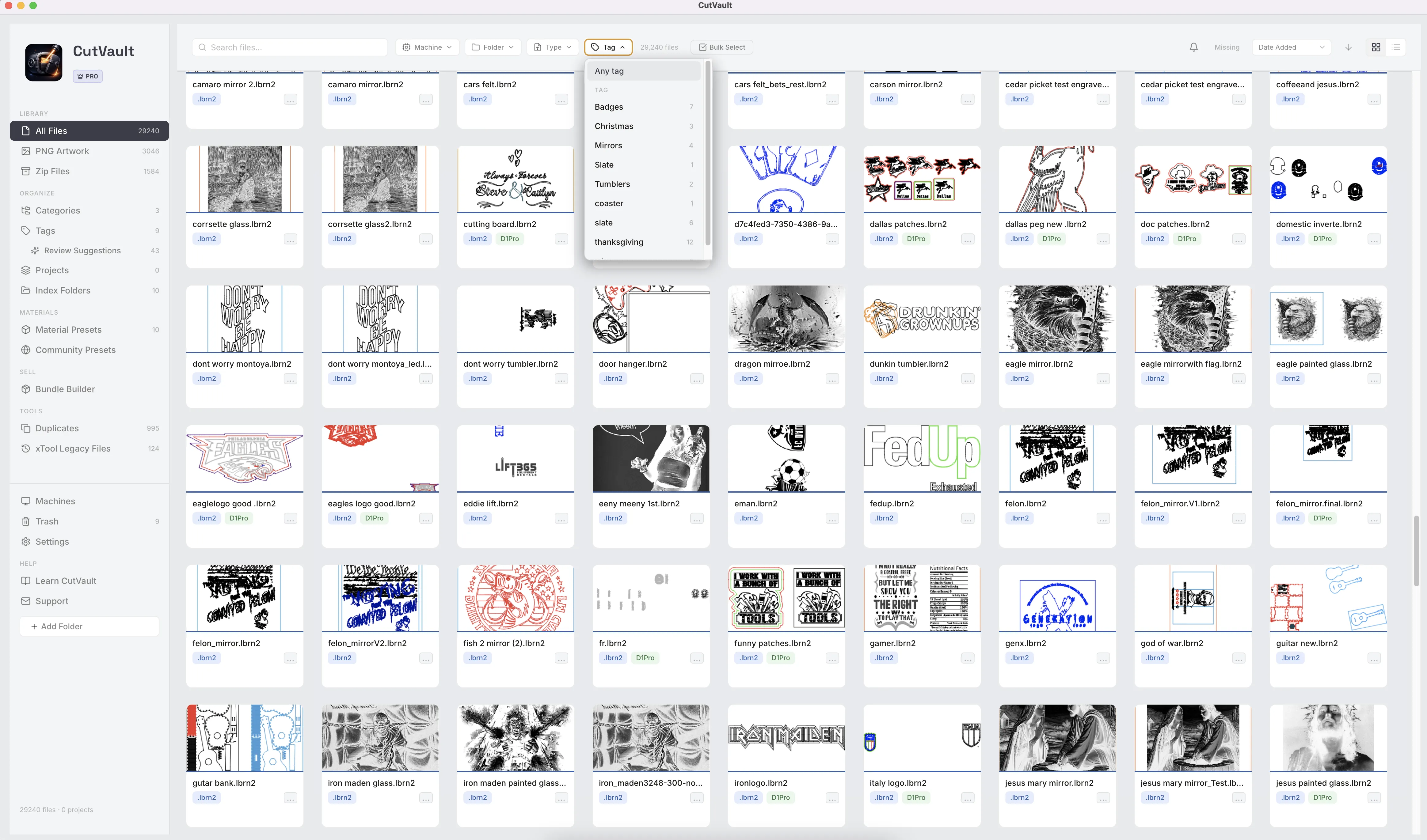
Pick a tag, see every design that has it.
Filter the library by tag on its own or together with machine, folder and file type. Every option shows how many files it would find before you click, and search finds designs by their tags too.
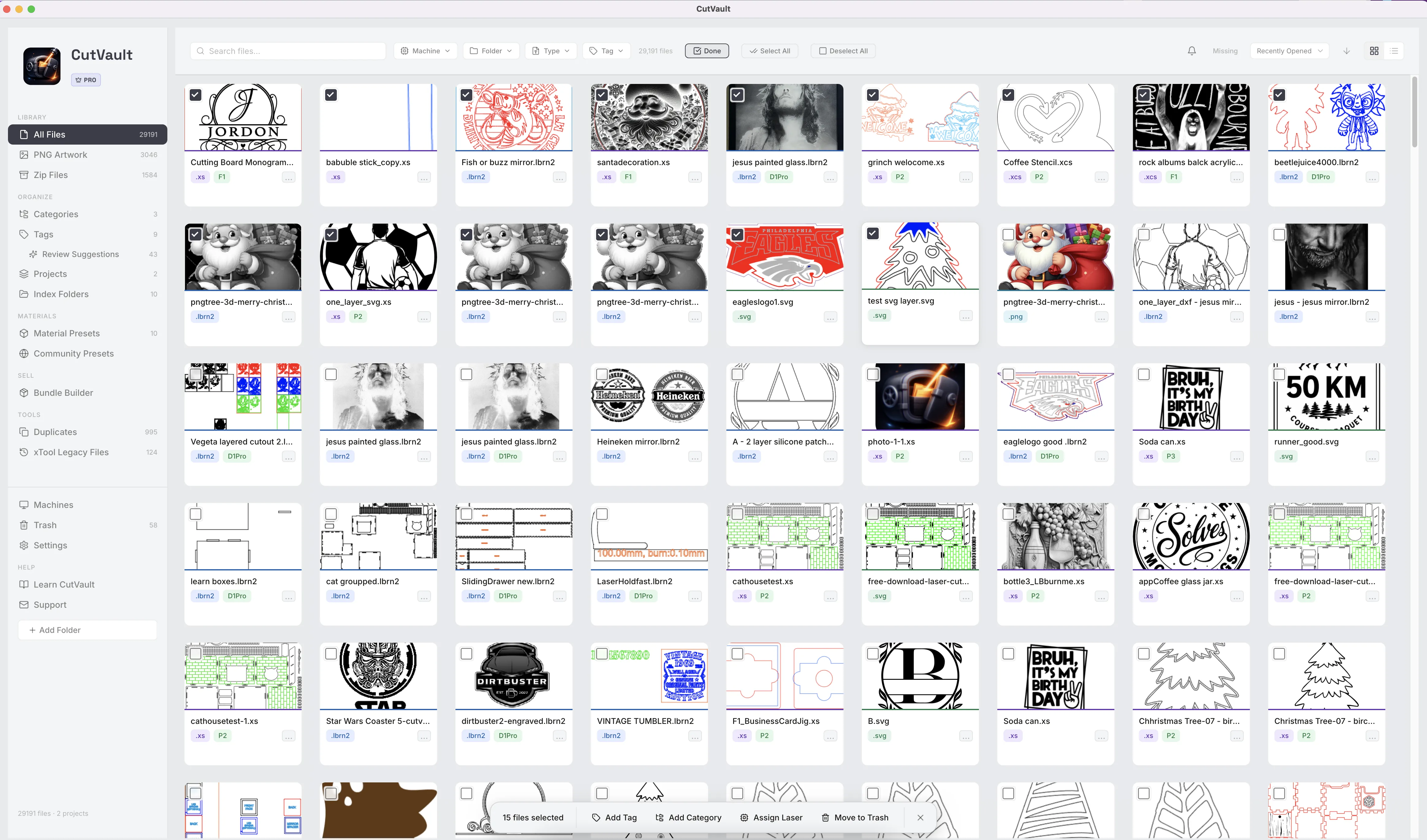
Tag hundreds of designs in one step.
Select many files with Bulk Select or a Shift-click, then add a tag to all of them at once. Right-click a selection to tag it, or create a new tag right there.
More ways to work with your tags.
Smaller tools that keep your tags tidy and useful.
Tags on every design
Open any design to see its tags next to its notes, project and categories.
Rename a tag
Rename a tag and every design that has it shows the new name.
Delete and restore
A deleted tag goes to Trash and comes back with its designs.
Unused tag cleanup
Clear out tags that no longer belong to any file in one action.
Kept on newer xTool files
When a newer xTool Studio version of a design replaces the old one, its tags stay with it.
Tags move with you
Export Library Data includes your tags, so they land on the right files on a new computer.
Works with these features.
Go deeper into the CutVault tools that work alongside your tags.
Categories
Put one design in several categories, nested as deep as you need.
Open Categories →Build from Folders
Turn the folders you already sorted into categories, without moving a file.
Open Build from Folders →Search & Filters
Search by layer, tag, project or note, and filter by machine, folder, type and tag.
Open Search & Filters →Zip Files
See inside every design bundle without unzipping it, and tag the bundle itself.
Open Zip Files →PNG Artwork
Prepare PNG artwork for engraving, and tag it like any other design.
Open PNG Artwork →Back to overview
See how Tags fits into the rest of CutVault Pro.
Homepage →Questions about Tags.
One time · No subscription
- 7-day free trialNo credit card
- Mac + WindowsUp to 3 computers
- UpdatesFree updates included
01Does CutVault tag my files on its own?
No. CutVault suggests tags, and nothing is applied until you choose it, on one design or in a batch you can undo.
02Does tagging change my design files?
No. Tagging a design does not rename, move or change the file on your drive.
03Can one design have more than one tag?
Yes. Add as many as it needs, and it shows up under each one.
04Do tags work across folders and drives?
Yes. Tags work across your whole library, whether a design sits on your computer, an external drive, or a Google Drive, Dropbox or OneDrive folder.
05How is a tag different from a category?
A tag is a word you put on any design and filter by. Categories are a structure you browse, with categories inside categories and a cover on each. Many makers use both.
06What happens if I delete a tag?
It goes to Trash, and you can restore it with its designs. The design files are not touched.
07Are Tags sold separately?
No. Tags are included with CutVault Pro. The $169 one-time price is for the complete CutVault desktop app, not for tagging on its own.
Tag your library in your own words.
Try CutVault Pro free for 7 days, approve the tags it suggests, and see every design for a kind of job by picking one tag.
One-time purchase
CutVault Pro is $169 once. No subscription. Use it on up to 3 computers.
- 7-day free trial · No credit card