
DXF files, previewedand organized,without CAD open.
DXF drawings from CAD and vector software show as thumbnails in your CutVault library, beside your LightBurn, xTool and SVG files. See the drawing before you open it, keep your cut settings with it, and turn it into a cut file with a saved preset or send it to xTool Studio at its true size.
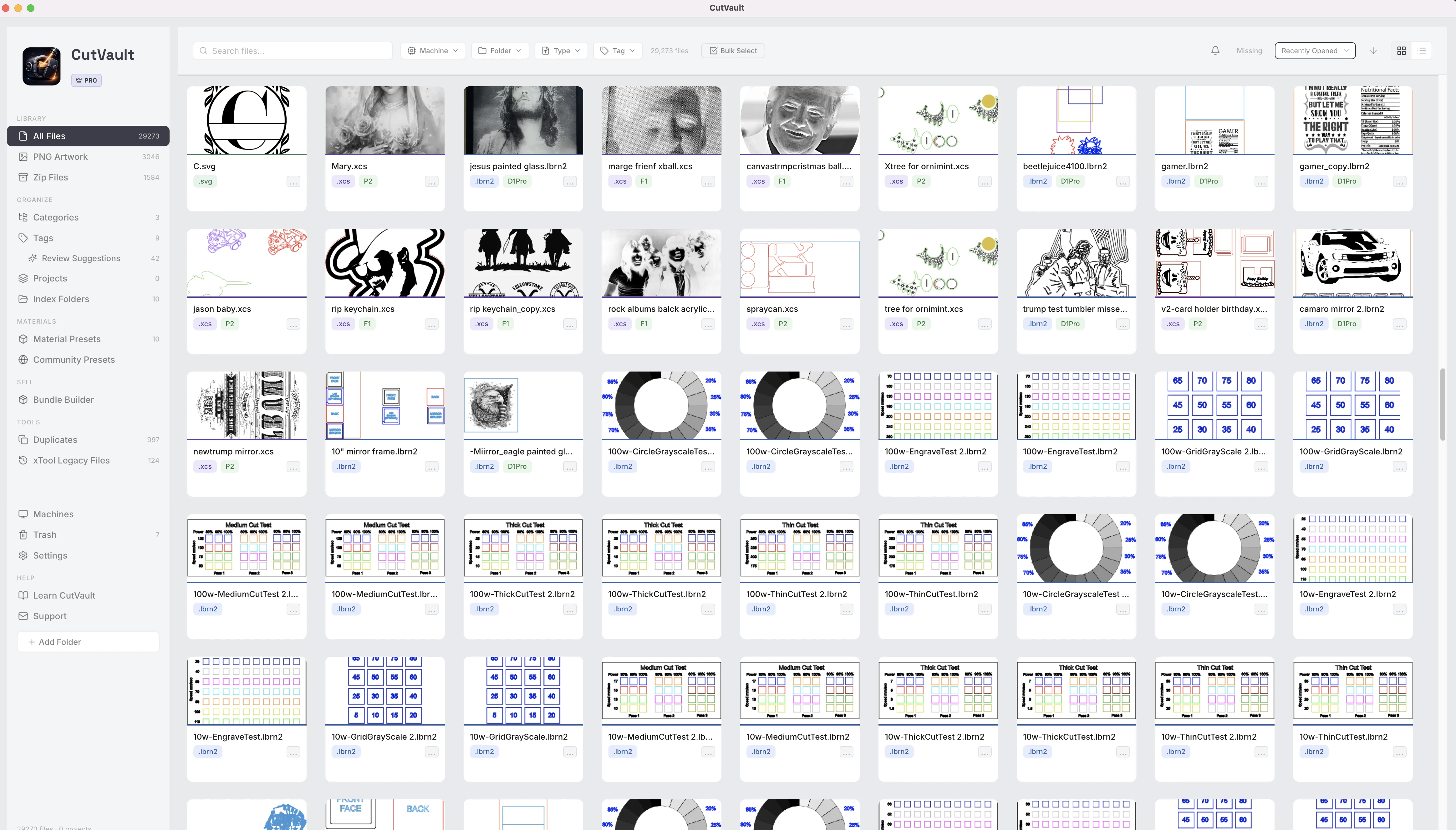
From opening DXFs one at a time to seeing them all at once.
A DXF shows nothing in a folder window. Finding the right version of a bracket or a box means opening each one.
DXFs in folders
With CutVault Pro
See the drawing, not a file icon.
Every DXF in the folders you add appears as a card with a thumbnail, its .dxf badge and the machine you assign it, in the same grid as your LightBurn, xTool and SVG files. Hover for a larger preview.
StandoutOne library for every formatDXF, SVG, PNG, LightBurn and xTool files in one search, across your computer, external drives and synced cloud folders.
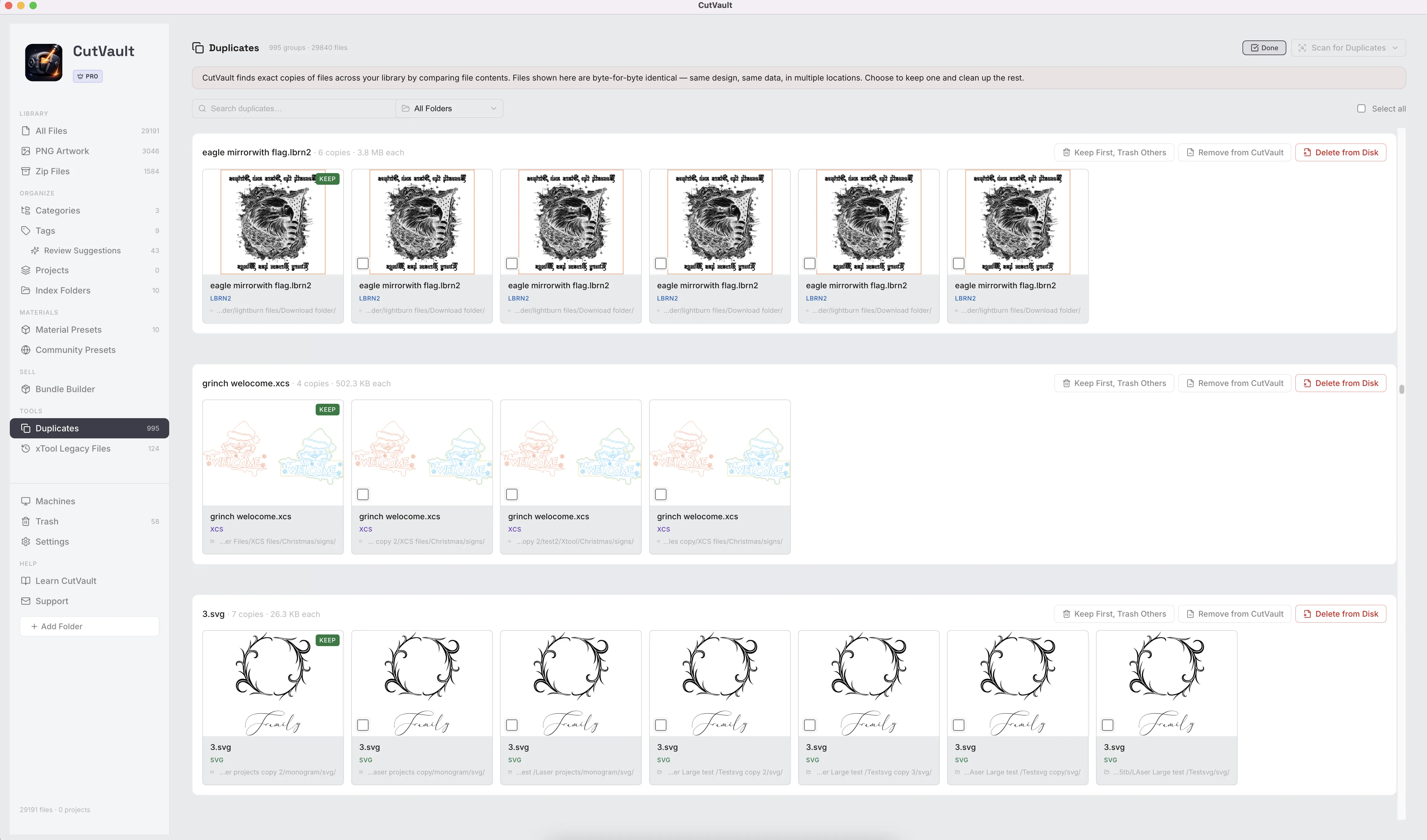
Keep the versions straight.
Tag DXFs with the part, the material or the customer, put one drawing in every category it fits, and let Duplicates find exact copies across folders so you keep one and decide what happens to the rest.
Your cut settings, kept with the drawing.
A DXF carries no laser settings, so CutVault gives each one a settings table per machine. Type in the operation, speed, power and passes, keep a note on the row, and save any row as a Material Preset for the next part.
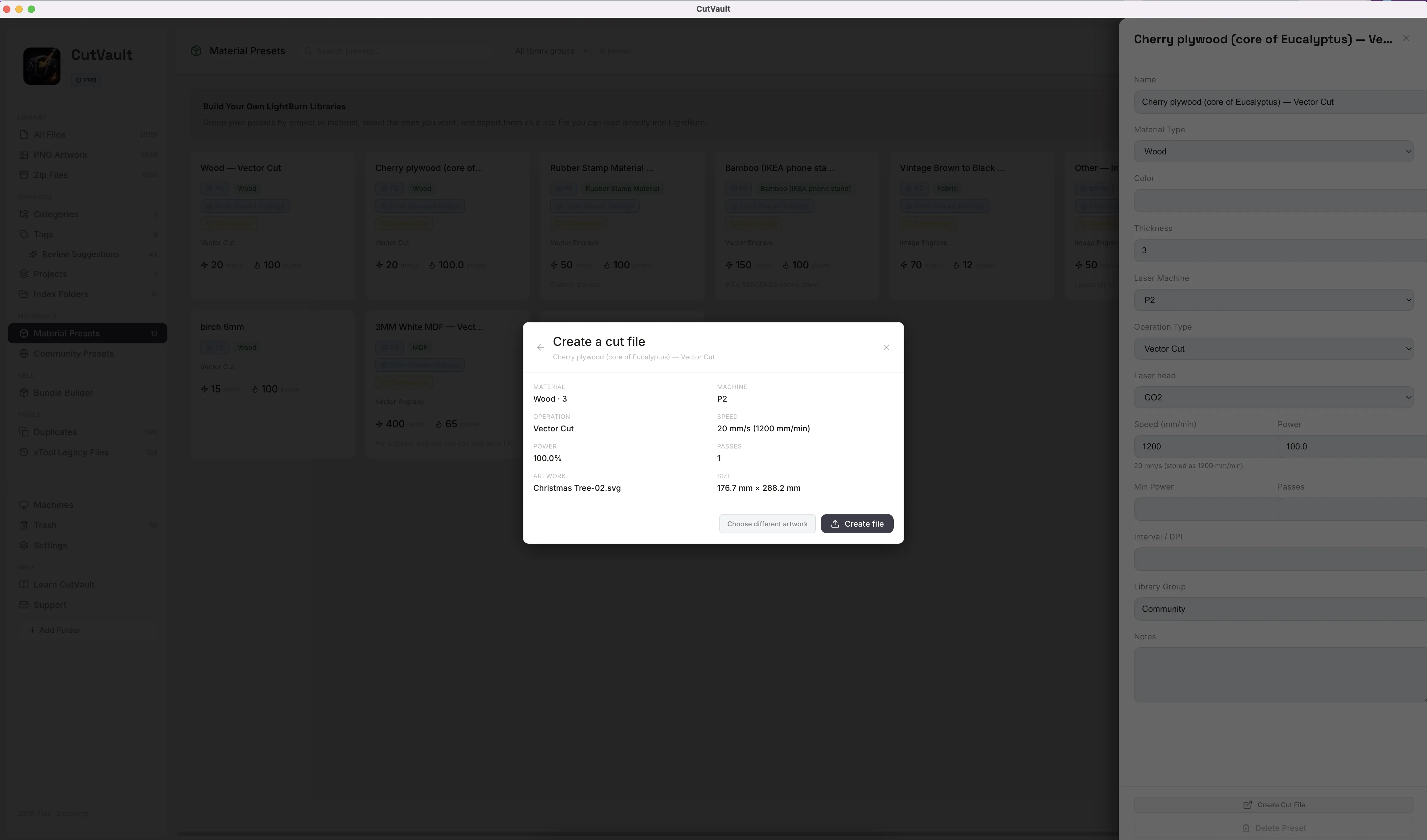
From DXF to a cut file in a few clicks.
Pick a Material Preset, choose the DXF, and review the summary before anything is created: material, machine, operation, speed, power, passes and the drawing’s size. CutVault creates a LightBurn file, or an xTool Studio file for supported xTool machines, and opens it.
Into xTool Studio at the right size.
One button sends a DXF into xTool Studio with the right xTool machine already selected. A summary shows what is in the file, its size and anything that will be skipped, and the design arrives at its true size.
Works with these features.
Go deeper into the CutVault tools that work with your DXF files.
SVG Files
The same library, settings and cut-file flow for SVG artwork.
Open SVG Files →Create Cut File
A preset plus artwork becomes a LightBurn or xTool Studio file.
Open Create Cut File →Duplicates
Find identical copies across every folder and keep one.
Open Duplicates →Settings
Settings tables per machine, with presets saved from any row.
Open Settings →Open With
Choose which app opens each file type.
Open Open With →Back to overview
See how DXF files fit into the rest of CutVault Pro.
Homepage →Questions about DXF files.
One time · No subscription
- 7-day free trialNo credit card
- Mac + WindowsUp to 3 computers
- UpdatesFree updates included
01Does CutVault show the cut settings in a DXF?
No. DXF files carry no laser settings, so those appear only for supported LightBurn and xTool projects. For a DXF you type the settings in once and they stay with the file.
02Can CutVault make a LightBurn file from a DXF?
Yes. Choose a Material Preset and the DXF in Create Cut File, check the summary, and the LightBurn file is created with the preset’s settings applied. For supported xTool machines it can create an xTool Studio file instead.
03Does the DXF keep its real size in xTool Studio?
Yes. Import to xTool opens the DXF in xTool Studio at its true size, with the machine you chose already selected.
04I have the same part saved several times. Can CutVault help?
Duplicates finds exact copies across your folders, even with different names, and shows where each one lives. You keep one and decide what happens to the rest. Versions that differ are told apart with tags and notes.
05Where can my DXF files live?
In folders on your computer, external drives, USB and SD cards, or synced Google Drive, Dropbox and OneDrive folders. They are never moved, renamed or uploaded.
See every DXF before you open it.
Try CutVault Pro free for 7 days with the DXF folders you already have.
One-time purchase
CutVault Pro is $169 once. No subscription. Use it on up to 3 computers.
- 7-day free trial · No credit card