
Every machine with its own files, settings and service history.
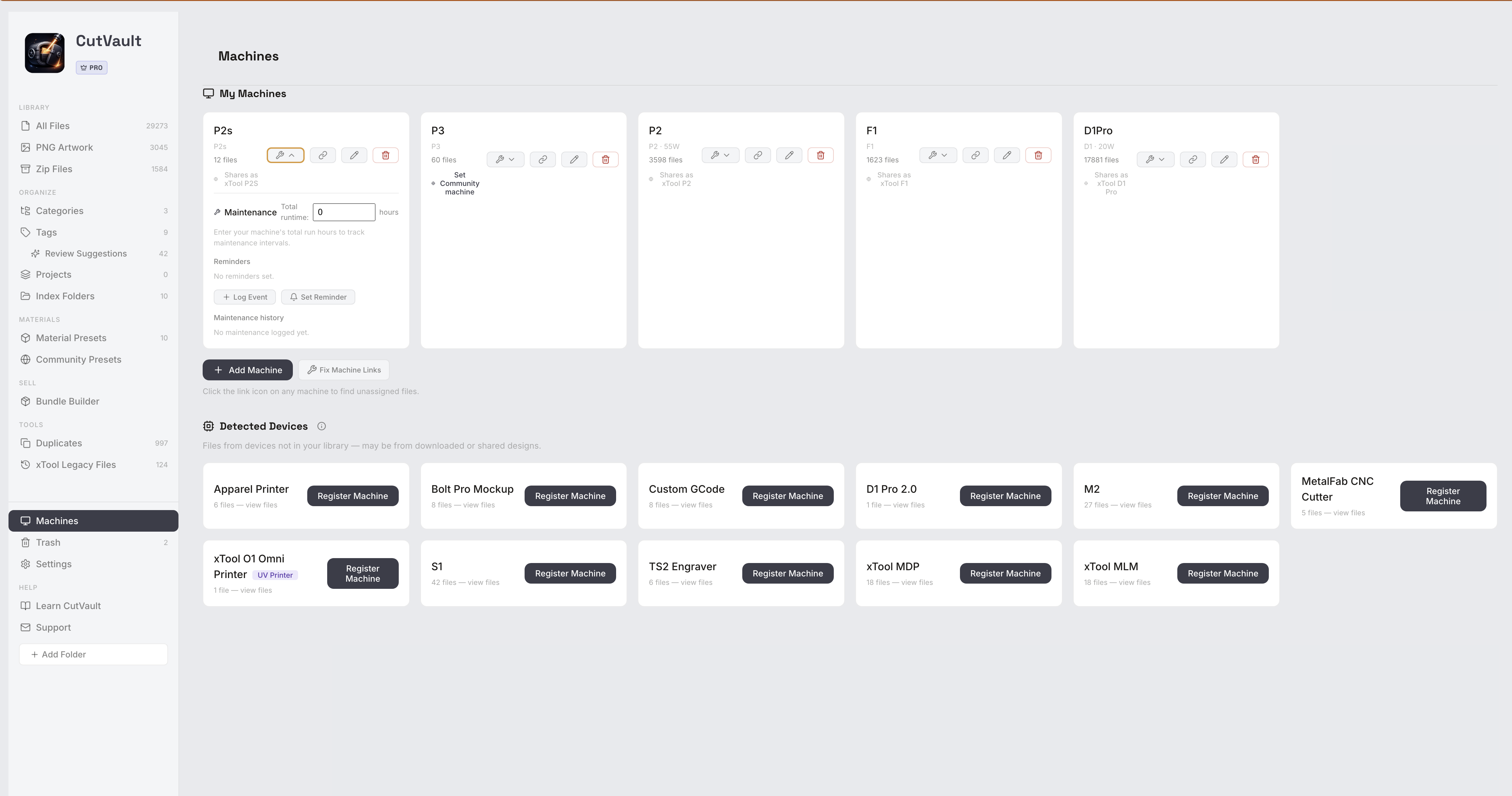
Set up each laser or UV printer once. CutVault keeps machine context with supported projects, lets one design hold separate settings for different machines, and keeps maintenance history and run-hour reminders together.
From “which laser was this for?” to knowing at a glance.
With more than one machine, files, settings and service work get mixed up fast.
Without CutVault
With CutVault Pro
Set up a machine once.
Give each machine a name, its wattage and the software it runs: LightBurn, xTool Creative Space or both. Choose Laser or UV Printer.
Machines can also be added during first launch, or skipped and added later.
See which machine a project belongs to.
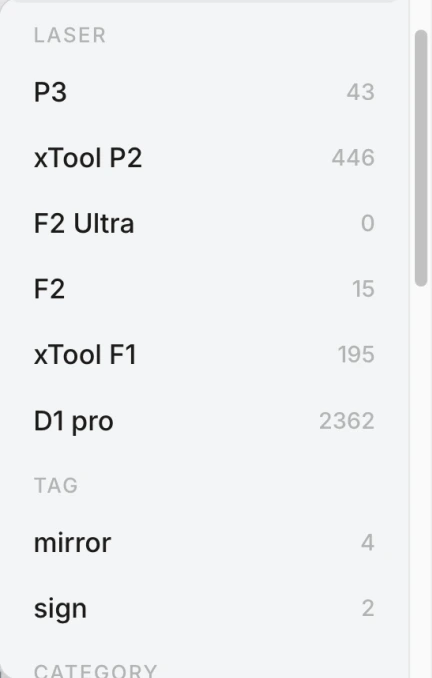
Supported LightBurn and xTool projects show the machine they were made for. Each machine card shows its file count, and the library can be narrowed to one machine.
Link files to a machine
- tumbler-wrap.xcsMade for xTool P2
- name-sign.lbrn2Made for xTool P2
- keychains.xsMade for F1
- mandala.svgNo machine yet
- xTool P22 files linked in one click
- F11 file linked
- No machine yetYou choose the machine.
Link files to the right machine.
Link a machine’s projects to its card in one click, and decide yourself where the rest belong. Correct a link that points at the wrong machine, or assign a machine to many files at once.
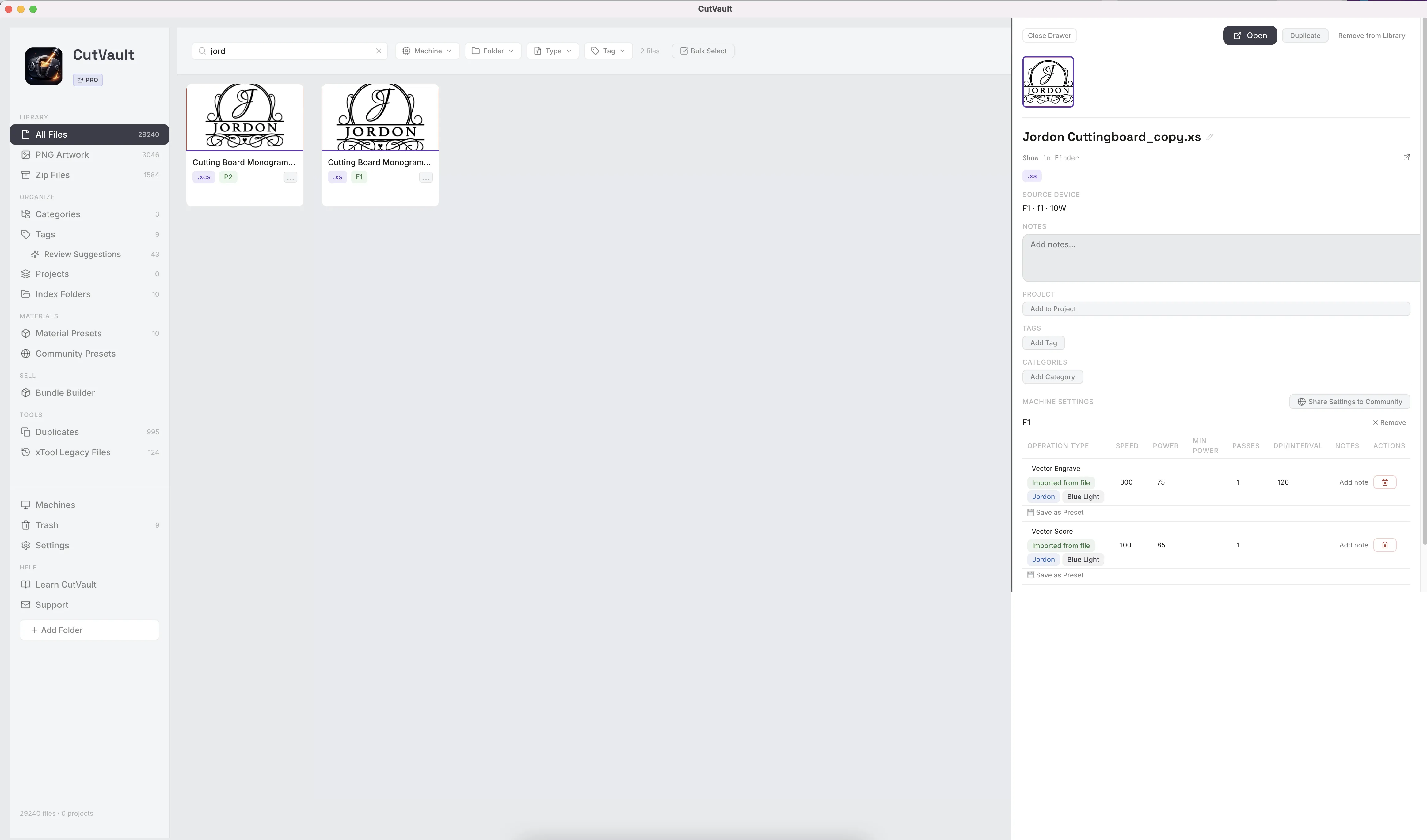
Keep separate settings for the same design on different machines.
Add a second machine to a supported design and it gets its own settings group. Create Cut File and Import to xTool let you pick from the same machine list.
StandoutOne design, two machinesRun the same design on a P2 and a D1 Pro with different numbers for each, kept apart.
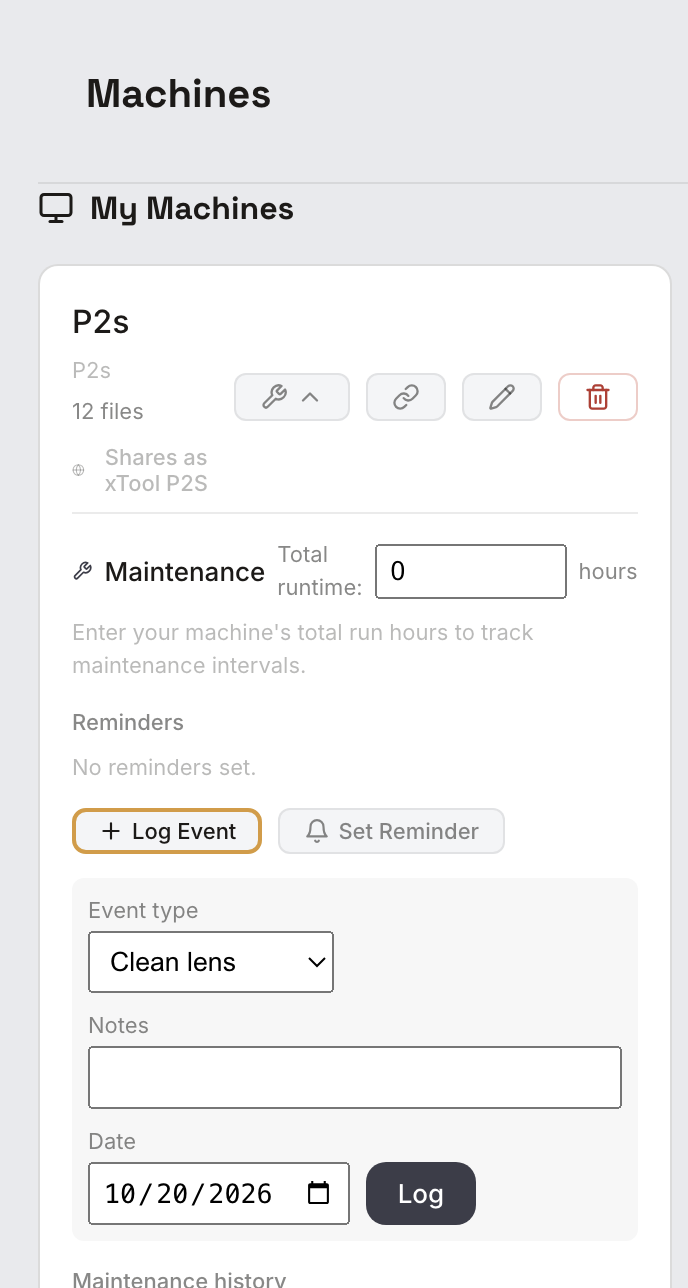
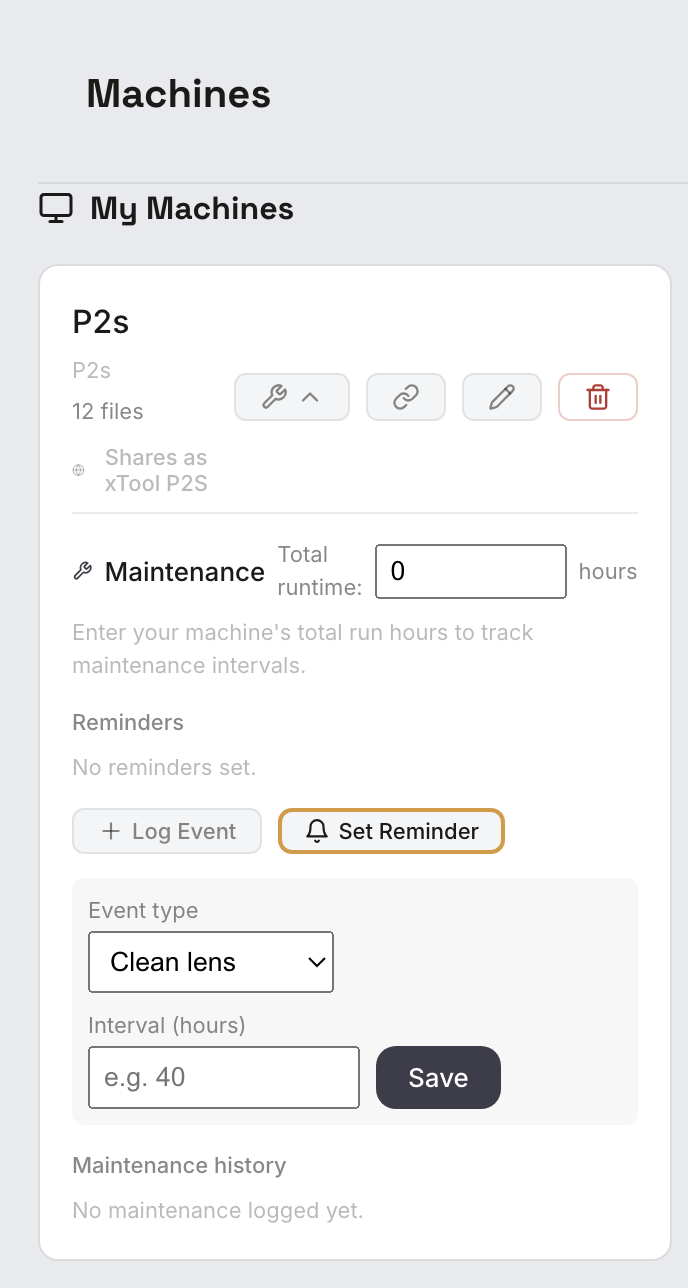
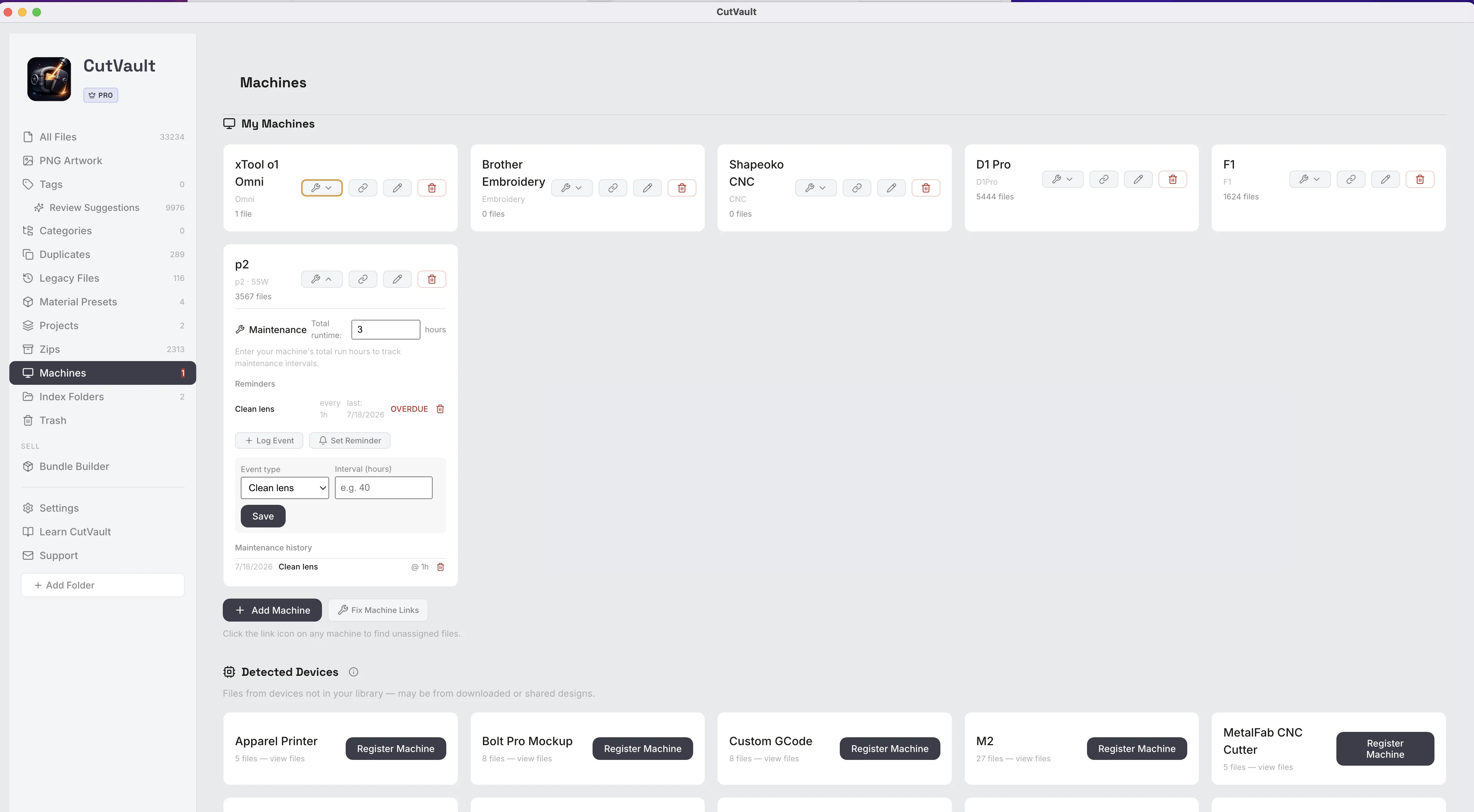
Log maintenance and know when something is due.
Log lens cleanings, belt and tube changes, mirror alignments, calibrations and any other service job, with the date and notes. Set reminders by run hours, and CutVault shows what is coming up and flags overdue maintenance in red.
More ways Machines & Maintenance helps.
Smaller tools around your machines.
UV printers
Add an xTool O1 Omni as a UV Printer. It gets its own badge, and its files show their print recipe on the Settings page.
Edit any time
Change a machine’s name, wattage or software whenever you like.
Trash and restore
A deleted machine goes to Trash and can be restored.
Files for found machines
See the projects for a machine CutVault found, and show any of them in Finder or Explorer.
Machine on every preset
Material Presets are saved by machine, so the right numbers show for the right laser.
Tidy the log
Delete a log entry or remove a reminder you no longer need.
First launch
Add your machines during first launch, or skip and add them later.
Community Presets on your machines
Link your machines to Community Presets and the shared list starts with presets for your machines.
Machines in Create Cut File
Pick from your own machine list when you create a cut file or import to xTool.
Works with these features.
Go deeper into the CutVault tools that work with your machines.
Settings
See speed, power, passes and layers from supported LightBurn and xTool projects, sorted by machine.
Open Settings →Material Presets
Save proven settings by material and machine and reuse them on the next job.
Open Material Presets →Community Presets
Browse settings shared by other makers, filtered for your machine and material.
Open Community Presets →Create Cut File
Turn a preset and your artwork into a file ready to open in LightBurn or xTool Studio.
Open Create Cut File →Library & Search
Every supported design as a thumbnail, with a Machine filter across your folders and drives.
Open Library & Search →xTool UV printer users
The O1 Omni as a UV Printer, with print recipes, jobs and maintenance.
Open the UV printer page →Questions about Machines & Maintenance.
One time · No subscription
- 7-day free trialNo credit card
- Mac + WindowsUp to 3 computers
- UpdatesFree updates included
01Does CutVault get run hours from the laser automatically?
No. You enter the machine’s run hours, and CutVault keeps track of maintenance from there.
02How many machines can I add?
Any number with a licensed copy of CutVault Pro.
03Does it work with my laser brand?
Any machine that runs LightBurn or xTool software. You name the machine yourself and choose the software it runs.
04Can one design have settings for two machines?
Yes. Add a second machine to the design and it gets its own settings group.
05Will it remind me outside the app?
No. Reminders show inside CutVault, on the machine card and in the sidebar.
06Are UV printers supported?
Yes. Add an xTool O1 Omni as a UV Printer. Its files show their print recipe on the Settings page.
07Is Machines & Maintenance sold separately?
No. It is included with CutVault Pro. The $169 one-time price is for the complete CutVault desktop app.
Set up your machines once. Keep everything with them.
Try CutVault Pro free for 7 days with your own machines, see which projects belong to each one, and log the next lens cleaning where you will find it.
One-time purchase
CutVault Pro is $169 once. No subscription. Use it on up to 3 computers.
- 7-day free trial · No credit card