
Turn proven settings and new artwork into the next laser job.
Choose a saved Material Preset, pick compatible SVG, DXF or PNG artwork, review the job, and create a new laser file with the preset's speed, power and passes already carried forward.
Open the result in LightBurn or supported xTool Studio workflows without rebuilding the setup from scratch.
One-time purchaseCutVault Pro is $169 once. No subscription. Use it on up to 3 computers.
- 7-day free trial · No credit card
From rebuilding every job to reusing the setup that worked.
Each new design used to mean setting up speed, power and passes again by hand.
Without CutVault
With CutVault Pro
One proven preset. As many new designs as you need.
Take settings you've already saved for a material and machine and use them again with completely different artwork. You don't have to rebuild the job setup every time you make a variation, another product or a new design.
Pick the artwork. CutVault handles the setup.
Search your library visually or choose another compatible file from your computer. Cut, score and engraving presets work with SVG or DXF artwork, while Image Engrave presets can use PNG.
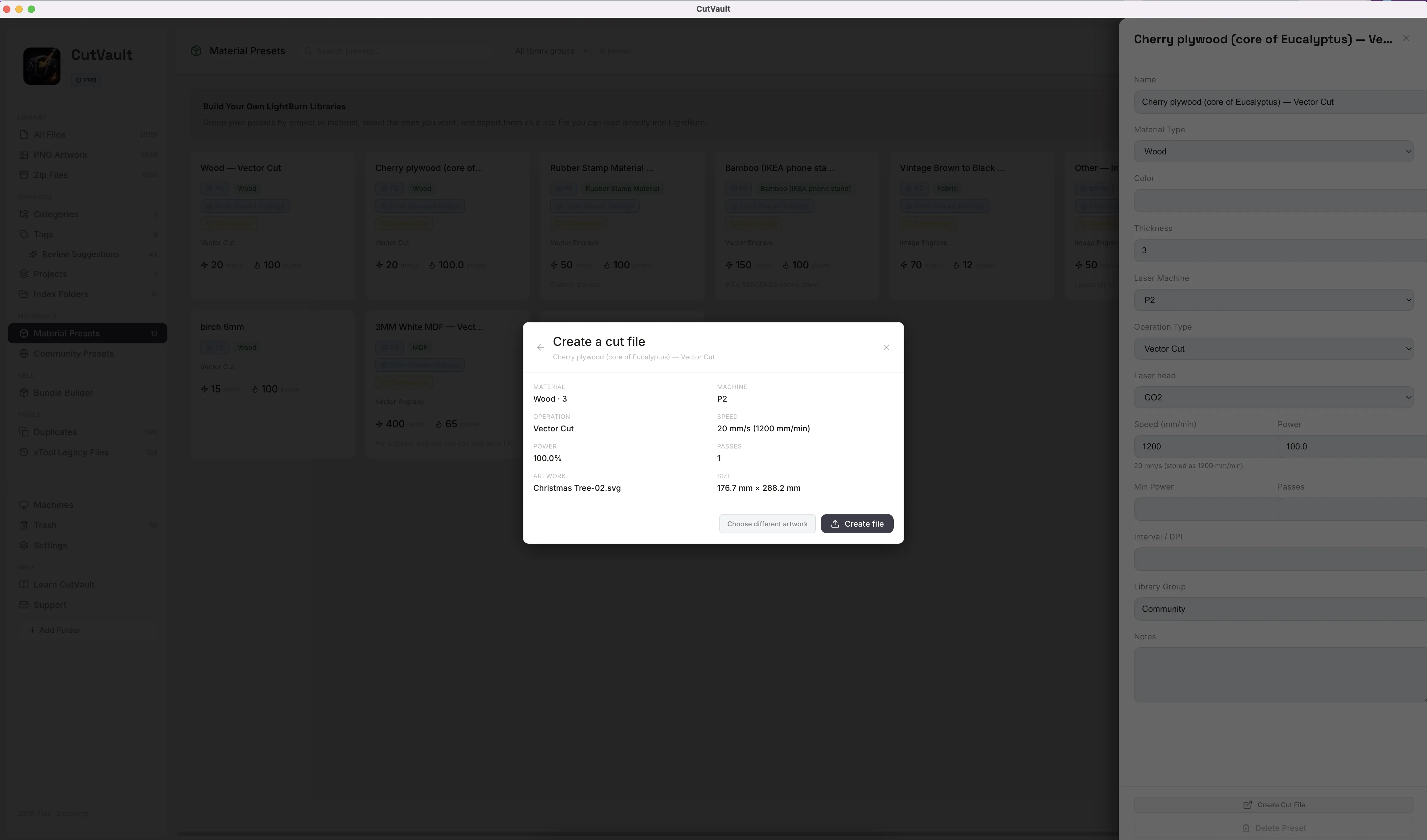
Check the job before anything gets created.
Review the material, machine, operation, speed, power, passes, artwork and real size together before CutVault creates the new file.
CutVault can also warn you when something in the artwork needs attention before the file is created.
Check first. Create second.Nothing is created until you confirm.If the artwork isn't right, choose different artwork and check again.
Create the file for the software you actually use.
CutVault creates a ready-to-run LightBurn or xTool Studio file for the machine on your preset, keeps it with the design in your library, and opens it in your laser software.
Each new file gets a clear name, so the job stays easy to recognize later.
- 01Community setting
- 02Save to your presets
- 03Choose artwork
- 04Create job file
Go from a Community setting to a new job.
When you find a useful Community setting, save it for your own machine and continue directly into Create Cut File for your artwork.
Before the first cutCommunity settings are starting points.Test on scrap first.
More ways Create Cut File helps.
Smaller details that keep new job files safe, easy to find and easy to check.
Never overwrite the first job
Create another version and CutVault keeps the existing file.
Keep new job files with the design
Files created from library artwork are saved beside the design they came from.
Use familiar speed units
Review speed in the units used by your laser software.
Choose where other files go
Pick a folder for job files made from artwork outside your library.
Send SVG or DXF to xTool
Import compatible artwork into supported xTool Studio workflows from CutVault.
See it before import
Review the artwork, its size and any warnings before sending it on.
Works with these features.
Go deeper into the CutVault tools that feed Create Cut File and the jobs it makes.
Material Presets
Save, search and group the presets every cut file starts from.
Open Material Presets →Community Presets
Find a shared starting point, save it to your presets and turn it into a job.
Open Community Presets →Settings
See the settings from past LightBurn and xTool jobs and save the ones that worked.
Open Settings →PNG Artwork
Prepare photos and images for engraving, with settings saved for each image.
Open PNG Artwork →Machines
Set up each machine and the software it runs, with its files and service history.
Open Machines →DXF Files
DXF drawings previewed, organized and turned into cut files.
Open DXF Files →Questions about Create Cut File.
One time · No subscription
- 7-day free trialNo credit card
- Mac + WindowsUp to 3 computers
- UpdatesFree updates included
01Do I need a Material Preset first?
Yes. Every cut file starts from a preset. Save one from a past LightBurn or xTool job, enter one manually, or save a Community setting.
02What artwork can I use?
SVG or DXF for cut, score and engraving presets. PNG for Image Engrave presets.
03Does it create LightBurn or xTool files?
Yes. It creates a LightBurn file, or an xTool Studio file for supported xTool machines.
04Does it make xTool Creative Space files?
No. Create Cut File does not create .xcs files.
05Where is the new file saved?
Files made from artwork in your library are saved next to the design. For other artwork, you choose the folder in CutVault. Existing files are not overwritten.
06Can one generated file contain both a cut and an engrave?
Each generated file starts from one preset and one operation. Add additional layers in LightBurn or xTool Studio when needed.
07Does Create Cut File replace LightBurn or xTool Studio?
No. CutVault prepares the job file and opens it in your preferred laser software, where you run the job.
08Is Create Cut File sold separately?
No. Create Cut File is included with CutVault Pro. The $169 one-time price is for the complete CutVault desktop app.
Create the next job from settings that already worked.
Try CutVault Pro for 7 days with your own presets and artwork, and create your next LightBurn or xTool Studio file without setting it up again.
One-time purchase
CutVault Pro is $169 once. No subscription. Use it on up to 3 computers.
- 7-day free trial · No credit card