Prepare PNG artwork for engraving and keep the settings with each image.
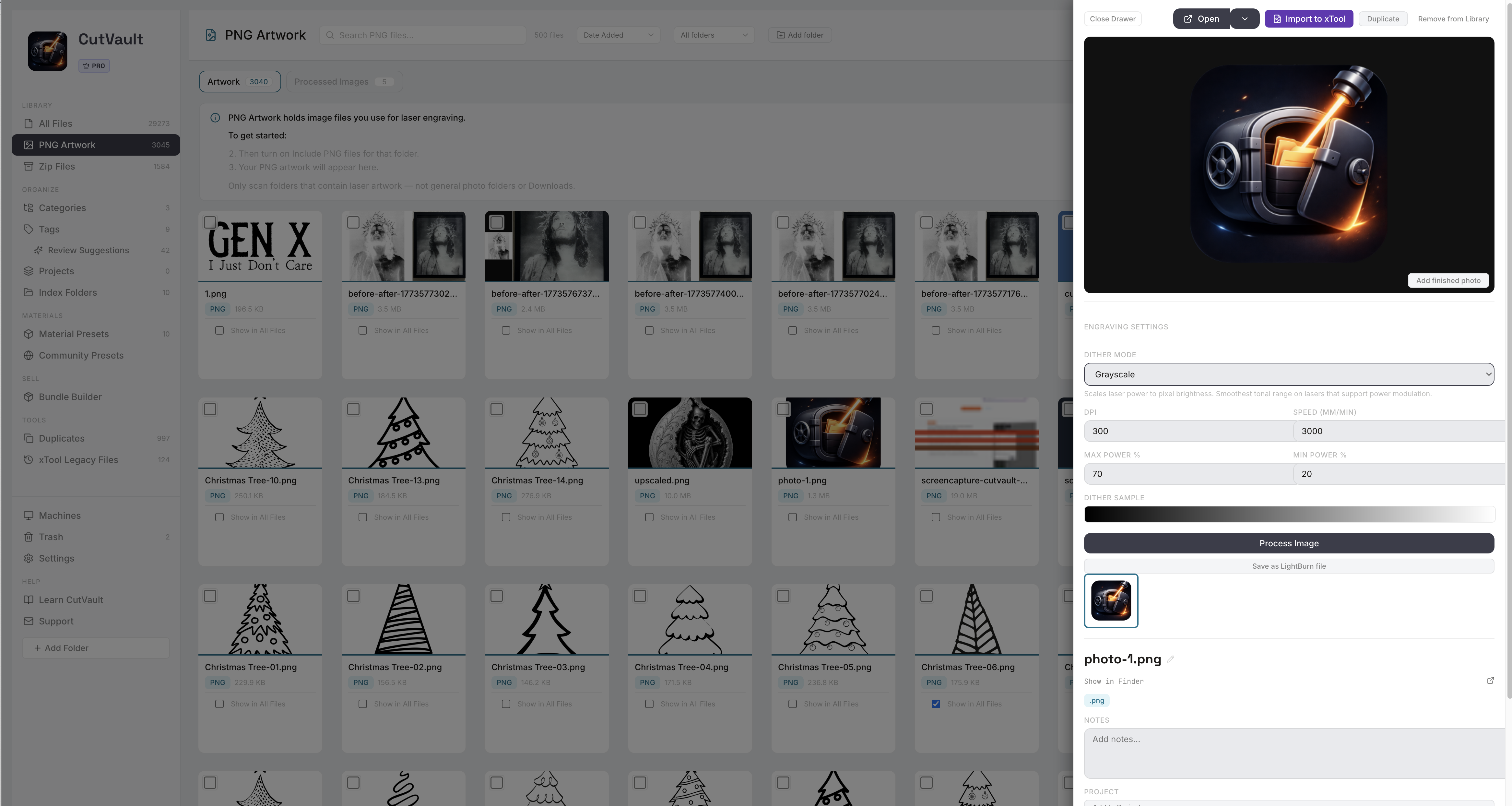
PNG Artwork gives engraving images their own workspace. Choose a dither mode, set DPI, speed and power, and keep those settings with the image so you can come back later without rebuilding the setup. Open it in LightBurn with the saved settings filled in, send it to xTool Studio with your machine selected, or open it in another installed application that supports PNG files.
From testing the same image again to keeping the setup with it.
Dialing in a photo takes time. Without a place to keep the result, the next engraving starts from scratch.
Without CutVault
With CutVault Pro
A separate library for engraving images.
PNG Artwork is its own area, apart from your design files, with its own search, sort and folder filter. Only folders you turn on for PNG files are included, so personal photos stay out.
See what you are working with before you engrave.
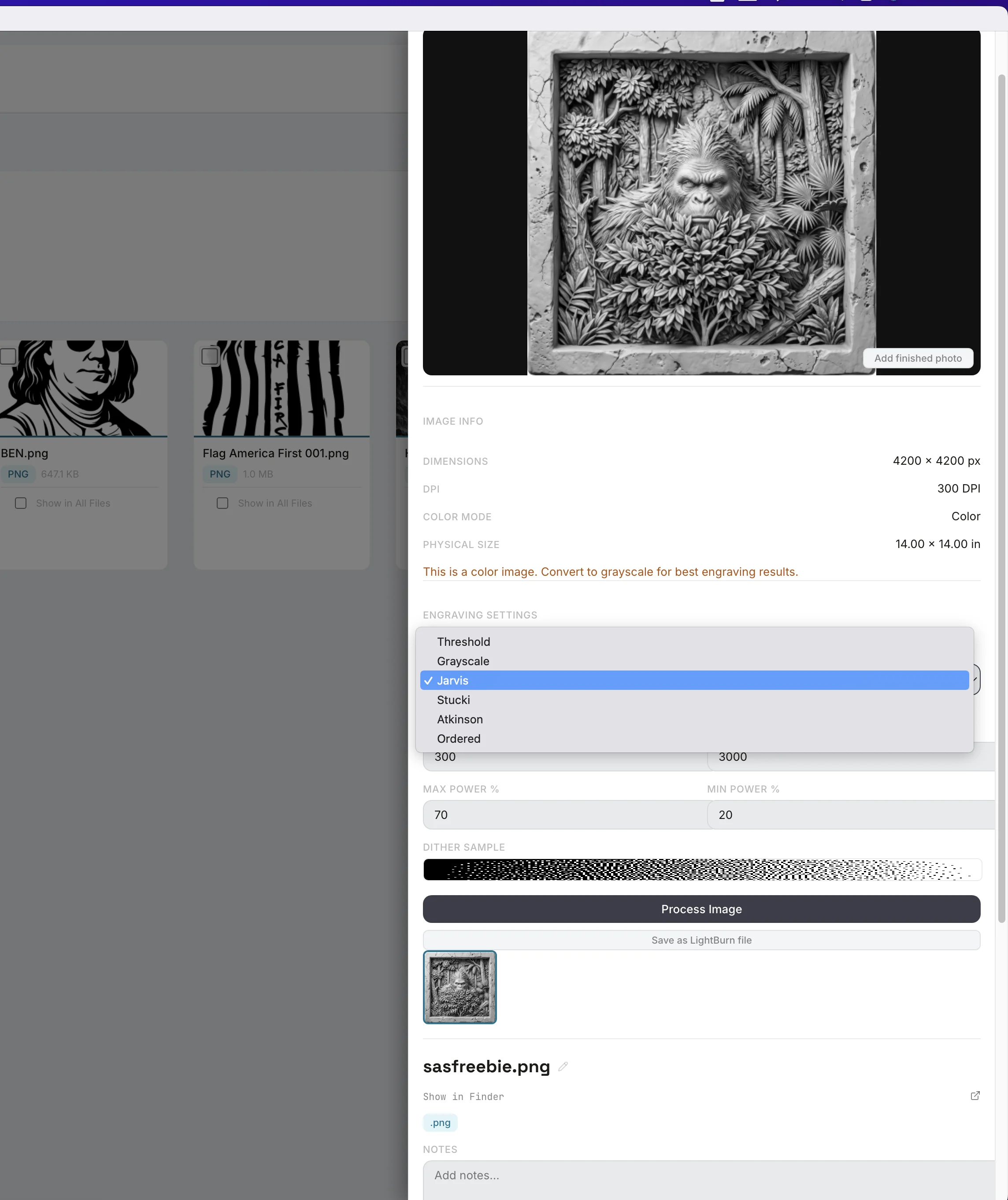
Image Info shows the pixel dimensions, DPI, color mode and physical size of each image. A warning appears on color images, since engraving works from brightness.
Six dither modes
Choose a dither mode and see the result.
Jarvis, Stucki, Atkinson, Ordered, Threshold or Grayscale, each with one line on what it suits and a sample strip. Process the image to save a separate processed copy under Processed Images. The original is never changed.
The settings stay with the image.
Dither mode, DPI, speed, max power and min power save as you change them. Come back weeks later and the setup is still there. Settings are saved per image.
StandoutDial it in onceThe next time you open that image, the engraving settings are already filled in.
Open your PNG in the software you use.
Send your PNG to LightBurn, xTool Studio, or another installed application that supports PNG files. Your original artwork stays in place in CutVault. In LightBurn, it opens with your saved dither, DPI, speed and power filled in, or saves as a LightBurn project for later.
xTool Studio opens the image with your machine selected; set the image engraving settings there. Opening a PNG in another app does not automatically transfer CutVault’s saved engraving settings.
See Open With →More ways PNG Artwork helps.
Smaller tools around your engraving images.
Tags, categories and projects
Tag a PNG, put it in a category, or add it to a project like any design.
Bulk actions
Select many PNGs at once to categorize them, add or remove them from All Files, or move them to Trash.
Notes and a finished photo
Keep notes on an image and add a photo of the engraved result.
Show in All Files
Choose which PNGs also appear in All Files, one at a time or in bulk.
Rename and duplicate
Rename an image, duplicate it, copy its location, or show it in Finder or Explorer.
Processed Images tab
Every processed copy in one tab, with its dither mode on the card.
Bundle Builder
Include PNGs when you build a bundle of files for your shop.
New PNGs appear on their own
Save a PNG into a folder you turned on and it shows up in PNG Artwork.
Image Engrave presets
Use an Image Engrave preset in Create Cut File to turn a PNG into a LightBurn or supported xTool Studio file.
Works with these features.
Go deeper into the CutVault tools that work with your engraving images.
Create Cut File
Turn a preset and your artwork into a file ready to open in LightBurn or xTool Studio.
Open Create Cut File →Material Presets
Save proven settings by material and machine and reuse them on the next job.
Open Material Presets →Library & Search
Every supported design as a thumbnail, searchable across your folders and drives.
Open Library & Search →Machines
Each machine with its own files, settings and service history.
Open Machines →Finished Photos
Add a photo of the finished piece and see it on the design’s card.
Open Finished Photos →PNG Files
Find, organize, preview and open the PNG files you engrave.
Open PNG Files →Questions about PNG Artwork.
One time · No subscription
- 7-day free trialNo credit card
- Mac + WindowsUp to 3 computers
- UpdatesFree updates included
01Does it work with JPG or other image types?
No. PNG Artwork is PNG only in the current release.
02Will CutVault pull in my personal photos?
No. Only folders you turn on for PNG files are included. Keep that to the folders where you keep engraving artwork.
03Does Process Image change my original image?
No. It saves a separate processed copy and lists it under Processed Images. Your original stays as it was.
04Do I need LightBurn or xTool Studio installed?
Only to open images in them. The PNG library, Image Info and saved settings work without them, and you can also open a PNG in another installed application that supports PNG files.
05Are the engraving settings saved per machine?
They are saved per image. Each PNG keeps one set of dither, DPI, speed and power values.
06Can I use a color image?
Yes. Engraving works from brightness rather than color, and CutVault shows a warning on color images so the engraved result is not a surprise.
07Is PNG Artwork sold separately?
No. PNG Artwork is included with CutVault Pro. The $169 one-time price is for the complete CutVault desktop app.
Dial in the image once. Keep the settings with it.
Try CutVault Pro free for 7 days with your own PNG artwork, save the engraving settings with each image, and open it in the software you use.
One-time purchase
CutVault Pro is $169 once. No subscription. Use it on up to 3 computers.
- 7-day free trial · No credit card