
Everything for one job, from the design files to the finished piece.
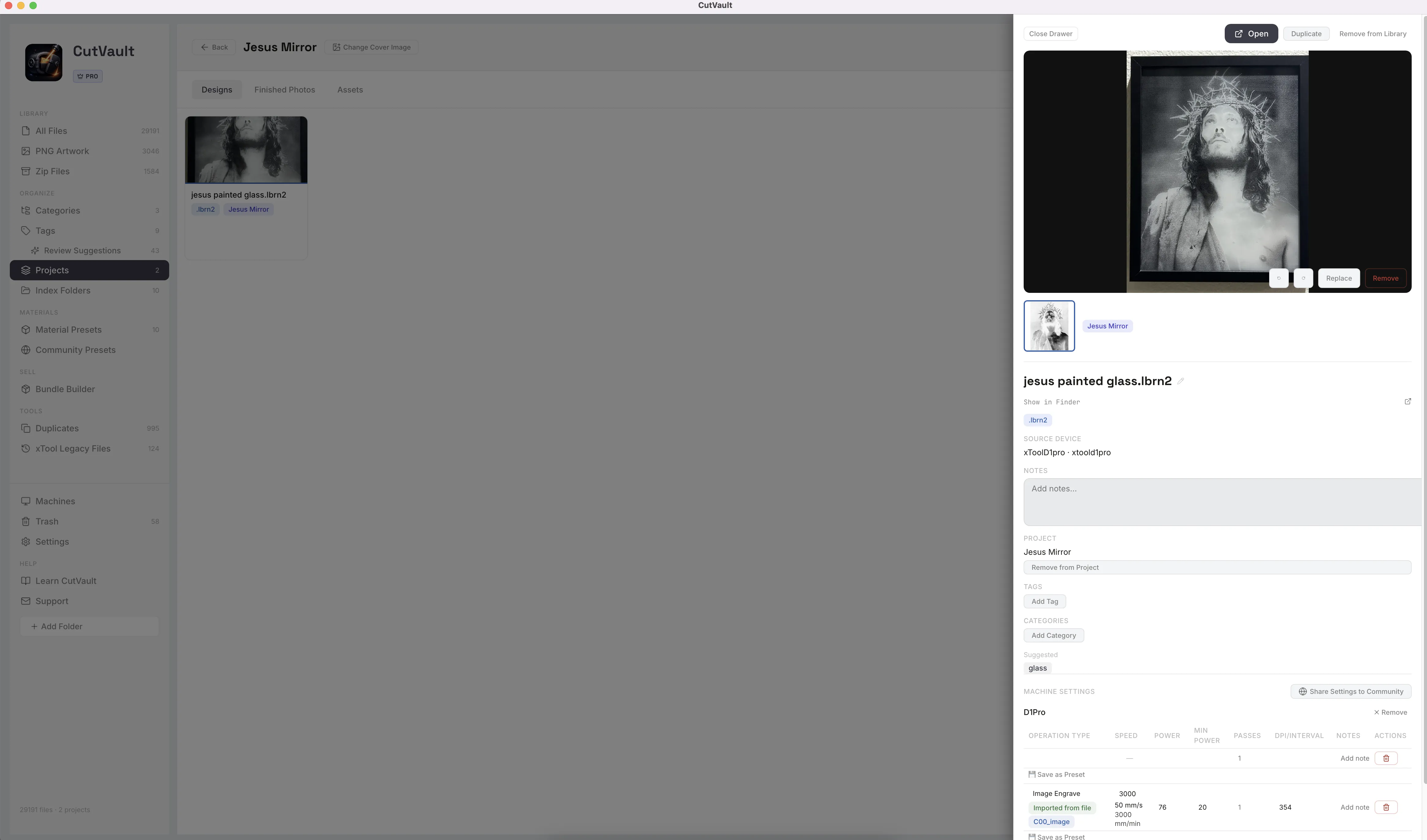
A project holds the designs, the finished photos and the job’s other images, such as a client’s logo or a mockup, in one place. Open the project and the whole job is there.
From a job scattered across folders and a phone to one project.
The design files, the customer’s logo, the mockup and the photo of the finished piece usually end up in different places.
Without CutVault
With CutVault Pro
One project: Brewery coaster order
- coaster-round.lbrn2
- coaster-square.svg
- logo-engrave.xcs
- Stacked coastersCaption: first batch
- Close-upCaption: logo detail
- Client logoCaption
- MockupCaption
- Reference imageCaption
One job, three tabs. The design files stay in their folders.
One project per job, in three tabs.
Each project keeps its Designs, Finished Photos and Assets on their own tabs, for one job or one customer order.
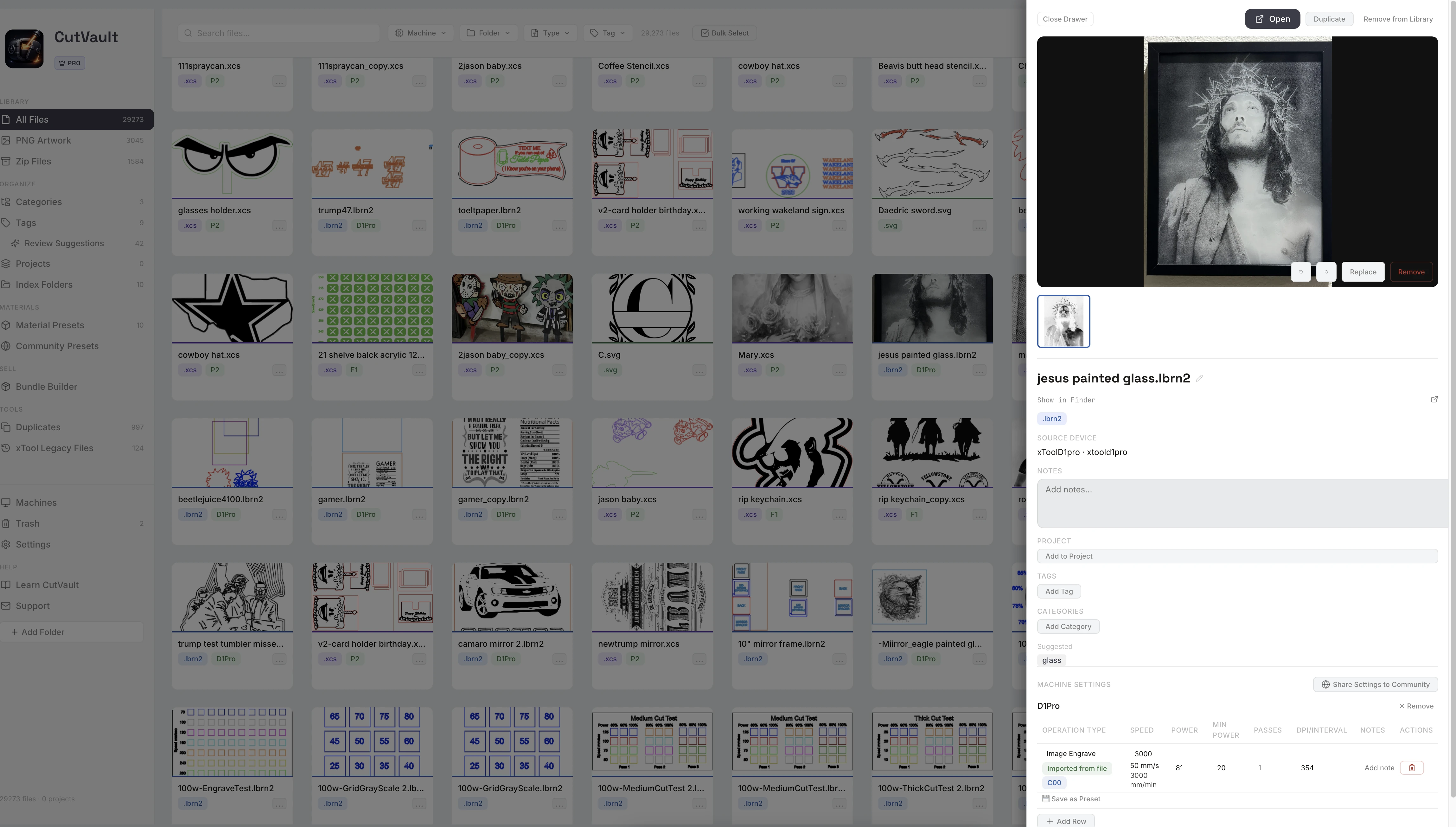
Add designs from anywhere in your library.
Add a design to a project from its details, add a whole selection at once, or right-click and create a new project on the spot. The files stay in the folders where they are saved.
Finished photos and job assets, each with a caption.
Keep photos of the finished pieces next to the client logos, reference images, mockups and inspiration for the job. Caption any photo, open it full screen, and step through with the arrow keys.
A Before / After image from the design and the finished piece.
Pair a finished photo with its design and CutVault makes a side-by-side image. Save it, or copy it to the clipboard to post or send.
StandoutReady for a listing or a postUse the Before / After image as a shop listing photo or a social post.
More ways to work with projects.
Smaller tools that keep each job easy to find and safe.
Project covers
Give each project a cover photo so you can spot the job at a glance.
Project column
The library’s list view shows the project each file belongs to.
On every design
A design’s details show its project next to its tags and categories.
Bundles and artwork too
Add downloaded ZIP bundles and PNG artwork to a project with the designs.
Restore a project
A deleted project goes to Trash and can be restored.
Save photos to a folder
Copy every finished photo and project photo to a dated folder as a separate backup.
Works with these features.
Go deeper into the CutVault tools that feed your projects.
Finished Photos
Add a photo of the finished piece to any design and see it on the design’s card.
Open Finished Photos →Bundle Builder
Pick designs and formats and get one ZIP ready for your shop listing.
Open Bundle Builder →Library & Search
Every supported design as a thumbnail, searchable by name, tag, project and more.
Open Library & Search →Categories
Put one design in several categories without moving the file.
Open Categories →Tags
Tag designs in your own words and find them in any folder.
Open Tags →Back to overview
See how Projects fits into the rest of CutVault Pro.
Homepage →Questions about Projects.
One time · No subscription
- 7-day free trialNo credit card
- Mac + WindowsUp to 3 computers
- UpdatesFree updates included
01What goes in a project?
The designs for the job, photos of the finished pieces, and assets such as client logos, reference images, mockups and inspiration, each on its own tab.
02Does adding a design to a project move the file?
No. The design file stays where it is saved on your drive. The project keeps it with the rest of the job.
03What is the Before / After image?
A side-by-side image of a design and a photo of the finished piece, made from inside the project. Save it or copy it to the clipboard.
04Does a project take orders or track customers?
No. A project keeps the files, photos and assets for a job together. CutVault does not take orders, send invoices or keep a customer list.
05Can I find a past job again?
Yes. Search finds designs by the name of their project, and each project can have a cover photo so you can spot it.
06Are Projects sold separately?
No. Projects are included with CutVault Pro. The $169 one-time price is for the complete CutVault desktop app, not for Projects on its own.
Keep the next job together from the start.
Try CutVault Pro free for 7 days: make a project, add the designs and the finished photos, and make a Before / After image from them.
One-time purchase
CutVault Pro is $169 once. No subscription. Use it on up to 3 computers.
- 7-day free trial · No credit card