
Every SVG you own,as a thumbnail,ready to cut.
SVG files from any design software show as thumbnails in your CutVault library, next to your LightBurn and xTool projects. Search them, tag them, keep your settings with them, then open one in LightBurn, xTool Studio or Inkscape, or turn it into a cut file with a saved preset.
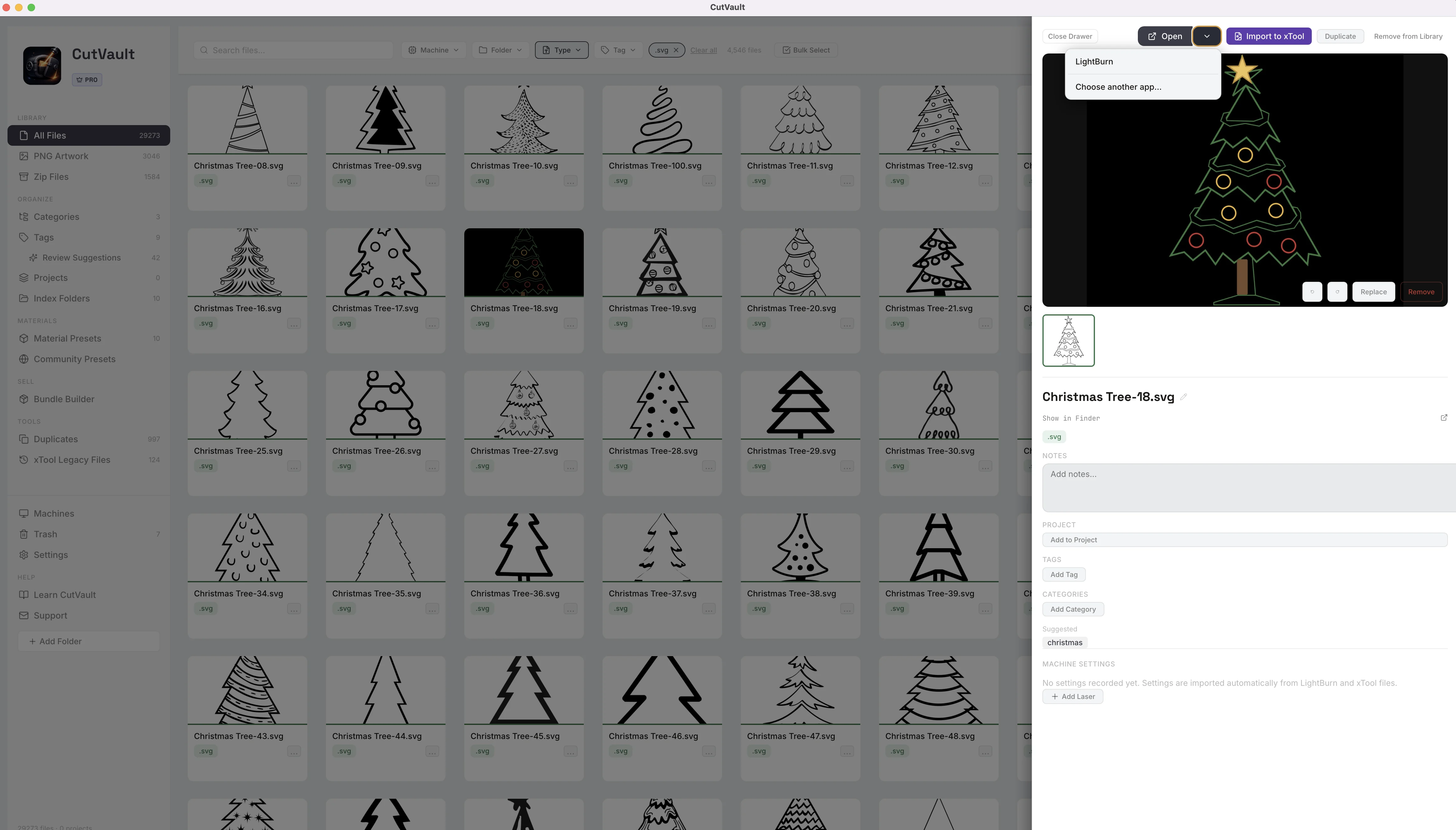
From a folder of SVG icons to a wall of designs.
Bought bundles, downloads and your own drawings end up as hundreds of identical SVG icons spread across drives.
SVGs in folders
With CutVault Pro
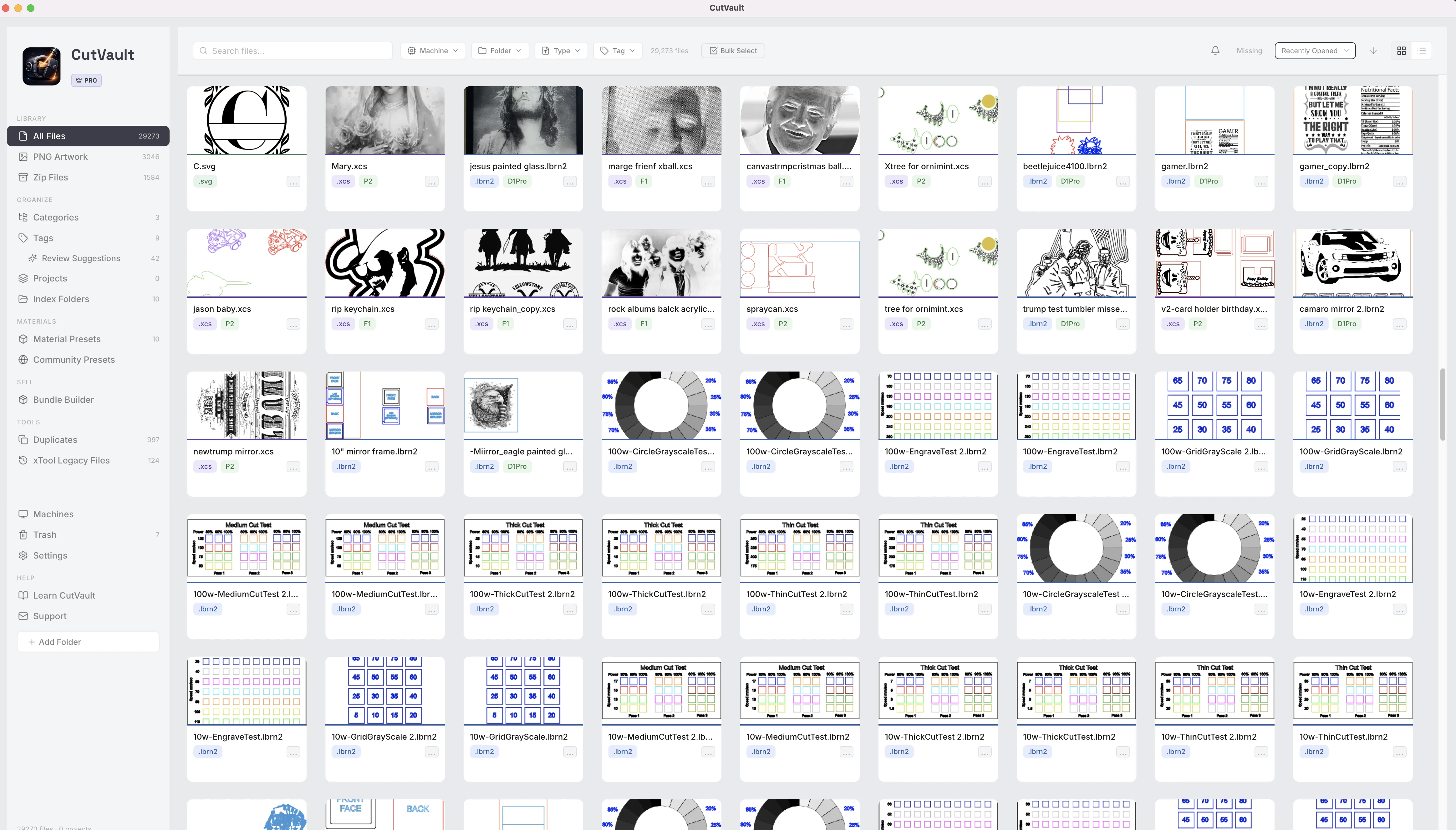
Thumbnails for every SVG, with no setup.
Add the folders you already use and every SVG appears as a card with a thumbnail of the design, its .svg badge and the machine you assign it. LightBurn and xTool projects sit in the same grid, so one search covers the whole library.
StandoutYour files stay where they areFolders on your computer, external drives, USB and SD cards, and synced Google Drive, Dropbox or OneDrive folders.
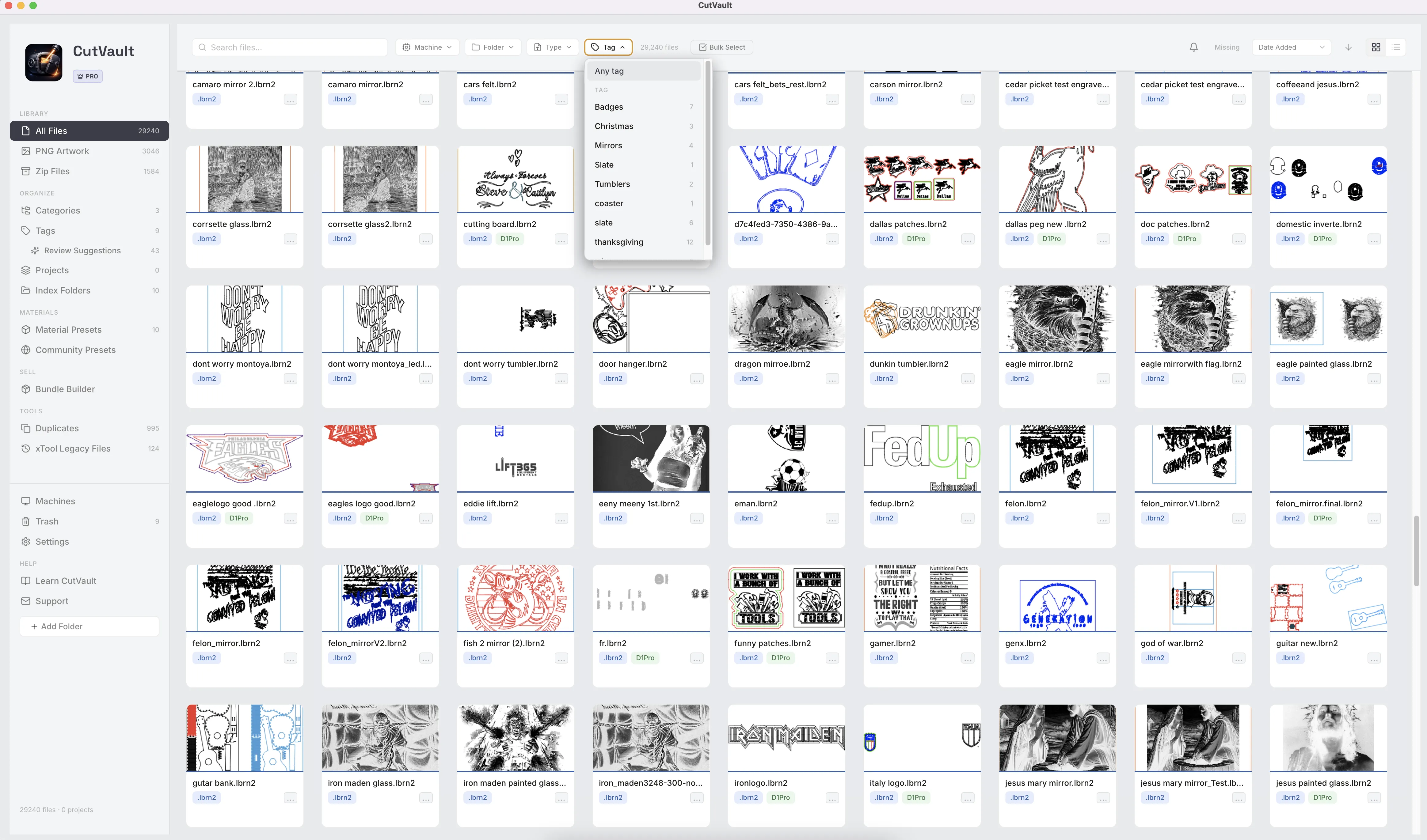
Find the SVG by what you remember.
Search by file name or by the notes you wrote, then narrow the results by folder, type and tag. Filter to SVG only when the job calls for vector artwork.
Keep the settings that cut it well.
An SVG carries no cut settings of its own, so CutVault gives you a place for yours. Type in the operation, speed, power and passes for each machine, add a note, and they are there the next time you open the file.
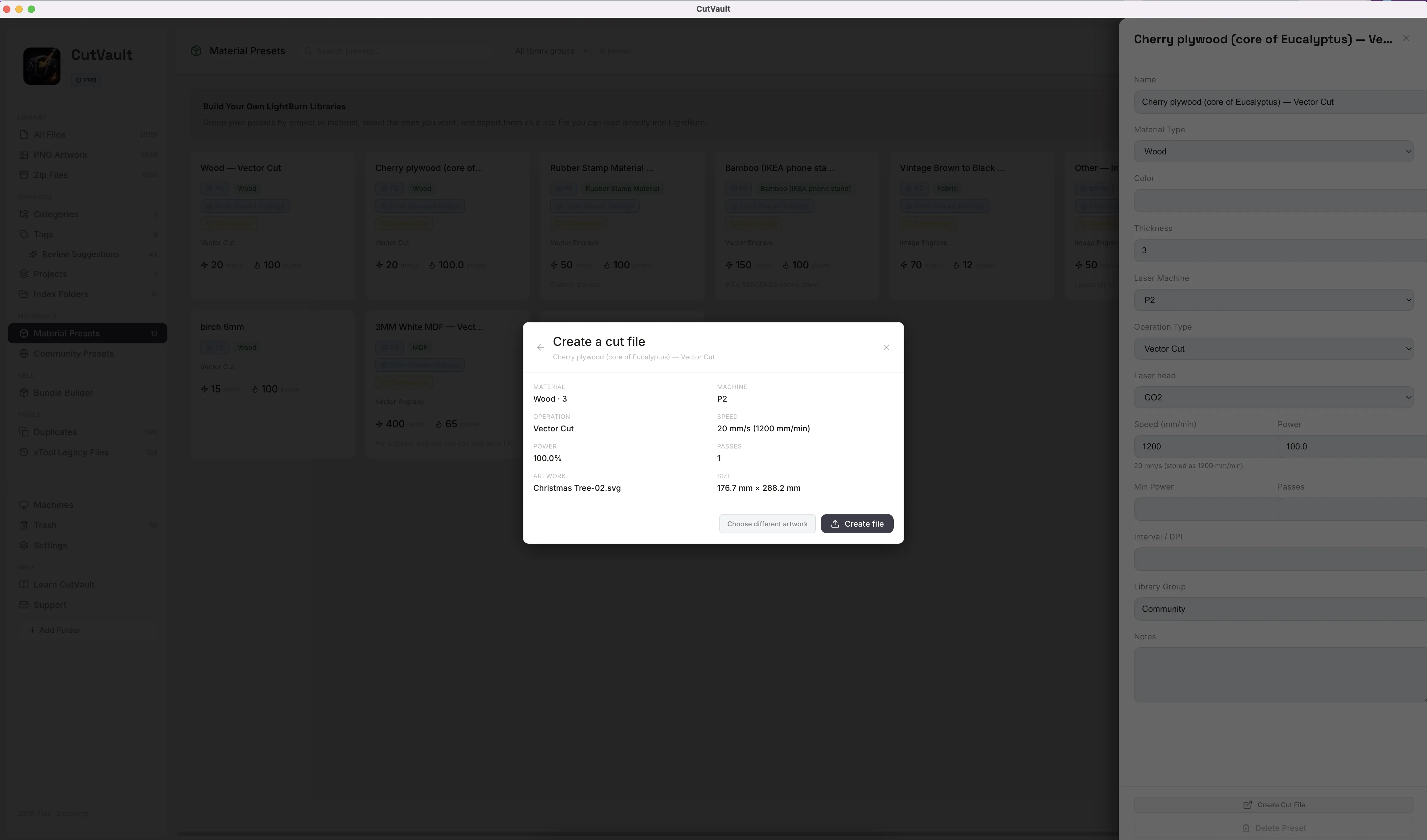
Turn an SVG into a ready-to-run cut file.
Choose a saved Material Preset, pick the SVG, and check the summary: material, machine, operation, speed, power, passes and the artwork at its real size in mm. CutVault creates a LightBurn file, or an xTool Studio file for supported xTool machines, and opens it.
Open it where you work.
Open an SVG in LightBurn, xTool Studio, Inkscape or any other installed app that supports it, and choose which app opens SVGs by default. Import to xTool sends it into xTool Studio with the right xTool machine already selected and the design at its true size.
Works with these features.
Go deeper into the CutVault tools that work with your SVG files.
DXF Files
The same library, search and cut-file flow for DXF artwork.
Open DXF Files →Create Cut File
A preset plus artwork becomes a LightBurn or xTool Studio file.
Open Create Cut File →Material Presets
Save proven settings by material and machine and use them again.
Open Material Presets →Open With
Choose which app opens each file type.
Open Open With →Library & Search
Every supported design as a thumbnail, searchable across folders and drives.
Open Library & Search →Back to overview
See how SVG files fit into the rest of CutVault Pro.
Homepage →Questions about SVG files.
One time · No subscription
- 7-day free trialNo credit card
- Mac + WindowsUp to 3 computers
- UpdatesFree updates included
01Does CutVault show cut settings for an SVG?
Not on its own. SVG files carry no cut settings, so settings appear only for supported LightBurn and xTool projects. For an SVG you type the settings in once, and they stay with the file.
02Which apps can open an SVG from CutVault?
LightBurn, xTool Studio, Inkscape or any other installed application that supports SVG. Opening the file in another app does not carry CutVault settings with it.
03Can I make a LightBurn file from an SVG?
Yes. Pick a Material Preset and the SVG in Create Cut File, check the summary, and CutVault creates the LightBurn file with the preset’s settings applied. For supported xTool machines it can create an xTool Studio file instead.
04Do my SVGs get moved or changed?
No. CutVault shows the files where they already are. Nothing is moved, renamed or uploaded, and a cut file made from an SVG is saved as a new file beside it.
05Does CutVault work with SVGs inside ZIP bundles?
Yes. Open a ZIP in Zip Files to preview the SVGs inside it, then extract only the ones you need.
Every SVG, found and ready.
Try CutVault Pro free for 7 days with the SVG folders you already have.
One-time purchase
CutVault Pro is $169 once. No subscription. Use it on up to 3 computers.
- 7-day free trial · No credit card