
Build a reusable library of the settings that work.
Save proven material and machine settings as presets, organize them into a searchable library, and use them again when the next job comes up.
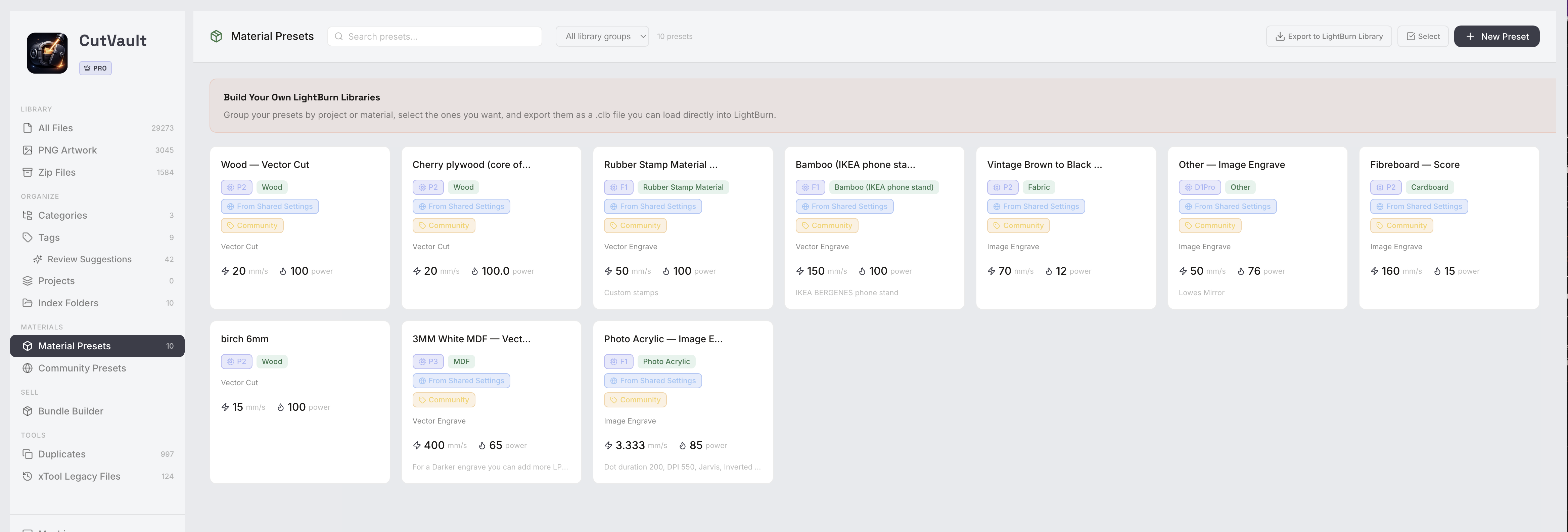
From scattered numbers to a working recipe library.
A useful setting is only useful later if you can find it, understand what it belonged to, and use it again.
Without CutVault
With CutVault Pro
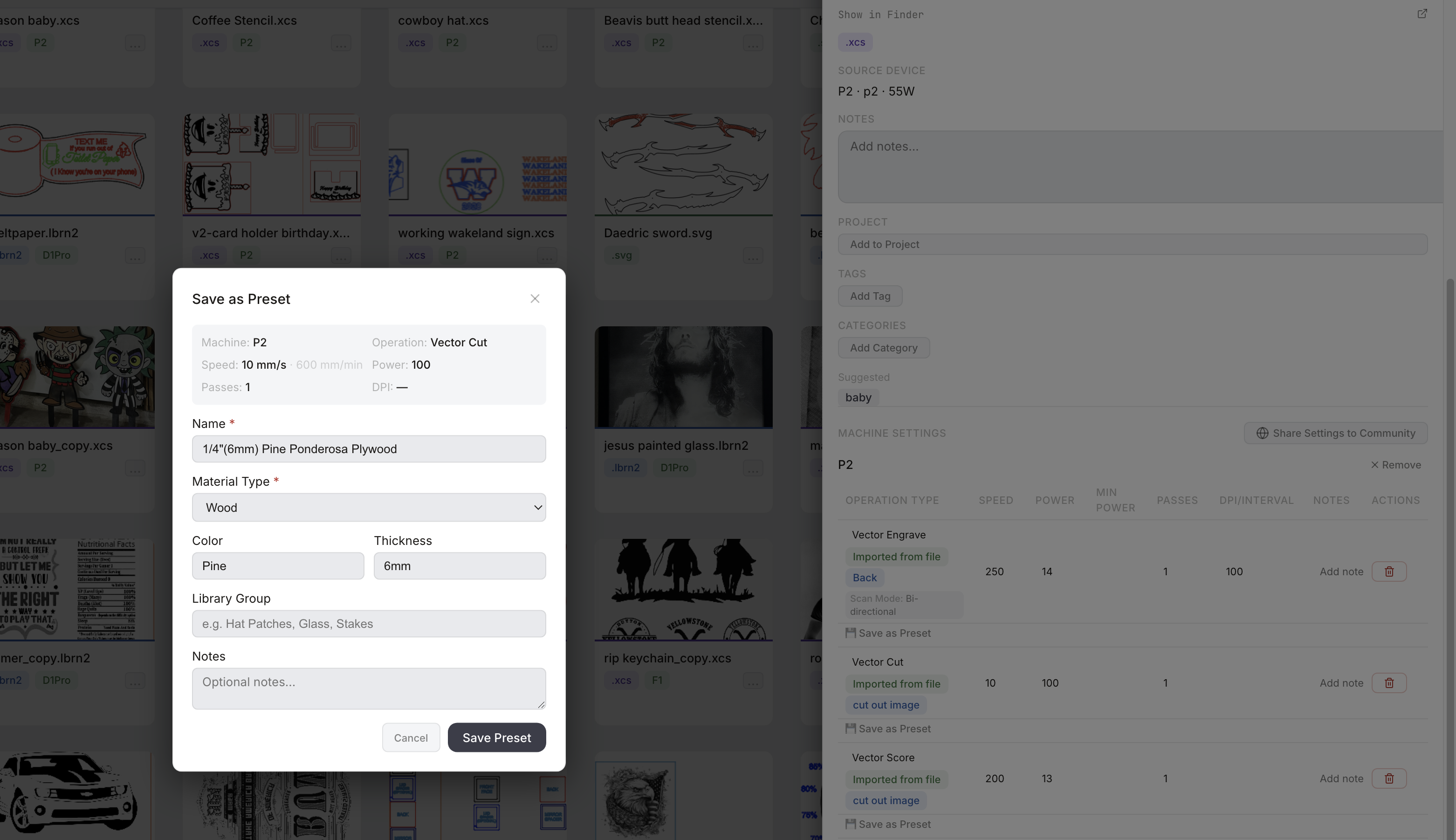
Save a proven setting as a preset.
Turn a settings row from a successful job into a reusable preset with the machine, operation and core setup already in place.
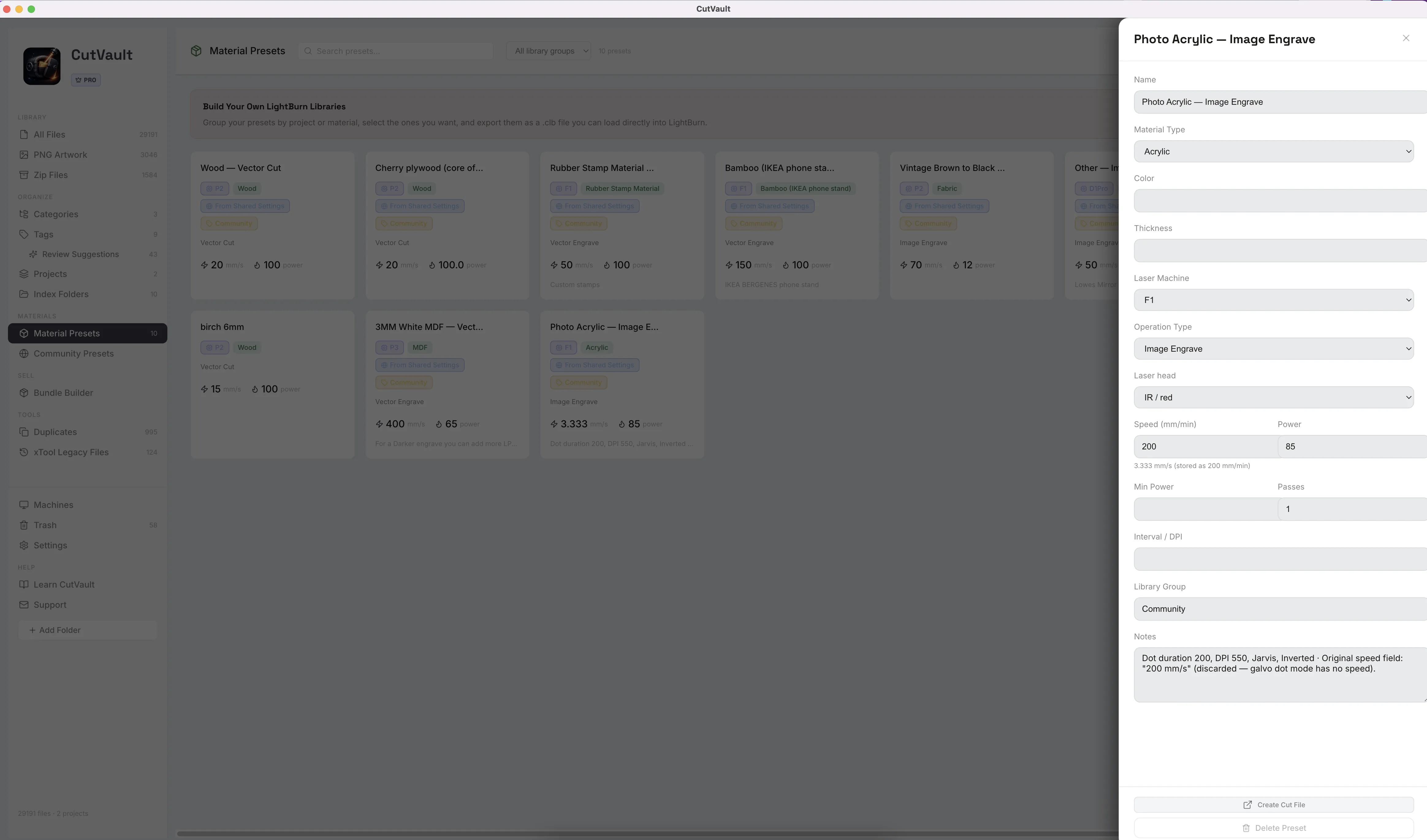
Keep the full recipe, not just the numbers.
Store the material, color, thickness, machine, operation, settings and notes together in one preset.
In every presetEverything you need to recognize the setup later.Keep the material, machine, operation, settings, group and notes together in one reusable preset.
Find the preset you need fast.
Search and filter your preset library by name, material, color, thickness, operation, machine, group or notes.
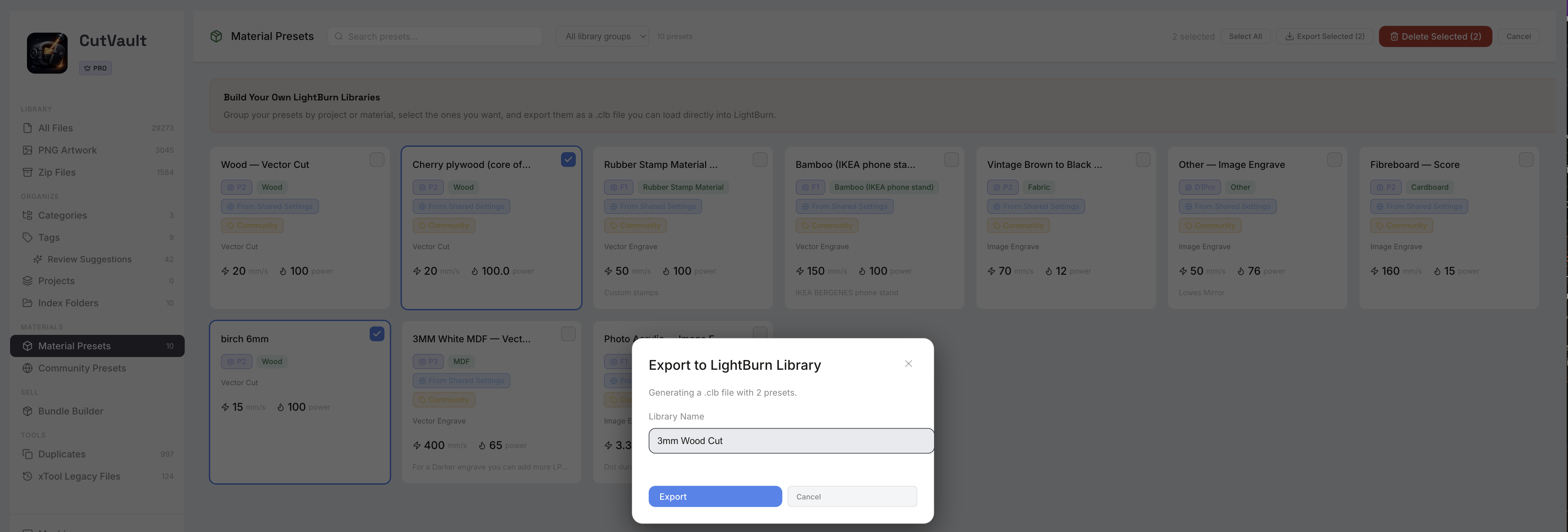
Build LightBurn material libraries from your presets.
Choose all of your presets or only the ones you want and export them as a named LightBurn material library.
LightBurnExport only — CutVault does not import existing LightBurn libraries.
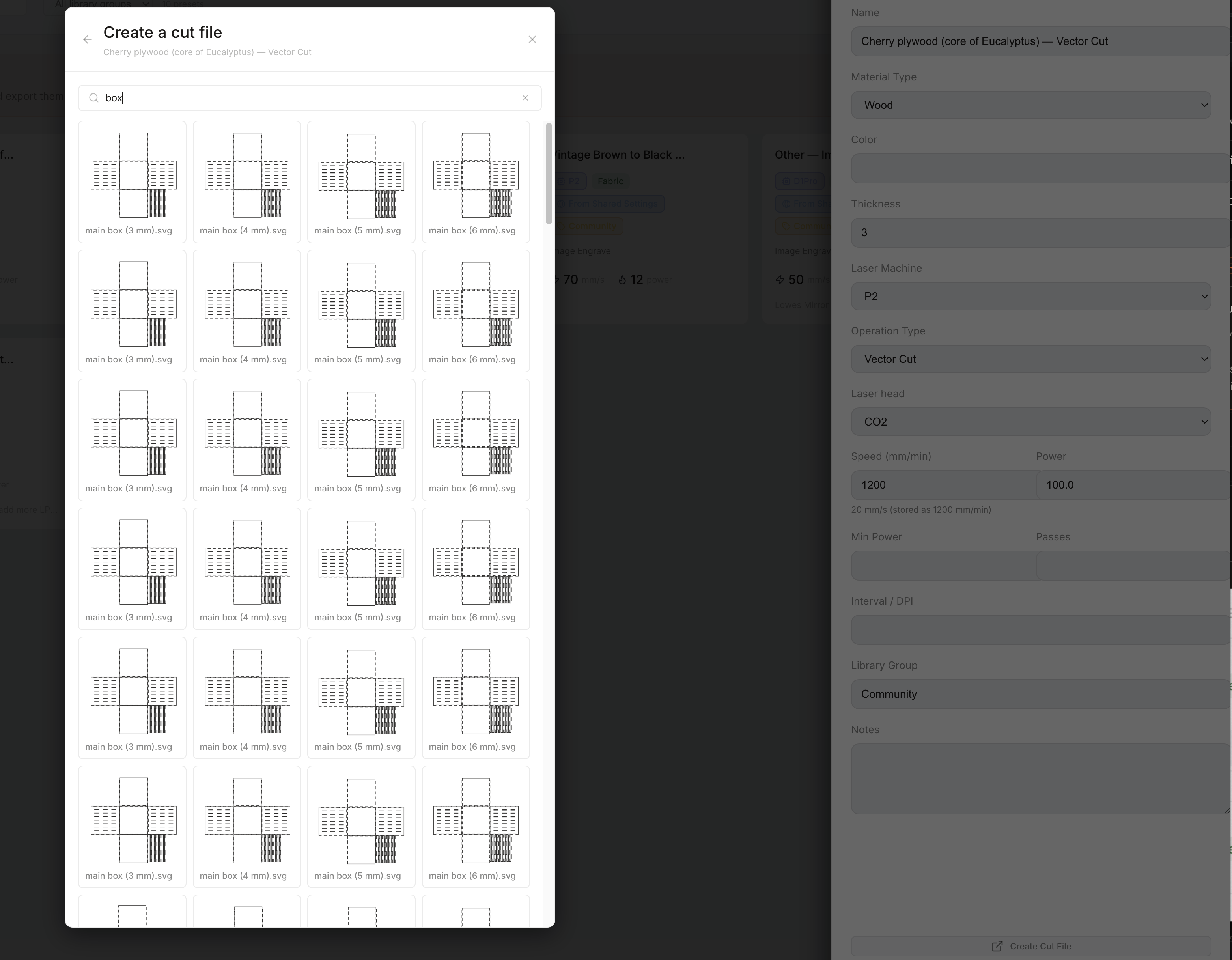
Put a saved preset back to work.
Apply a preset to another file or use it as the starting point for supported xTool and new-artwork workflows.
Create Cut FileTurn a preset and new artwork into a ready-to-run file.Choose artwork from your library or your computer and get a LightBurn or xTool Studio file with the preset's settings applied.
More ways to work with your presets.
Create a preset manually
Build a preset from scratch with the material, machine, operation and settings you already know.
Add a finished-result photo
Attach a photo of the finished piece so each preset shows the result it produced.
Organize with Library Groups
Create groups such as Hat Patches or Glass and show one group at a time.
Search by material, machine, operation and notes
Find a preset by any detail you saved with it, from the material to your own notes.
Select multiple presets at once
Export or delete several presets together.
Export selected presets
Send only the presets you pick to a named LightBurn material library, or export them all.
Delete presets and restore them from Trash
Deleted presets go to Trash, so one removed by mistake can be restored.
Speeds in the units your software uses
Speeds show in the unit your laser software uses, so there is nothing to convert.
Use presets in supported xTool workflows
Open xTool Creative Space with a preset's settings already loaded.
Share a preset to Community Presets
Send a preset to Community Presets for other makers. Every share is reviewed before it appears.
Community settings are starting points. Machines, materials and setups vary, so test on scrap first.
Works with these features.
Go deeper into the CutVault tools that work alongside your presets.
Settings
See speed, power, passes and machine details from supported LightBurn and xTool projects.
Open Settings →Community Presets
Browse settings shared by other makers and save one to your own presets as a starting point.
Open Community Presets →Create Cut File
Combine a preset with artwork to make a ready-to-run LightBurn or xTool Studio file.
Open Create Cut File →Machines
Set up each machine once and keep its files and service history together.
Open Machines →Library
Every design as a thumbnail, searchable across every folder and drive.
Open Library →Back to overview
See how Material Presets fits into the rest of CutVault Pro.
Homepage →Questions about presets.
One time · No subscription
- 7-day free trialNo credit card
- Mac + WindowsUp to 3 computers
- UpdatesFree updates included
01What is a Material Preset?
A reusable recipe for a material, machine and operation, with the settings and context you want to keep.
02Can I save a preset from a job that already worked?
Yes. Save a useful settings row as a preset, then add the material details and other context you want to keep.
03Can I create a preset manually?
Yes. You can create presets directly in the Material Presets area.
04Can I search my presets?
Yes. Search and filter by details such as material, machine, operation, thickness, color, group and notes.
05Can I export presets to LightBurn?
Yes. Choose the presets you want and export them as a named LightBurn material library. CutVault does not import existing LightBurn libraries.
06Can I use presets with xTool workflows?
Yes. Saved presets can be used in supported xTool workflows.
07Can I use a preset on another file?
Yes. Presets can be applied to other work and used as a starting point for new jobs.
Turn the settings that worked into presets.
Try CutVault Pro with your own files for 7 days and start your preset library from jobs you have already run.
One-time purchase
CutVault Pro is $169 once. No subscription. Use it on up to 3 computers.
- 7-day free trial · No credit card