
Keep the current xTool design in front and the older version out of the way.
When a design has a newer xTool Studio version, All Files shows that one, with your tags, categories, notes, finished photo, machine and settings. The older version waits in xTool Legacy Files, where you can archive it to a backup ZIP, delete it or restore it.
From two versions of the same design to the one you use.
Long-time xTool users end up with old and new versions of the same design side by side, and it is not always clear which one to open.
Without CutVault
With CutVault Pro
One design, two versions
- Floral tumbler wrapxTool Creative Space · older
- Floral tumbler wrapxTool Studio · current
- Floral tumbler wrapxTool Studio · current
- Floral tumbler wrapxTool Creative Space · older
Both files stay on your drive until you choose what happens to the older one.
The current version stays in front.
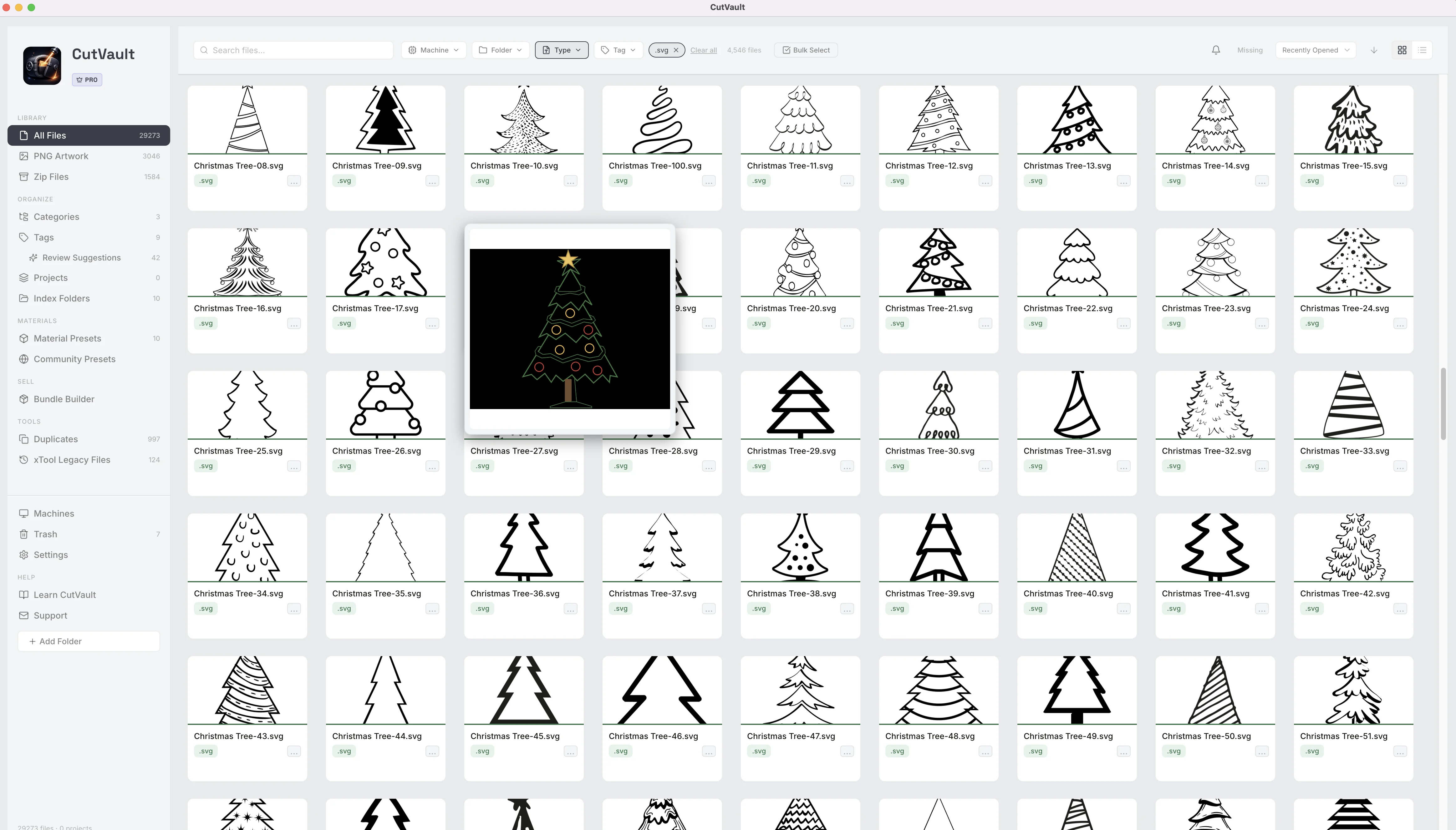
When a design has a newer xTool Studio version, All Files shows the current one and keeps the older xTool Creative Space version out of the grid. Browse, search and filter without two copies of every updated design.
Your organization stays with the current design.
The tags, categories, notes, finished photo, machine and settings you gave a design stay with its current version, so nothing has to be added again.
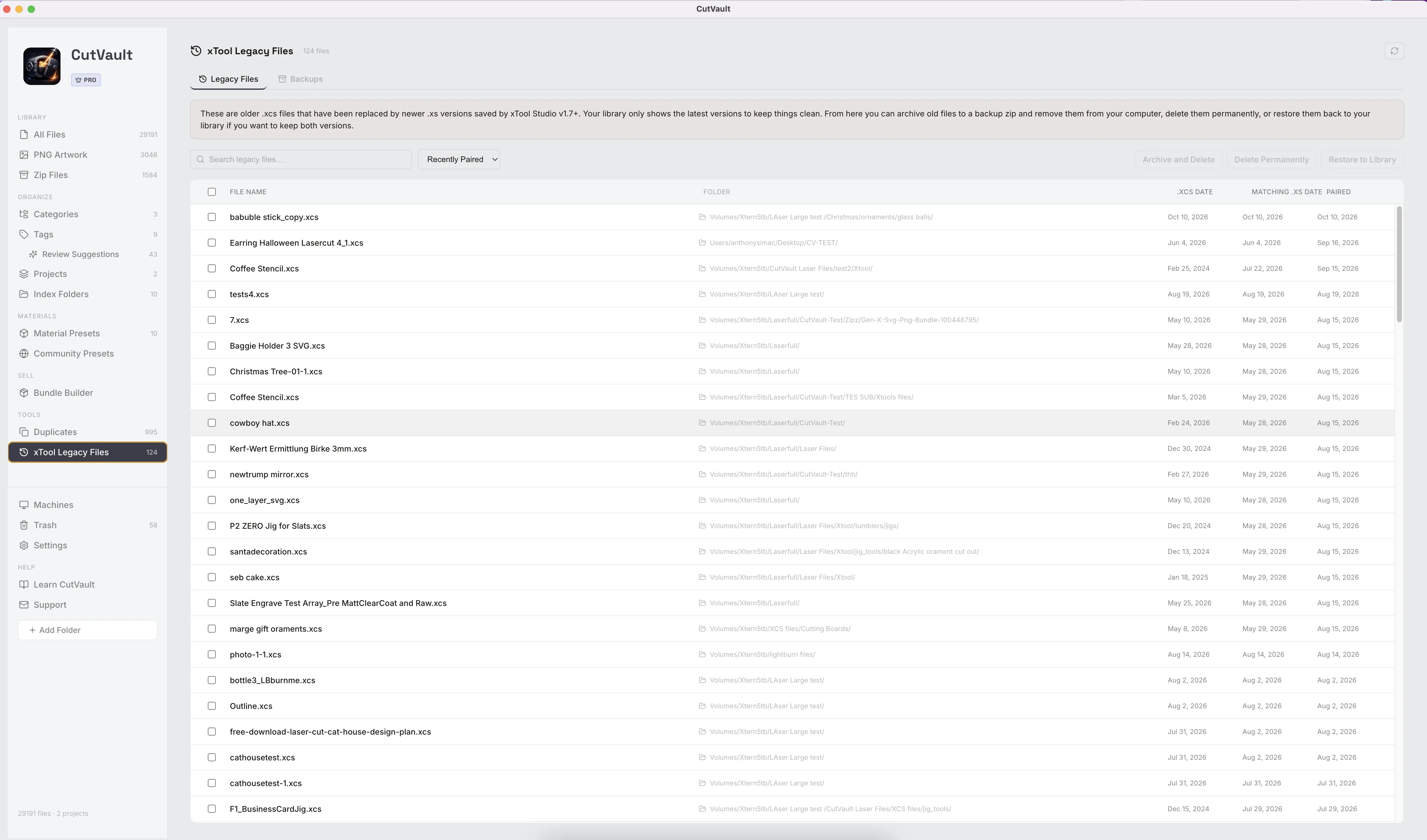
Every older version listed in one place.
xTool Legacy Files lists the older versions together, with a count in the sidebar, so you can review them before choosing anything. Search and sort the list to find a particular design.
An older version: three choices
The current version: never touched, whichever you choose.
Archive, delete or restore.
Choose what happens to older versions: archive them into one backup ZIP and clear them from the list, delete them, or restore one to keep both versions in the library.
StandoutThe current version is never touchedWhatever you choose for an older file, the current xTool Studio design stays exactly as it is.
Every backup in one tab.
The Backups tab lists every archive you have made, with its size and date. Show a backup in Finder or Explorer, or delete it when you no longer need it.
More ways it keeps older versions in order.
Smaller tools around older xTool versions and their backups.
Nothing removed on its own
Older versions stay in the list until you archive, delete or restore them.
Choose the backup folder
Save backup ZIPs wherever you keep your archives.
Archive progress
Progress shows while a backup ZIP is made, and you can cancel it.
Kept out of duplicate groups
Older xTool versions stay out of Duplicates, so the groups show real copies only.
Works with these features.
Go deeper into the CutVault tools that keep an xTool library tidy.
Duplicates
Find identical copies across folders and drives and clear the extras, with one copy always kept.
Open Duplicates →Settings
See the settings from supported xTool projects beside the design, sorted by machine.
Open Settings →Tags
Tag designs in your own words and find every design with a tag, in any folder.
Open Tags →Finished Photos
Add a photo of the finished piece and see it on the design’s card.
Open Finished Photos →Search & Filters
Find the current version by layer, tag, note or machine.
Open Search & Filters →Machines & Maintenance
Each xTool machine with its own designs, settings and service history.
Open Machines →Questions about xTool Legacy Files.
One time · No subscription
- 7-day free trialNo credit card
- Mac + WindowsUp to 3 computers
- UpdatesFree updates included
01Does CutVault change my newer xTool file?
No. The current version is never touched, whatever you choose for the older one.
02Which files does xTool Legacy Files cover?
Older xTool Creative Space (.xcs) files that have a newer xTool Studio (.xs) version.
03Are older versions deleted automatically?
No. They stay in xTool Legacy Files until you archive, delete or restore them.
04Do my tags and notes stay with the design?
Yes. Tags, categories, notes, finished photo, machine and settings stay with the current version.
05Can I keep both versions in the library?
Yes. Restore an older version and both show in the library.
06Where do archived versions go?
Into a backup ZIP in the folder you choose. The Backups tab lists every archive with its size and date.
07Is xTool Legacy Files sold separately?
No. xTool Legacy Files is included with CutVault Pro. The $169 one-time price is for the complete CutVault desktop app, not for this feature on its own.
The current design in front. The old one kept safe.
Try CutVault Pro free for 7 days and see your xTool designs with one version of each up front.
One-time purchase
CutVault Pro is $169 once. No subscription. Use it on up to 3 computers.
- 7-day free trial · No credit card