
See, save, and reuse the settings from your laser jobs.
See speed, power, passes, layers, machine details and other useful job settings from supported LightBurn and xTool projects. Save the ones worth keeping as presets and use them as a starting point on future work.
From “what did I use?” to “there it is.”
The problem isn’t finding another setting. It’s remembering which one actually worked.
Without CutVault
With CutVault Pro
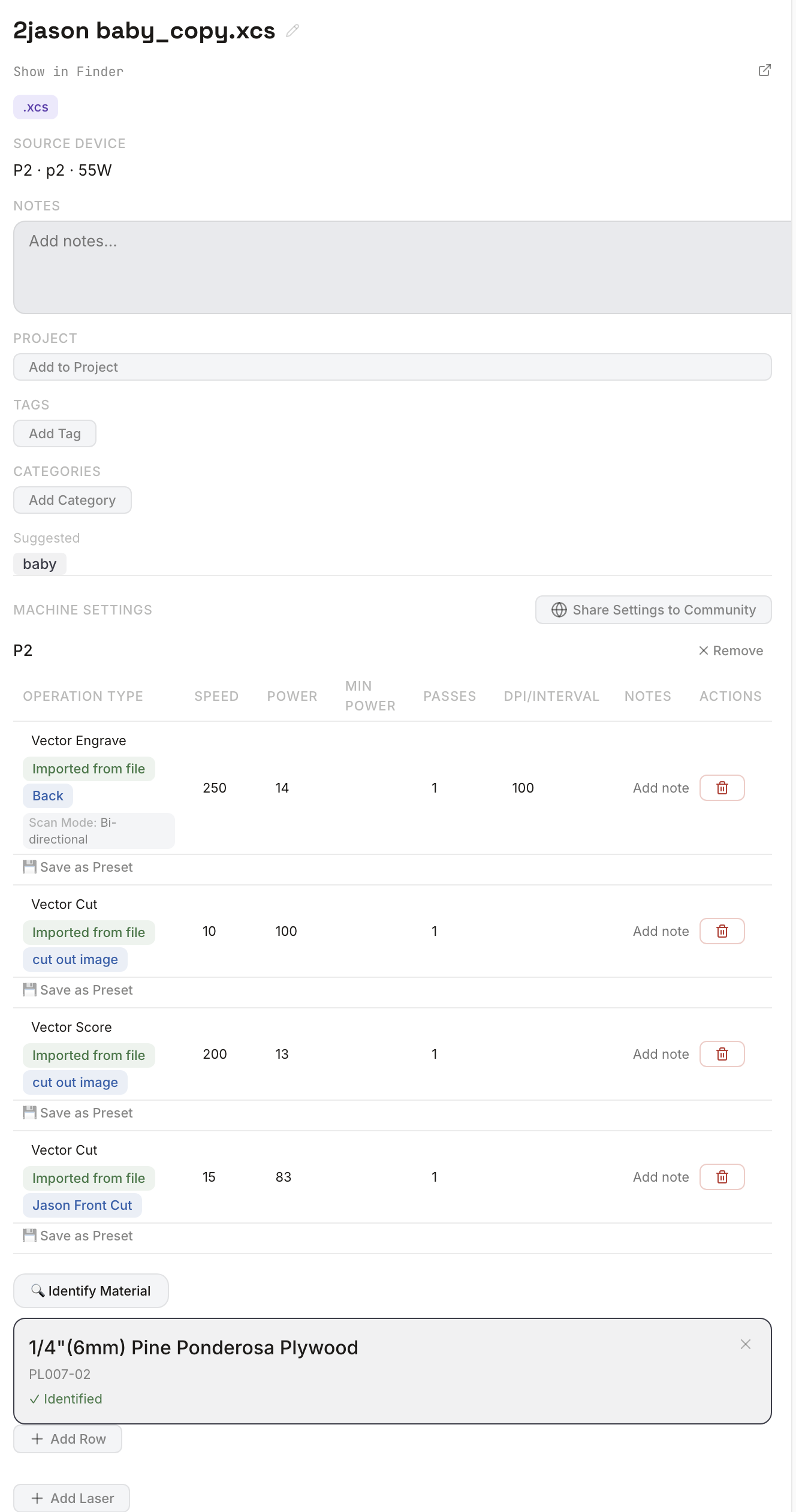
See the settings from the job.
Review speed, power, passes, layers, machine details and other available setup information from supported LightBurn and xTool projects.
Supported projectsLightBurn and xTool projects can expose different job details, so CutVault shows the useful settings available for each supported project.LightBurn: speed, power, minimum power, passes, interval or DPI, and layer details where available.xTool: job settings plus machine, wattage, laser-head and additional engraving details where available.
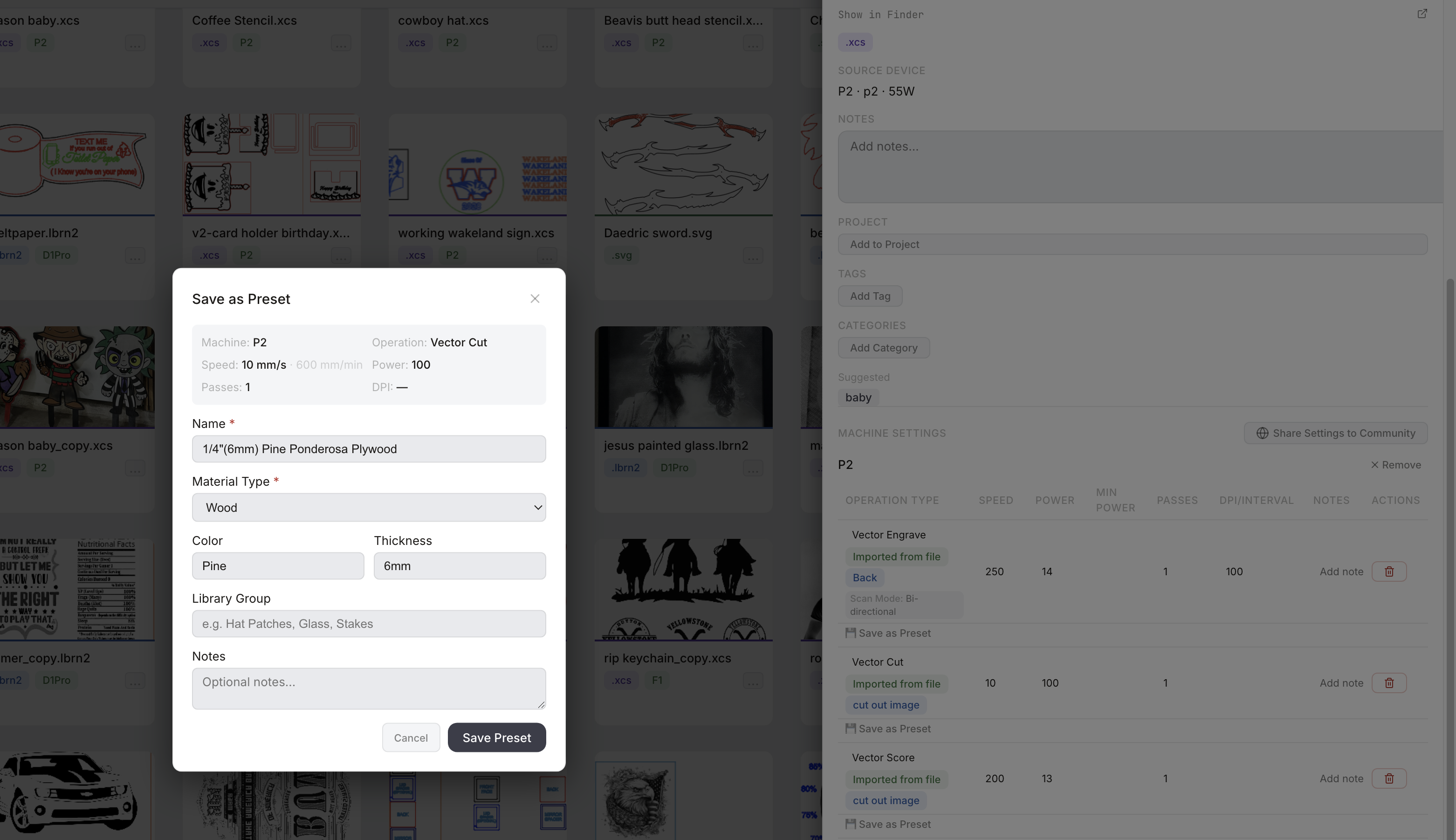
Save any proven setting as a preset.
Turn a settings row from a successful job into a reusable CutVault preset.
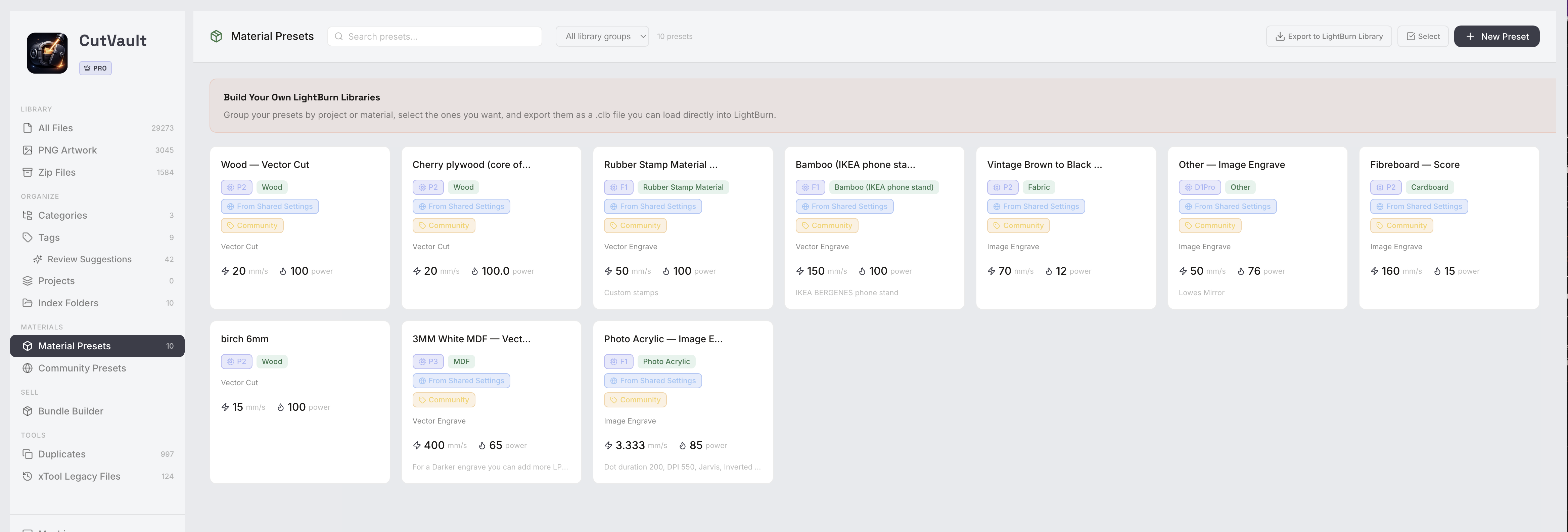
Build your own material preset library.
Organize proven settings by material, machine, operation, thickness, color and more.
Keep the settings you rely on organized like a working recipe library.
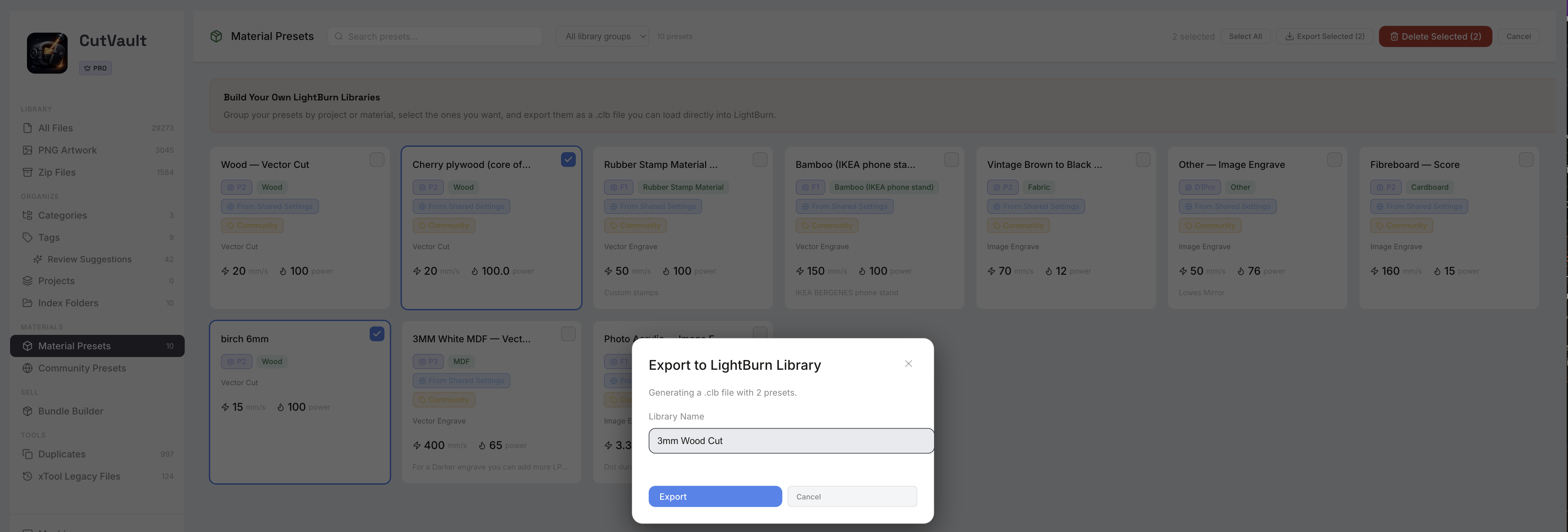
Use your presets in LightBurn and xTool.
Take the settings you saved in CutVault into the software you already use.
LightBurnBuild a LightBurn material library.Choose all presets or a selected set and export them as a named LightBurn material library that can be loaded into LightBurn.
xToolStart from a preset in xTool Creative Space.Use a saved preset as the starting point for an xTool workflow instead of entering the setup again by hand.
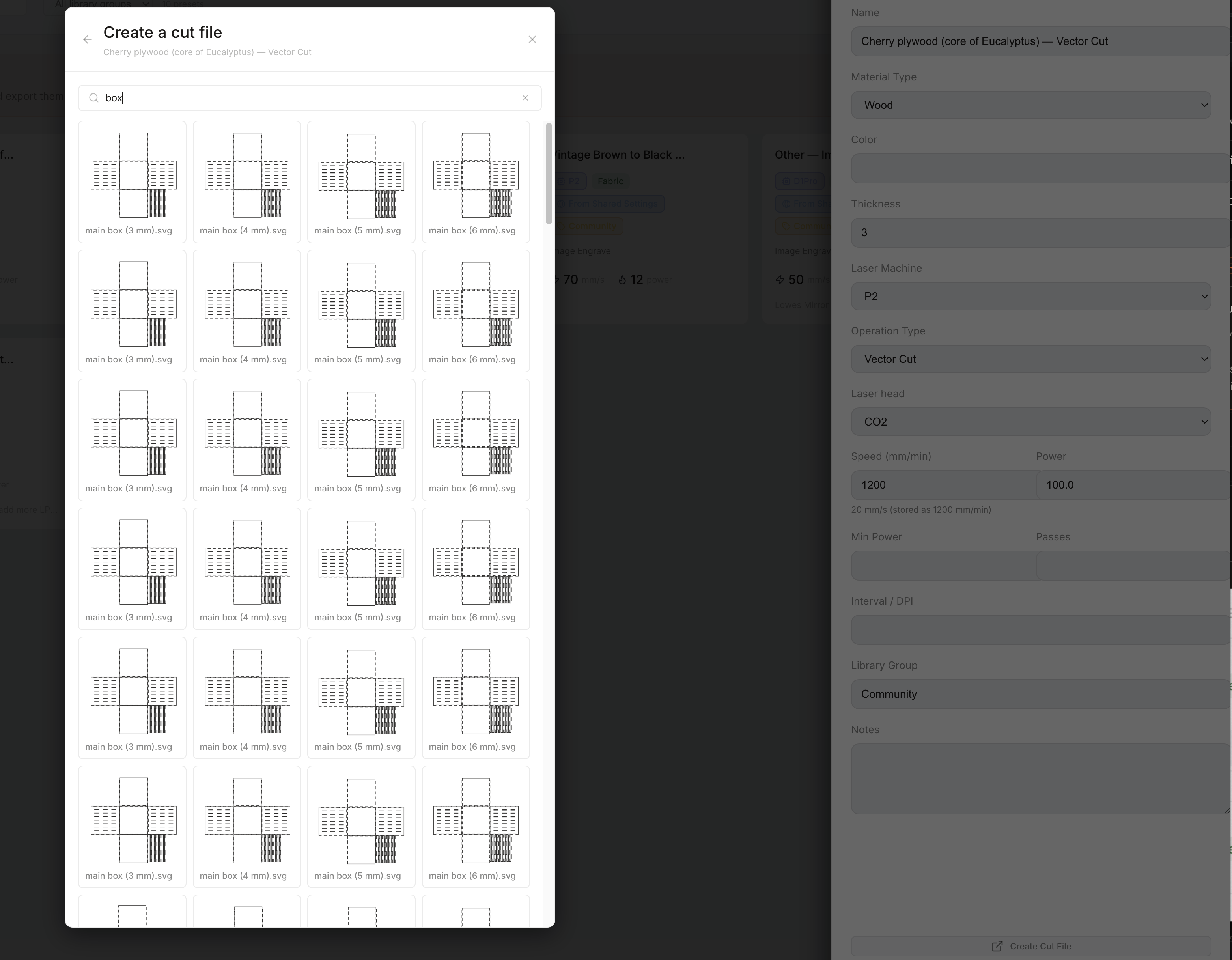
Start the next job with a preset you already trust.
Use a saved preset with another file or new artwork and carry those settings into the next job.
The settings you save in CutVault are meant to be used again, not just stored.
More ways CutVault works with your settings.
Beyond the main workflow, CutVault gives you more ways to manage, refine and use the settings around your work.
Edit settings and add notes
Update settings, add rows and keep notes with the setup when needed.
Keep separate settings for multiple machines
Attach more than one machine to a file and keep each setup separate.
Identify material on supported xTool jobs
Use Identify Material to see which xTool material a supported project was made with.
Find presets fast
Search by name, material, color, thickness, operation, machine, group or notes.
Group presets your way
Organize presets into Library Groups such as Hat Patches, Glass or your own workflow.
Keep a finished-result photo with the preset
Attach a photo so the setting stays connected to the result it produced.
Share settings with the CutVault Community
Share a useful setting with other makers through Community Presets. Every share is reviewed first.
Find a community starting point
Browse shared settings by machine, operation and material, then save one into your own presets.
Community settings are starting points. Machines, materials and setups vary, so test on scrap first.
Works with these features.
Go deeper into the CutVault tools that build on your settings and presets.
Material Presets
Build, search and manage your full library of proven material and machine presets.
Open Material Presets →Community Presets
Browse shared starting points, save them to your presets and share your own settings back.
Open Community Presets →Create Cut File
Use a preset with artwork to prepare the next LightBurn or xTool job.
Open Create Cut File →Machines
Keep machine-specific settings, files and maintenance information organized together.
Open Machines →Library
Find the design, settings and project information you need from one visual workspace.
Open Library →Back to overview
See how Settings fits into the rest of CutVault Pro.
Homepage →Questions about settings.
One time · No subscription
- 7-day free trialNo credit card
- Mac + WindowsUp to 3 computers
- UpdatesFree updates included
01Does CutVault replace LightBurn or xTool software?
No. CutVault works alongside the software you already use. It helps you keep job information organized and makes it easier to return to settings that worked before.
02Can I keep different settings for the same design?
Yes. You can keep separate settings for different machines or setups instead of treating one set of numbers as universal.
03Can I save a setting to use later?
Yes. Proven settings can be saved as CutVault presets and reused as a starting point on other work.
04Are settings guaranteed to work on every machine and material?
No. Machines, materials, lenses and setups vary. Saved and shared settings should be treated as starting points and adjusted when needed.
05Do I need to upload my files?
No. CutVault is a desktop app and your original design files stay in the storage locations you choose.
Stop re-testing settings you already figured out.
Try CutVault with your own files for 7 days and see how much easier it is to start with what already worked.
One-time purchase
CutVault Pro is $169 once. No subscription. Use it on up to 3 computers.
- 7-day free trial · No credit card