
Find it in CutVault. Open it in the software you already use.
Open LightBurn and xTool projects in their own software, and SVG, DXF and PNG artwork in LightBurn, xTool Studio, Inkscape or another installed application that supports the format. Your originals stay on your computer, right where you saved them.
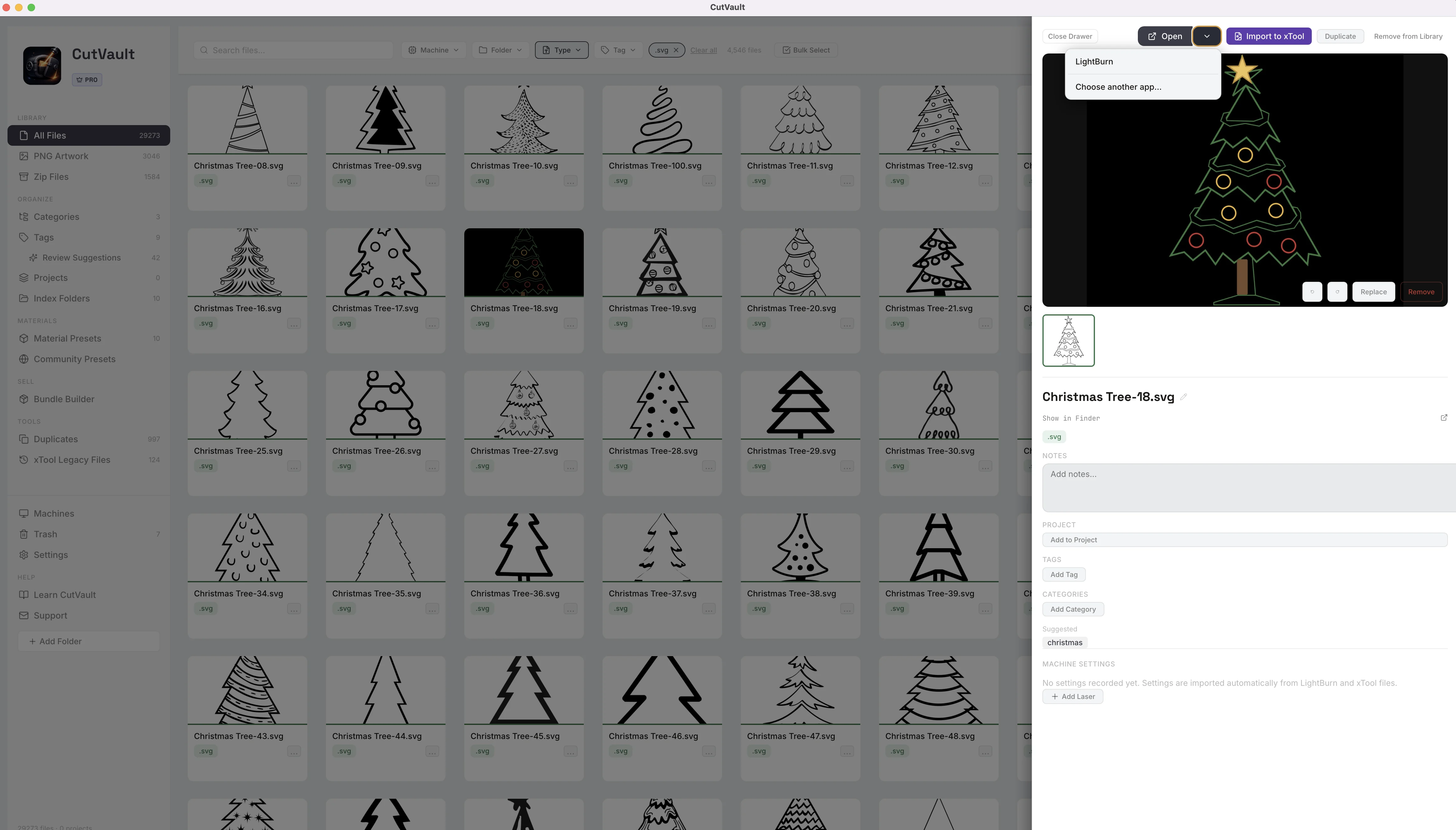
From hunting through Open dialogs to one click from the design.
Once you find a design, getting it into the right software usually means another trip through folders.
Without CutVault
With CutVault Pro
Open project files in LightBurn or xTool software.
Open a LightBurn or xTool project straight from the library in the software that made it, without hunting for it again in an Open dialog.
Portable artwork and where it can open
- PNGEngraving images
- SVGVector artwork
- DXFVector artwork
- LightBurn
- xTool Studio
- Inkscape
- Another compatible appChosen from the apps on your computer
Portable artwork is not tied to one app.
PNG, SVG and DXF artwork can open in LightBurn, xTool Studio, Inkscape or another installed application that supports the format. Pick the one that suits the job.
Choose the app for each file type.
Pick which application opens each file type from a searchable list of the apps installed on your computer. Add more than one app for a type, or open a single file in a different app just this once.
What comes along, workflow by workflow
The image with your saved dither, DPI, speed and power filled in
The image with your machine selected. Set the engraving settings in xTool Studio.
A new LightBurn or xTool Studio file with the preset’s settings applied
The file itself. CutVault settings stay in CutVault.
Know what comes along with each workflow.
Opening a file in a compatible app opens the file itself. CutVault settings come along only in the workflows built for it, and each one is clear about what you get.
Your originals stay where you saved them.
CutVault opens the original from its folder. Show any file in Finder or Explorer, or copy its location, to go straight to it on your drive.
More ways to get a design into your software.
Other CutVault workflows that end in LightBurn or xTool software.
Open from a right-click
Open a design, show it in Finder or Explorer, or copy its location from its right-click menu.
Import SVG and DXF to xTool
Send an SVG or DXF to xTool Studio with the right machine already selected, at its true size.
Save as a LightBurn file
Save a PNG with its engraving settings as a LightBurn project for later.
Open a preset in Creative Space
Open xTool Creative Space with a Material Preset’s settings already loaded.
Presets to LightBurn
Export presets as a named LightBurn material library that loads in LightBurn.
Settings before you open
See the settings from supported LightBurn and xTool projects beside the design.
Works with these features.
Go deeper into the CutVault tools that get a design ready for your software.
Create Cut File
A preset plus artwork, made into a ready-to-run LightBurn or xTool Studio file.
Open Create Cut File →PNG Artwork
Dither, preview and keep engraving settings with each image, then open it in LightBurn.
Open PNG Artwork →Material Presets
Proven settings by material and machine, ready to send to LightBurn or Creative Space.
Open Material Presets →Settings
See the settings from supported LightBurn and xTool projects beside the design.
Open Settings →Library & Search
Every supported design as a thumbnail, ready to open in one click.
Open Library & Search →SVG Files
Every SVG as a thumbnail, with your settings and a cut-file flow.
Open SVG Files →Questions about Open With.
One time · No subscription
- 7-day free trialNo credit card
- Mac + WindowsUp to 3 computers
- UpdatesFree updates included
01Does CutVault replace LightBurn or xTool software?
No. It works alongside them and opens your files in them with one click.
02Do my CutVault settings go with a file I open in another app?
Not automatically. Opening a file in a compatible app opens the file itself. Settings come along only in the workflows built for it, such as opening a PNG in LightBurn with your saved settings, or a file made with Create Cut File.
03Which apps can open my artwork?
PNG, SVG and DXF can open in LightBurn, xTool Studio, Inkscape or another installed application that supports the format. Not every application supports every format.
04What happens when I send a PNG to xTool Studio?
It opens with your selected machine. Set the engraving settings in xTool Studio; they are not transferred from CutVault.
05Can I open one file in a different app?
Yes. Pick another app for that file without changing the app chosen for its file type.
06Does opening a file upload or move it?
No. The original opens from where it is saved. Your design files stay on your computer.
07Is Open With sold separately?
No. Open With is included with CutVault Pro. The $169 one-time price is for the complete CutVault desktop app, not for this feature on its own.
Find the design. Open it in your own software.
Try CutVault Pro free for 7 days and open your designs in LightBurn, xTool software or the app you choose.
One-time purchase
CutVault Pro is $169 once. No subscription. Use it on up to 3 computers.
- 7-day free trial · No credit card