Organize hundreds of designs at once.
Select many designs in the library, then add a tag or category, assign a machine, add them to a project or move them to Trash. One action covers the whole selection, so you are not repeating the same step one design at a time.
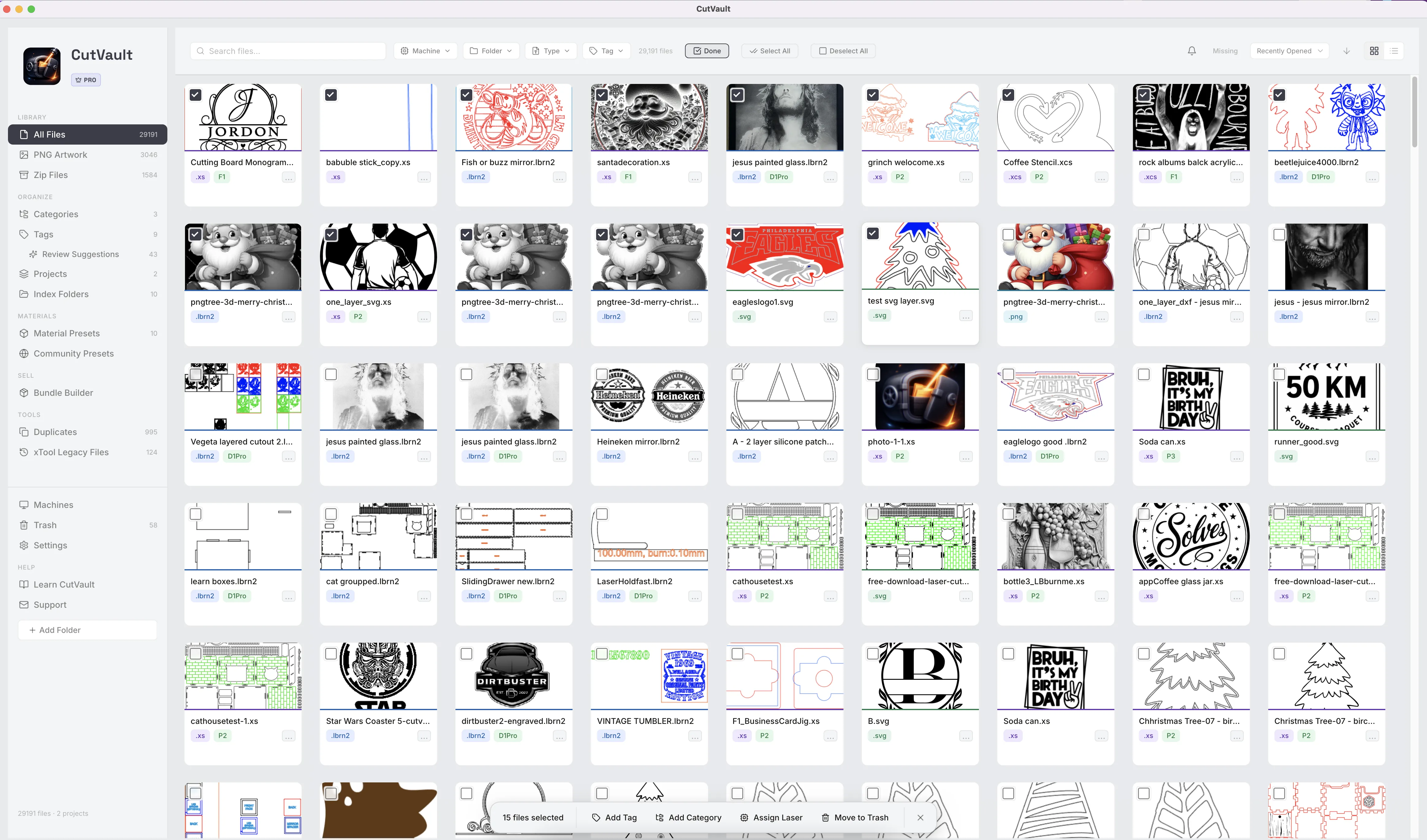
From one design at a time to the whole selection at once.
A new bundle or a big download can add hundreds of designs that all need the same tag, category or machine.
Without CutVault
With CutVault Pro
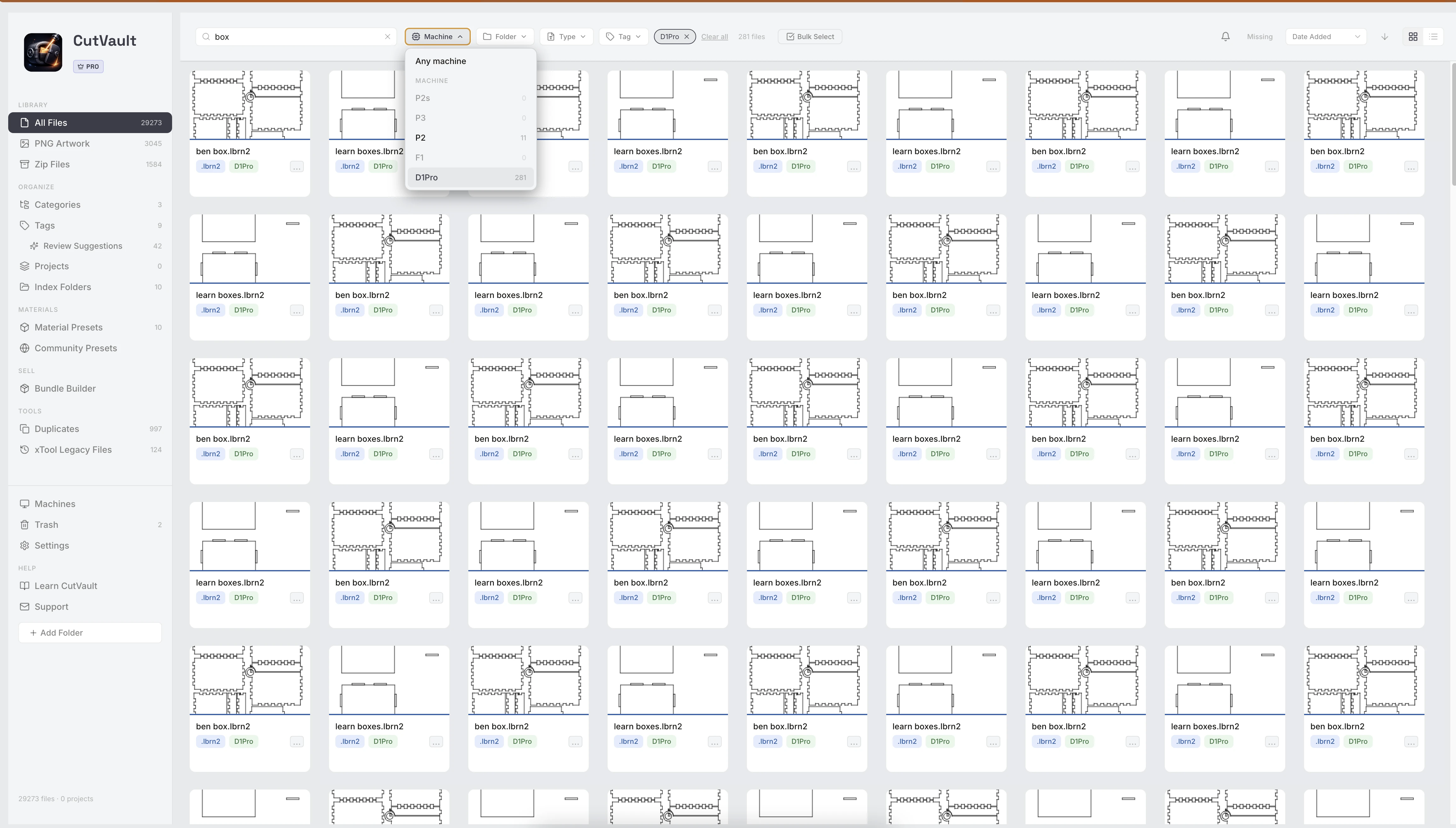
Select the designs you want to change.
Turn on Bulk Select and tick the designs you want, pick a whole range, or use Select All. Search or filter first to bring the designs you need together.
Four designs selected, one action each
- mountain-tumbler.svgCustomer orders
- pumpkin-coaster.lbrn2Fall
- wedding-sign.xcsDownloads / bundle-22
- ornament-set.dxfChristmas
4 designs tagged and filed. The files stay in their folders.
Tag and categorize the whole selection.
Add a tag or a category to every selected design in one step. When the tag or category does not exist yet, create it from the right-click menu without leaving the library.
Assign a machine to many designs at once.
Choose a laser for the whole selection and each design shows that machine on its card. Filter the library by the machine later to see every design that belongs to it.
Add a selection to a project.
Gather every design for one job or customer order into a project in one step, where its finished photos and assets are kept too. Create a new project from the right-click menu if the job does not have one yet.
Move to Trash: what happens next
Moving designs to Trash does not delete them from your drive.
Clear out a selection you can still get back.
Move the selected designs to CutVault Trash in one action. Anything in Trash can be restored, and deleting a file from your drive is a separate step with its own confirmation.
More ways to work on many at once.
Other places in CutVault where one action covers many items.
Right-click a selection
The same actions on a right-click, plus creating a new tag, category or project on the spot.
Add many files to a category
Pick designs from a list with search, a folder filter and thumbnails, and add them in one go.
Approve suggested tags in batches
Apply a suggested tag to every design listed, or only the ones you tick, and undo the latest batch.
Export or delete many presets
Select presets together to export them as a LightBurn material library or move them to Trash.
Clear extra copies in one pass
Clear hundreds of extra copies at once, with one copy in each group always kept.
Create many tags or categories
Type a comma-separated list to create them all at once.
Works with these features.
Go deeper into the CutVault tools your bulk actions feed.
Tags
Tag designs in your own words and find every design with a tag, in any folder.
Open Tags →Categories
Put one design in several categories, nested as deep as you need.
Open Categories →Projects
Keep the designs, finished photos and assets for one job or order together.
Open Projects →Machines & Maintenance
Each machine with its own designs, settings and service history.
Open Machines →Search & Filters
Bring the designs you want together before you select them.
Open Search & Filters →Build from Folders
Turn the folders you already sorted into categories, without moving a file.
Open Build from Folders →Questions about Bulk Actions.
One time · No subscription
- 7-day free trialNo credit card
- Mac + WindowsUp to 3 computers
- UpdatesFree updates included
01Does a bulk action change my design files?
No. Adding a tag, category, machine or project does not move, rename or change the files on your drive.
02What happens when I move a selection to Trash?
The designs go to CutVault Trash and can be restored. Deleting a file from your drive is a separate action with its own confirmation.
03Can I select designs from different folders and drives?
Yes. Select from anywhere in All Files, whatever folder or drive the files are saved in.
04Can I create a new tag, category or project while designs are selected?
Yes. The right-click menu lets you create a new tag, category or project on the spot.
05Where else can I work on many items at once?
Material Presets, Categories, Duplicates and Review Suggestions in Tags each have their own ways to act on many items together.
06Are Bulk Actions sold separately?
No. Bulk Actions are included with CutVault Pro. The $169 one-time price is for the complete CutVault desktop app, not for bulk actions on their own.
Sort the next bundle in one pass.
Try CutVault Pro free for 7 days and tag, file and assign a whole folder of designs with a few actions.
One-time purchase
CutVault Pro is $169 once. No subscription. Use it on up to 3 computers.
- 7-day free trial · No credit card