
Your UV printer’s files,recipes and jobs,in one app.
CutVault Pro supports the xTool O1 Omni alongside your lasers. Add it as a UV Printer, and supported xTool files show their print recipe next to the design: print mode, ink mode, DPI, thickness, gloss, curing power and more. Keep the finished photo, the customer’s logo and the job together, and log the printer’s maintenance.
From recipes in a notebook to recipes beside the file.
A UV print that came out right depends on a dozen settings. Six weeks later, the notebook page is hard to find.
UV printing from memory
With CutVault Pro
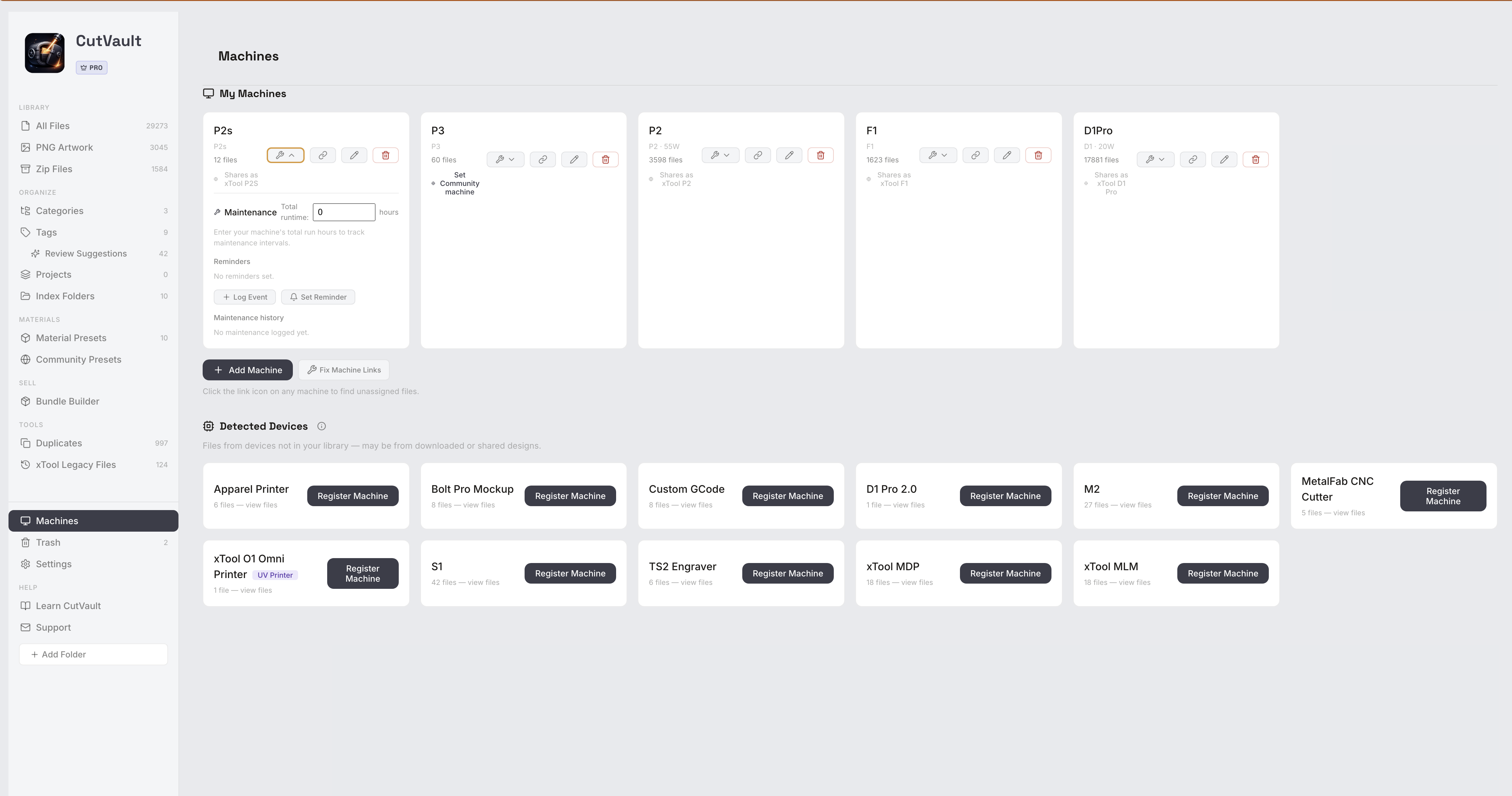
Add the O1 Omni as a UV Printer.
Set up each machine once with its name, wattage and the software it runs, and choose Laser or UV Printer. The O1 Omni gets its own badge and its own file count, next to any lasers you run.
StandoutLasers and the UV printer, one libraryAny machine that runs xTool software or LightBurn gets the full experience, and the O1 Omni is supported as a UV printer.
The print recipe, on the file that used it.
Open a supported xTool file made for the O1 Omni and its print recipe shows on the Settings page: print mode, ink mode, DPI, thickness, gloss, curing power, white ink, ink saving, high-speed print and frame size. Nothing to copy out by hand.
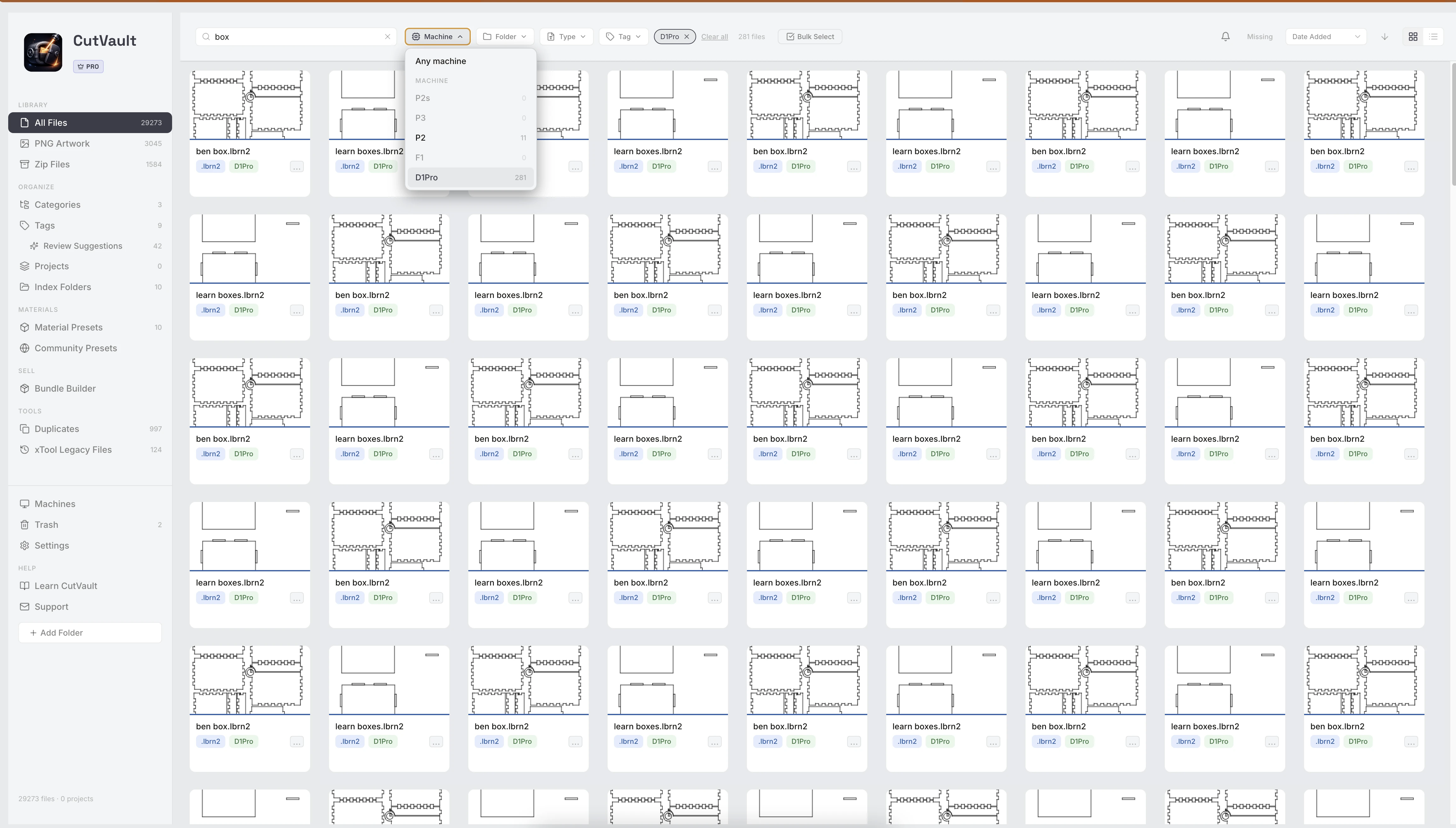
Every file for the printer, in one click.
The O1 Omni’s machine card shows how many files belong to it. Search by file name, tag, project or note, and link every matching file to the machine in one click.
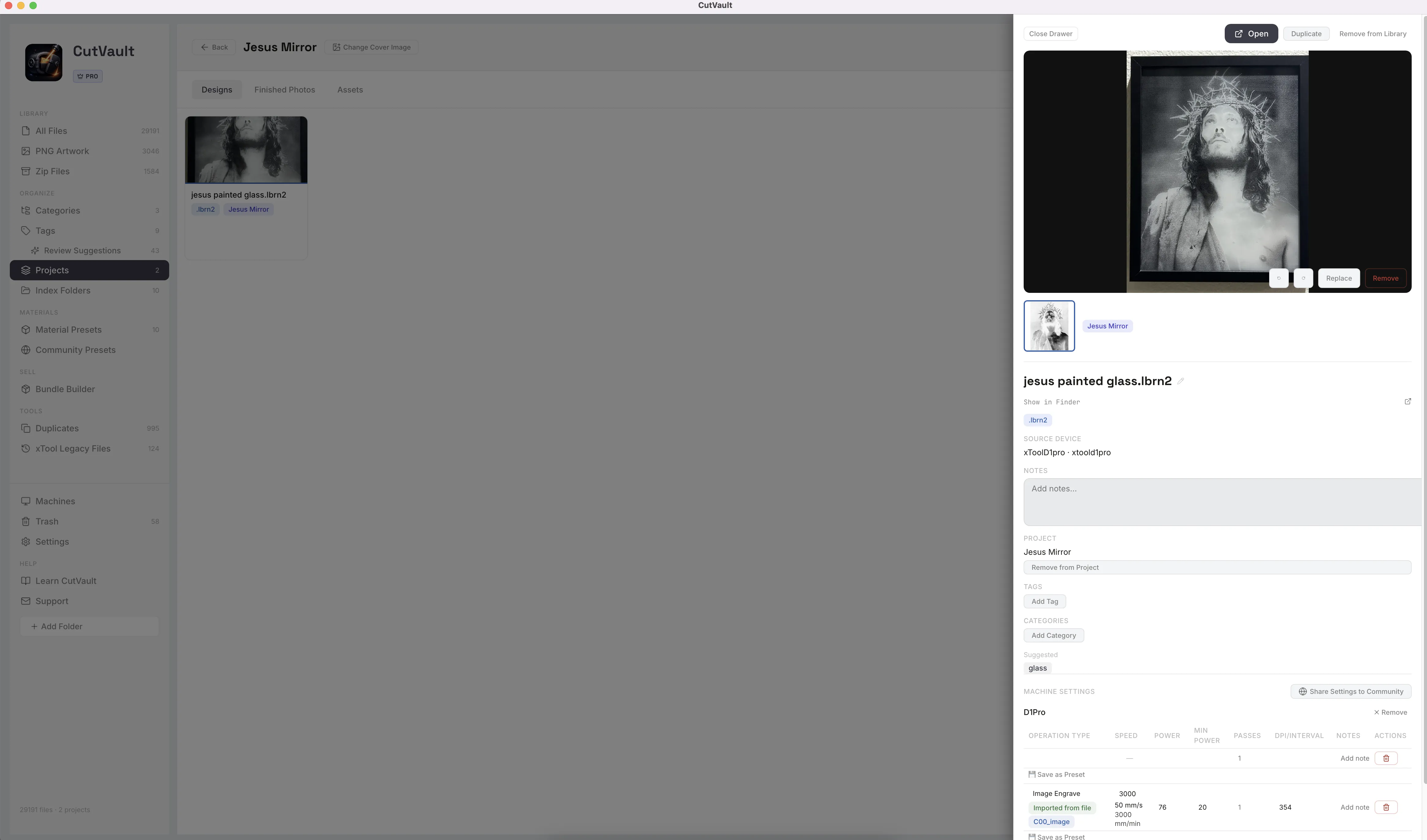
The whole job, from logo to finished piece.
A project holds the design files, the customer’s logo or mockup and the photos of the finished print, so a repeat order opens in one place. Add a finished photo to any design and it shows on the card in the library.
A service history for the printer.
Log clean head, calibrate, replace a part or any other job on the O1 Omni, each with a date, notes and the machine’s run hours at the time. Set run-hour reminders so the next service is not a surprise.
Works with these features.
Go deeper into the CutVault tools that serve a shop with an xTool UV printer.
Machines & Maintenance
Each machine, its files and its service history.
Open Machines →Settings
What each supported xTool file ran with, for each machine.
Open Settings →Projects
One job or order, files and photos together.
Open Projects →Finished Photos
The finished piece on every card.
Open Finished Photos →xTool Legacy Files
Older xTool versions kept out of the way.
Open xTool Legacy Files →Back to overview
See how the UV printer fits into the rest of CutVault Pro.
Homepage →Questions from UV printer users.
One time · No subscription
- 7-day free trialNo credit card
- Mac + WindowsUp to 3 computers
- UpdatesFree updates included
01Which UV printer does CutVault support?
The xTool O1 Omni, added as a UV Printer in Machines. CutVault 1.8.8 covers lasers and the xTool UV printer; it does not cover CNC, 3D printing or vinyl cutting.
02What does CutVault show for an O1 Omni file?
The print recipe from a supported xTool file: print mode, ink mode, DPI, thickness, gloss, curing power, white ink, ink saving, high-speed print and frame size, beside the design’s thumbnail.
03Can I run lasers and the UV printer in the same library?
Yes. Each machine has its own card and file count, and the Machine filter shows one machine’s files at a time.
04Does CutVault send a job to the printer?
No. CutVault keeps the files, recipes, photos and maintenance for the printer; printing happens in xTool’s software.
05Do my files get moved?
No. They stay in the folders you add, on your computer, an external drive or a synced cloud folder, and are never renamed or uploaded.
Lasers and the UV printer, one command center.
Try CutVault Pro free for 7 days with the O1 Omni files you already have.
One-time purchase
CutVault Pro is $169 once. No subscription. Use it on up to 3 computers.
- 7-day free trial · No credit card