
Find the design by what you remember, not just the filename.
Search every folder and drive in your library at once by file name, layer and canvas names, machine, project, tag, category or note. Then narrow the results by machine, folder, type and tag, and sort them the way you work.
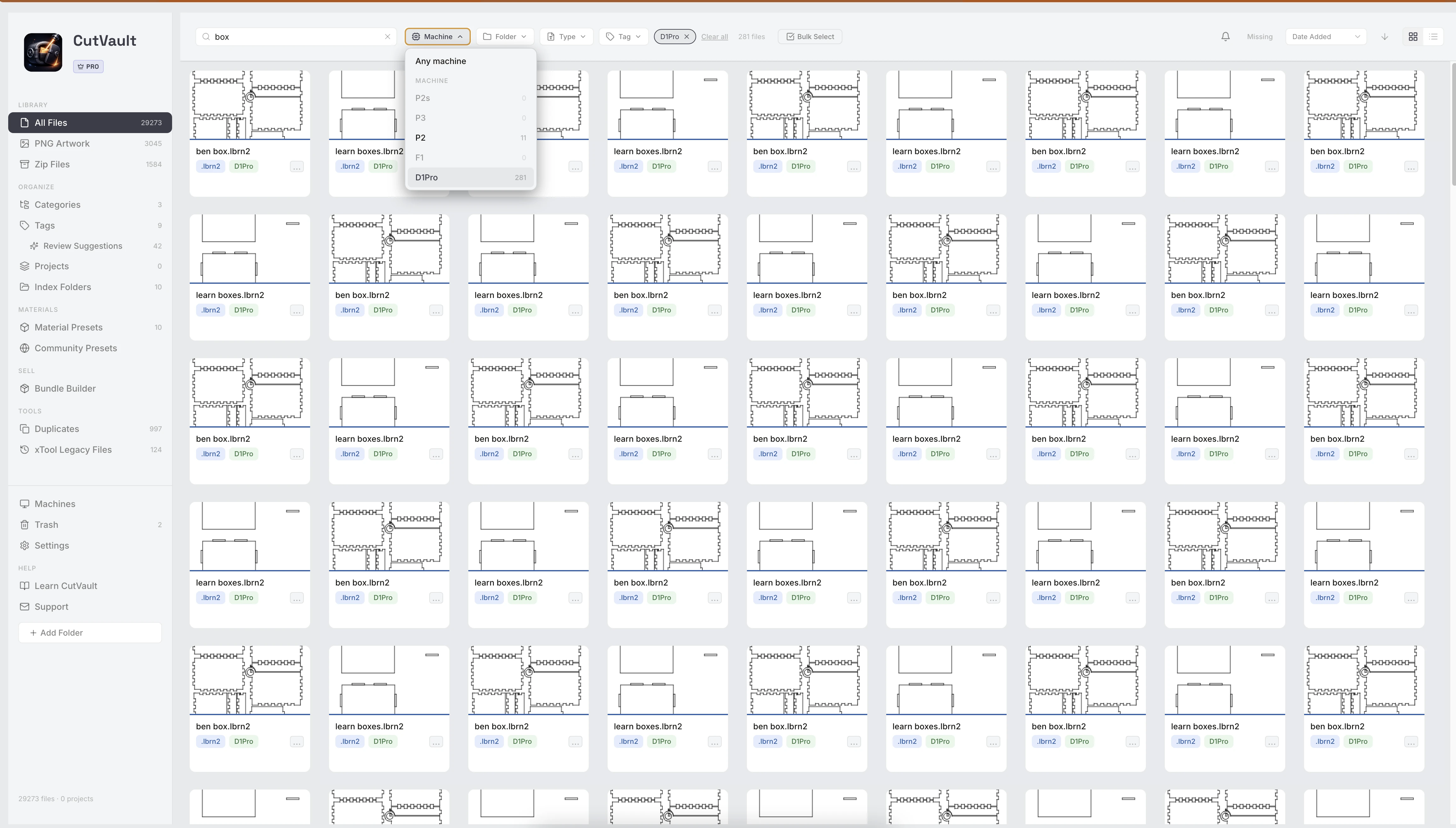
From guessing the file name to finding the design.
The file name is rarely what you remember about a design. A layer name, a tag or the customer’s project usually is.
Without CutVault
With CutVault Pro
One search, different things remembered
- design_042.lbrn2Layer: cutting board engrave
- walnut-handle.svgTag: cutting board
- smith-order-07.xcsProject: Smith cutting boards
None of these file names mention a cutting board.
Type what you remember. Find the design.
Results appear as you type, across every folder and drive in your library. Search by file name, layer and canvas names, machine, project, tag, category and note.
Four filters, alone or together.
Filter by machine, folder, file type and tag, one at a time or combined with a search. Every option shows how many files it would find, and options with no results are greyed out.
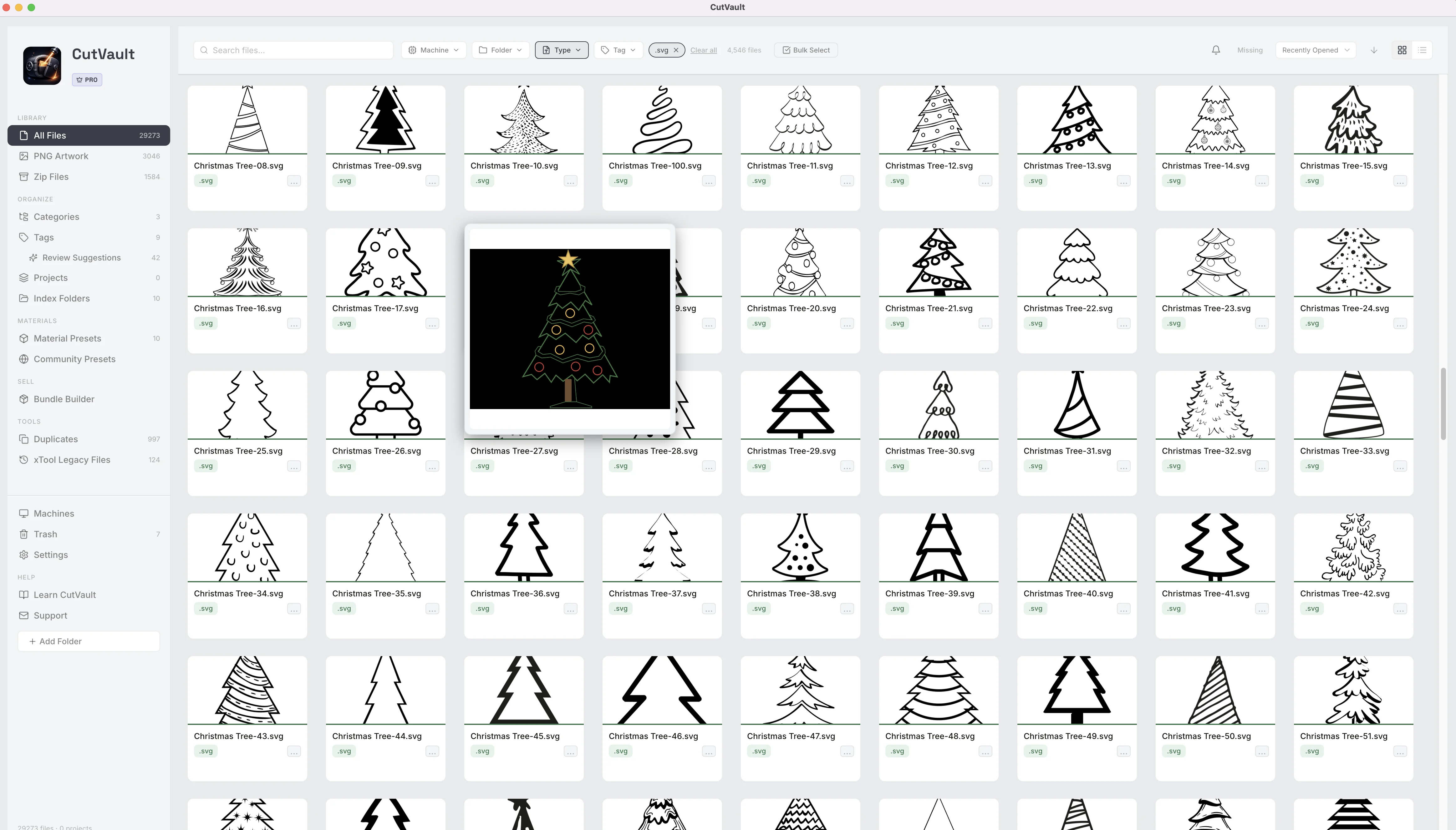
Sort the way you work.
Sort by date added, name, file type or recently opened, in either direction, and switch between grid and list view. The library reopens with the filters, sort and view you left on.
Search in other parts of CutVault
Search beyond All Files.
PNG Artwork, Zip Files, Material Presets, Community Presets and Duplicates each have their own search, so an engraving image, a design inside a bundle or a saved preset is found the same way.
More ways to find the right design.
Smaller tools that help you find a design in a big library.
Missing filter
Show the designs that can no longer be found where they were saved. They are flagged, never deleted.
A running file count
The number of files found shows beside the filters as you narrow down.
Find it on your drive
Show a result in Finder or Explorer, or copy its location.
Jump to search
A keyboard shortcut takes you straight to the search box.
Hover previews
Hover over a result for a large preview without opening the file.
List view columns
List view shows name, type, folder, project, size and date for each result.
Works with these features.
Go deeper into the CutVault tools that give search more to work with.
Library & Search
Every supported design as a thumbnail, in one library across your folders and drives.
Open Library & Search →Tags
Tag designs in your own words, then search or filter by them.
Open Tags →Categories
Put one design in several categories, nested as deep as you need.
Open Categories →Folders & Drives
Add the folders and drives you already use, and leave the files where they are.
Open Folders & Drives →Machines & Maintenance
Each machine with its own designs, so the machine filter shows the right ones.
Open Machines →Bulk Actions
Select what you found and tag, file or assign it in one action.
Open Bulk Actions →Questions about Search & Filters.
One time · No subscription
- 7-day free trialNo credit card
- Mac + WindowsUp to 3 computers
- UpdatesFree updates included
01Can I search by more than the file name?
Yes. Search by layer and canvas names, machine, project, tag, category and note as well as the file name.
02Does one search cover every folder and drive?
Yes. It covers every folder and drive in your library, and results appear as you type.
03Can I combine filters?
Yes. Machine, folder, type and tag filters work alone or together, and with a search.
04What can I sort by?
Date added, name, file type or recently opened, in either direction.
05Does CutVault remember my filters?
Yes. The library reopens with the filters, sort and view you left on.
06How do I find designs that were moved or deleted outside CutVault?
Turn on Missing to see the designs that can no longer be found where they were saved.
07Do PNG artwork and ZIP bundles show up in search?
PNG Artwork and Zip Files have their own areas, each with its own search. You can also choose PNGs to show in All Files.
08Are Search & Filters sold separately?
No. Search & Filters are included with CutVault Pro. The $169 one-time price is for the complete CutVault desktop app, not for search on its own.
Find the next design without the file name.
Try CutVault Pro free for 7 days and search your own folders by layer, tag, project or note.
One-time purchase
CutVault Pro is $169 once. No subscription. Use it on up to 3 computers.
- 7-day free trial · No credit card